Journal entry
NovelAI Diffusion V4.5 Full Release
NovelAI Diffusion V4.5 just released, bringing all of the enhancements we got in V4.5 Curated to the new Full model.
NovelAI Diffusion V4.5 has greatly improved image quality and fidelity, compared to its predecessor V4. We have updated and extended our dataset, introducing the latest additions to the Full version. Prompt comprehension and multi-character prompt separation are both further improved upon, as well.
Back when we built V4 Full on top of V4 Curated, the model unfortunately lost some of its more obscure knowledge, but this time, we have avoided this effect and NovelAI Diffusion V4.5 Full is just as smart as the Curated version, if not smarter!
Inpainting is unfortunately taking a little longer than expected, so rather than delay the release, we decided to let NovelAI Diffusion V4.5 Full use V4 Full’s inpainting model for now. We will release the proper V4.5 Full Inpainting model soon. Image to Image and Enhance are, of course, unaffected and are using V4.5 Full proper. Vibe Transfer for NovelAI Diffusion V4.5 Curated and Full will be released in the coming weeks. We will also be working on a text generation update.
NovelAI Diffusion V4.5 Curated and Full are available now. We’re excited for you to try out the improvements we’ve made!
**Model Comparison
**During internal testing, we let testers compare generations of V4.5 Curated and V4.5 Full in a blinded setting (testers do not know which image was generated by which model) over three different tasks:
- Choose between two images with the prompt visible and pick the one you like better.
- Choose between two images with the prompt invisible and pick the one you like better.
- Choose between two images and pick the one which follows the prompt better
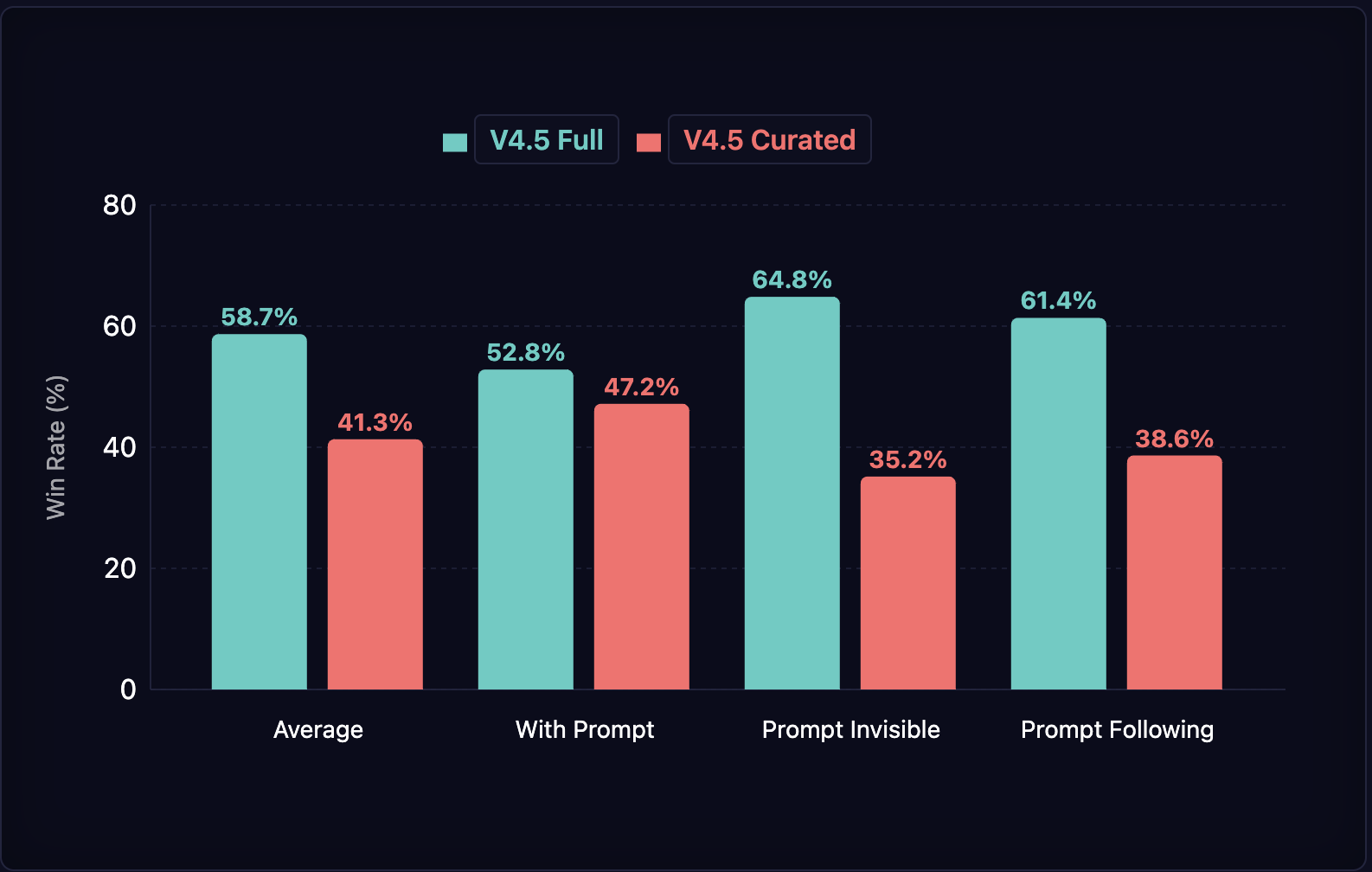
In all tasks, NovelAI Diffusion V4.5 Full has outperformed, showing off its especially strong performance on prompt following and general aesthetics when the prompt was hidden.
**Emphasis and Negative Numeric Emphasis
**Due to changes to the architecture and improvements to how we apply emphasis, with V4.5 the usable range of emphasis has been expanded quite a bit. During testing, we find that outputs remain reasonably stable even with numeric emphasis values up to and even beyond 10.
It also becomes possible to use negative emphasis values with the numeric emphasis syntax. While it may not be immediately obvious how this could be used, it opens up many new possibilities.
Firstly, it can often be used as a more effective way of negative prompting. If you have a character that usually wears a hat that you want them to take off, often a “-1::hat ::” can be enough to make it disappear. If the hat proves to be more stubborn, you can just ask more strongly for it to disappear like this: -3::hat ::
However, negative emphasis is not limited to just removing objects from your image. It can also effectively prompt for the opposite of what a tag represents. For example, if you find that your image is lacking color, “-1::monochrome ::” will usually bring the painter’s palette right back. If you find your generated image to be lacking in fine detail, something like “-2.5::flat color ::” or “-6::simple illustration ::” can fancy it right up. If your characters end up in a white void, “-1::simple background ::, location” or something in that vein should help them find their way back to some less ethereal locale.
**Old, New and Changed Tags
**With V4.5, some new tags make their debut, an existing tag from V4.0 gets renamed and a lot of familiar ones return. Let’s start with the renamed one.
The “top aesthetic” tag is no more. It has been renamed to the familiar “masterpiece” tag from the old days. Looking at discussions between users, we noticed that the old and gone “masterpiece” tag still kept showing up in prompts, despite not being effective any longer, while the “top aesthetic” tag remained relatively unknown, so we decided to rename it.
There is also a new tag we made. It is called “location” and already showed up in an example in the previous section. This tag works like a combination of the “indoors” and “outdoors” tags and indicates that your image should show some kind of location without having to specify which of the two it should be.
Of course, the “fur dataset” tag is still around, for those who enjoy their art more on the furry side. As usual, this tag needs to be placed at the very start of the base prompt for best results.
Similarly, a tag called “background dataset” can be placed at the start of the prompt to generate landscapes, animal portraits, still lifes and other images without people in them in a photographic style.
As usual, you can also use our usual set of quality and aesthetics related tags:
- Quality tags: best quality, amazing quality, great quality, normal quality, bad quality, worst quality
- Aesthetics tags: masterpiece, very aesthetic, aesthetic, displeasing, very displeasing
- Year tags in the format “year 2025” to bias the style to the ones most prevalent during a specific year
- “no text” to avoid unwanted texts and logos
If you type “artist:” in the prompt box, you will now get a few suggestions like our own ainiwaffles and a number of old masters whose styles the model will recognize. The latter tend to go well with the “fine art” tag.
**Text on Images
**We have made some changes to how prompting for text works. For V4.5, it shouldn’t be necessary anymore to make your text all uppercase as was often the case with V4.0. Instead, we recommend the following. Include the “text, english text” tags in your prompt. At the end of your base prompt, put “ Text: …” where “…” is the text you want included in your image. If you want multiple separate pieces of text, separate them with an empty line. You can type newlines in the prompt field with Shift+Enter. The most important thing is that “Text:” needs to be at the very end of your prompt. If it isn’t, any tags or natural language parts of the prompt following it may show up in your image!
Putting all text in the base prompt is probably the most reliable way to do it, but putting “Text:” in character prompt boxes should work too. To further improve reliability, you can also repeat your text in a natural language part of your prompt.
For best results, keep your texts within 120 characters or shorter, including whitespace.
Here is an example:
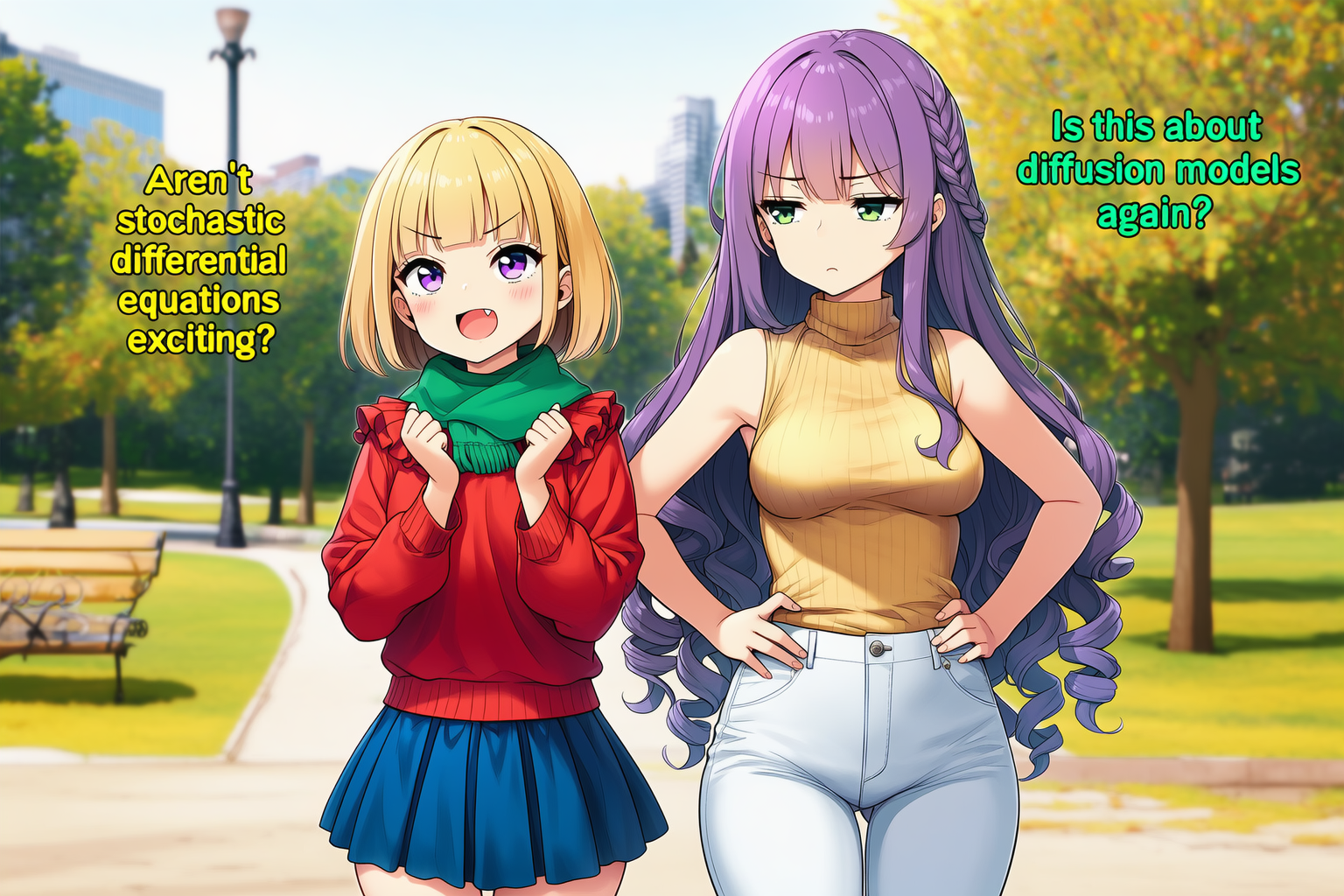
2girls, text, english text, location, park, cowboy shot, -1::speech bubble::, looking at another, masterpiece, best quality, rating:general. The blonde girl is excitedly asking “Aren’t stochastic differential equations exciting?” in yellow text and the purple haired girl is responding “Is this about diffusion models again?” in green text, a bored expression on her face. Text: Aren’t stochastic differential equations exciting?
Is this about diffusion models again?
| 1girl, purple eyes, short hair, ruffled blouse, red blouse, blonde hair, blue skirt, pleated skirt, green scarf, blunt bangs, fang, small breasts, long sleeves, bob cut
| 1girl, very long hair, purple hair, curly hair, golden shirt, full body, green eyes, white jeans, turtleneck sweater, hands on own hips, sleeveless turtleneck, side braid, medium breasts, sleeveless
**Gallery
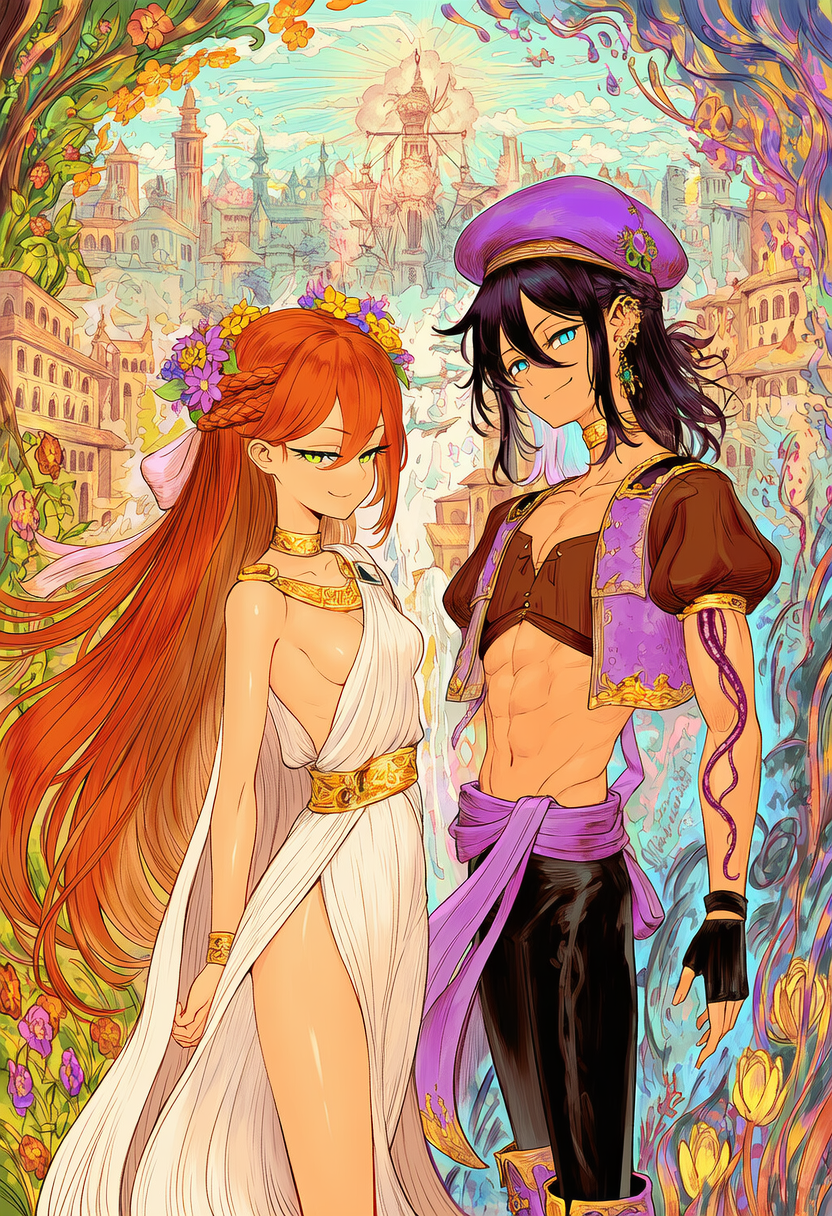
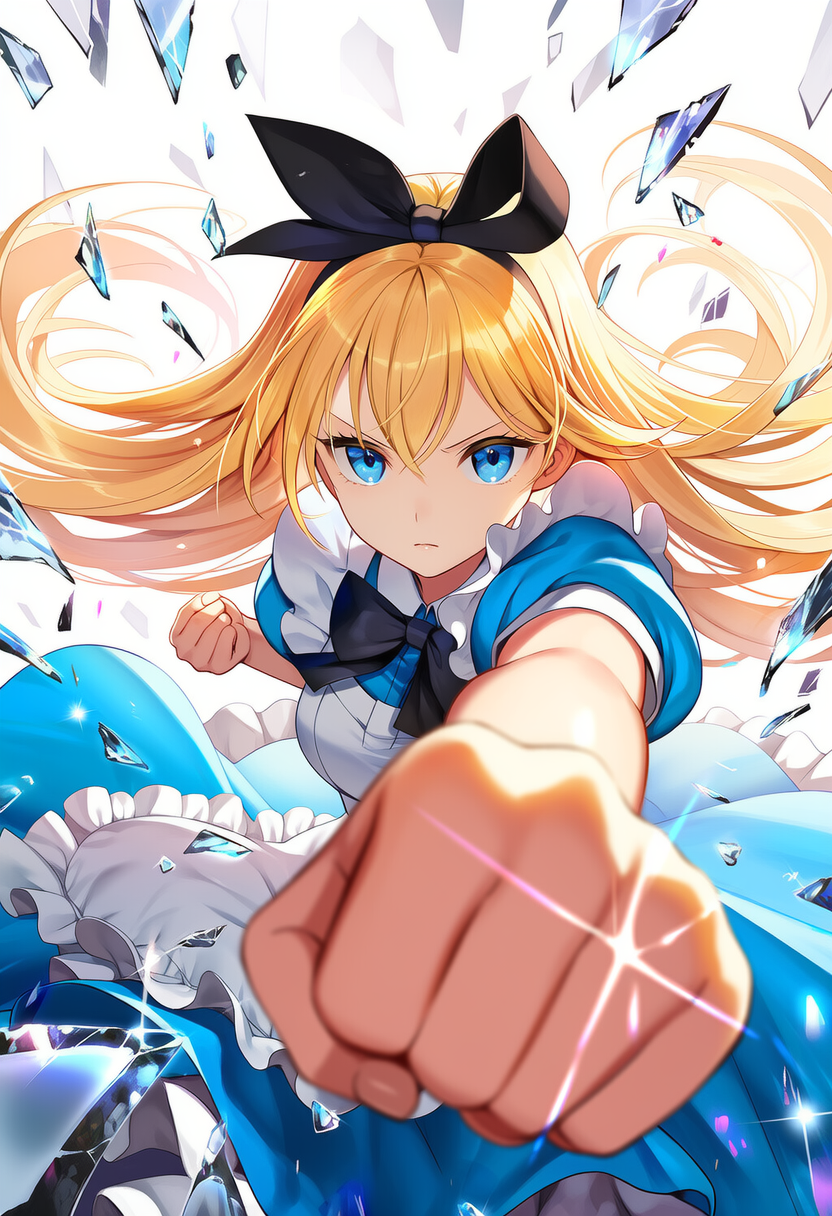
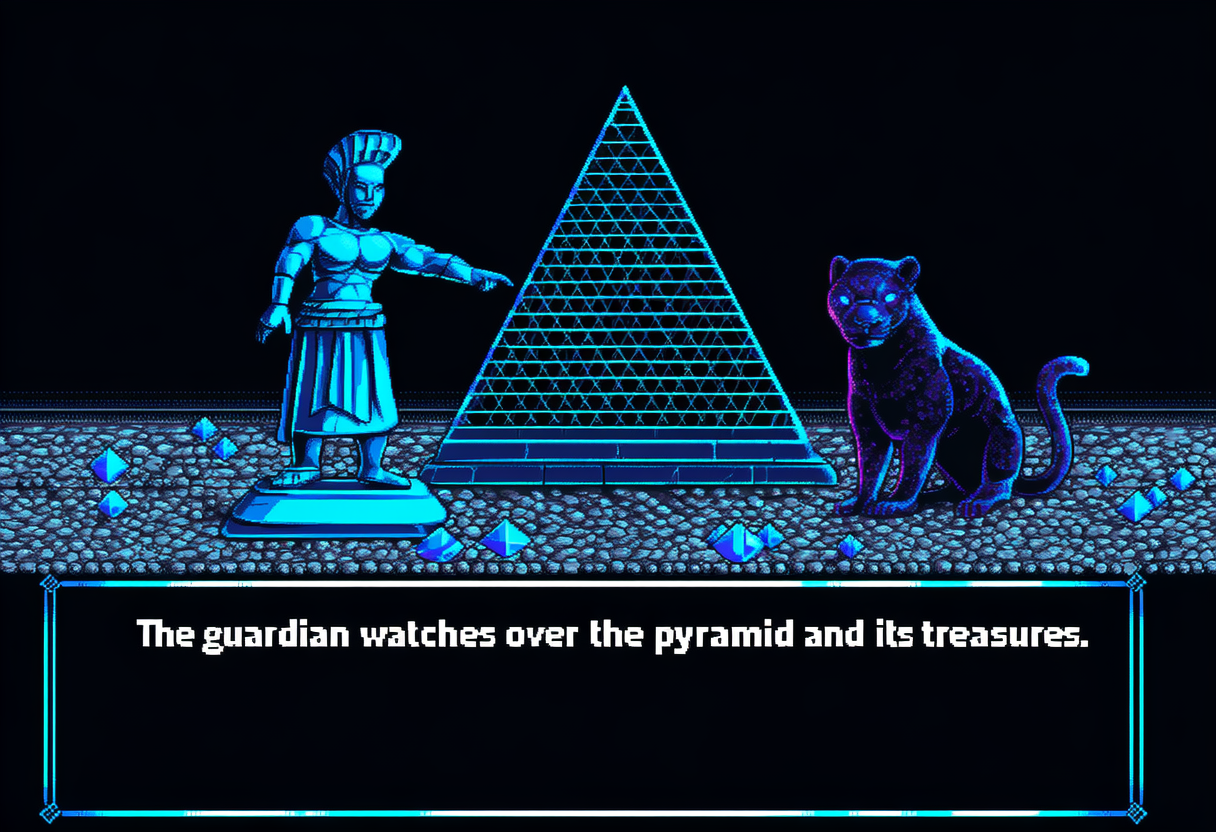
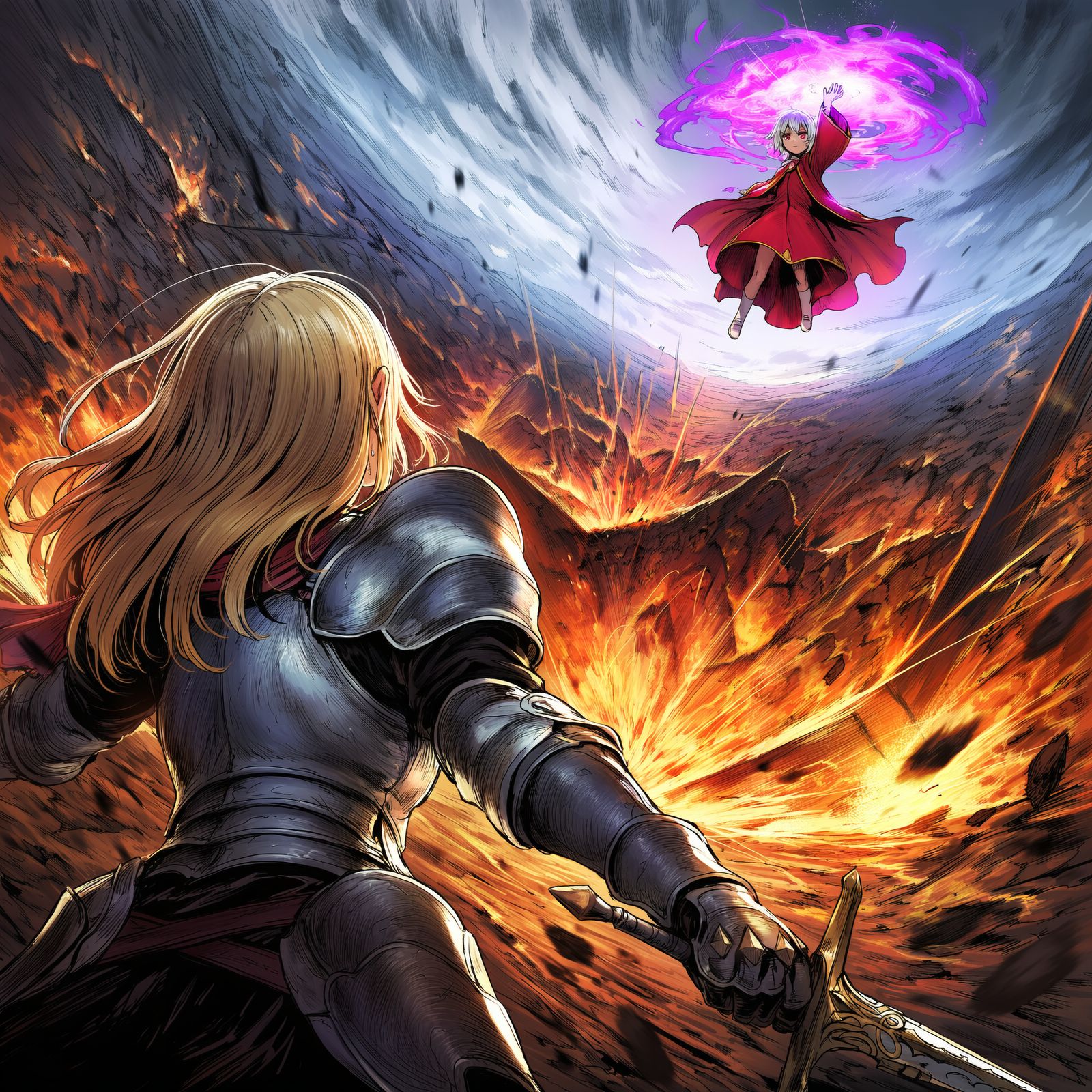
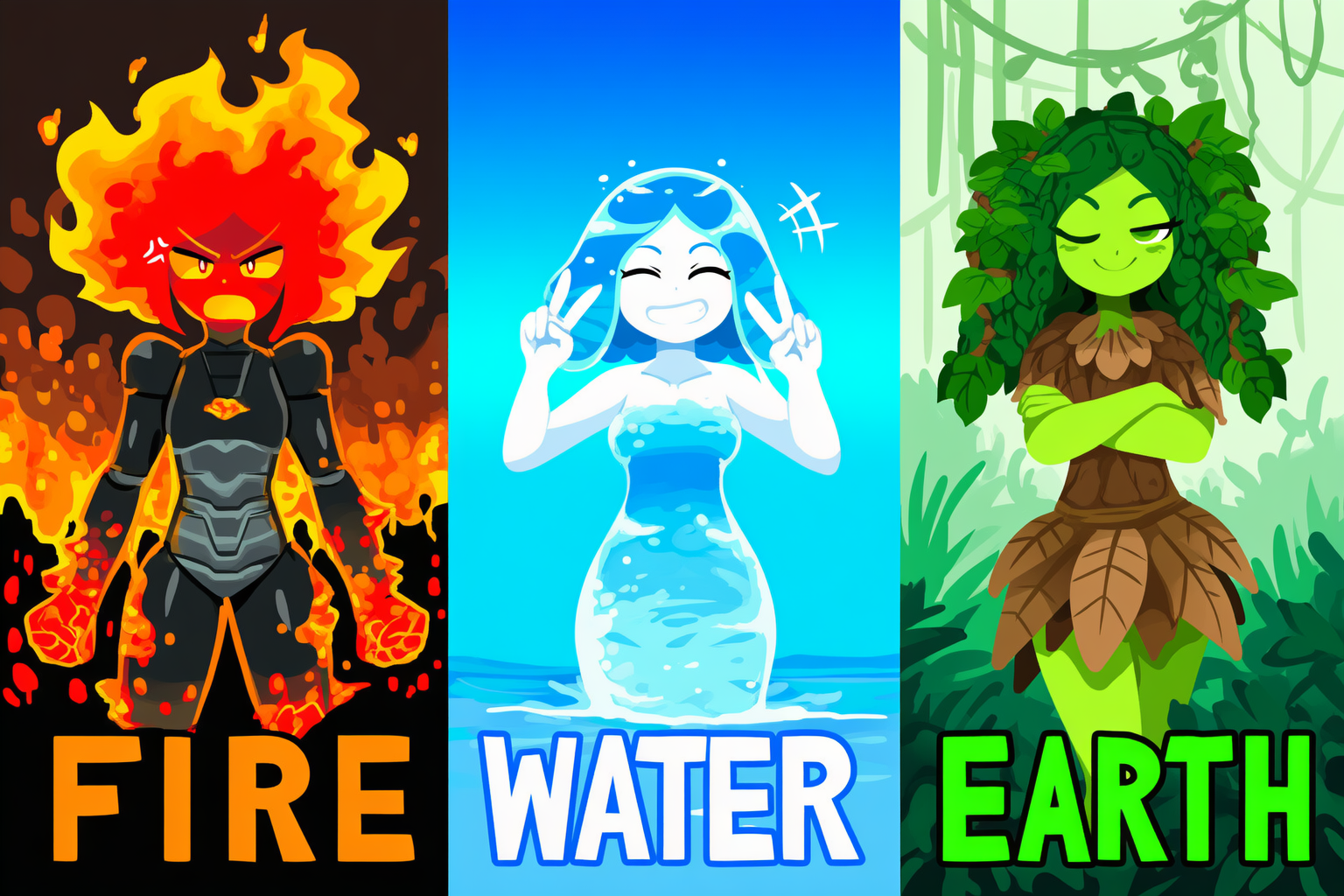
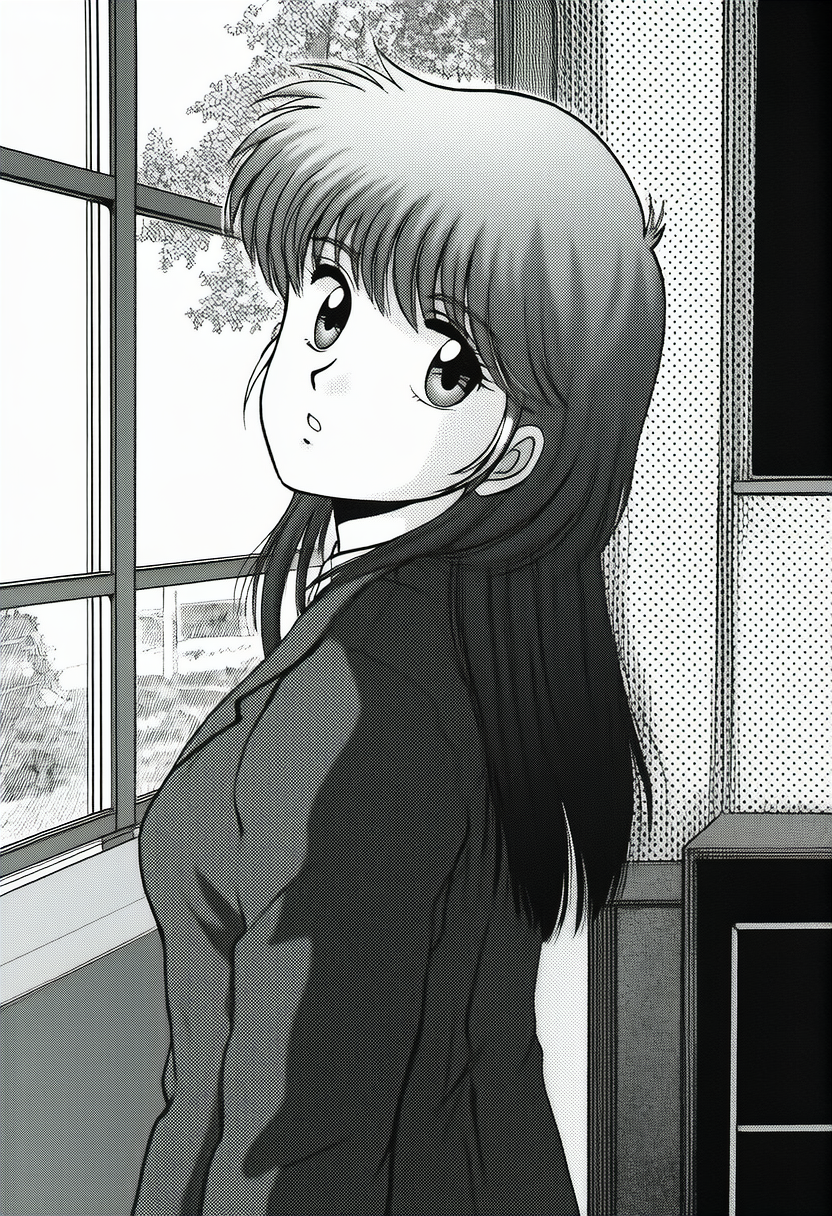
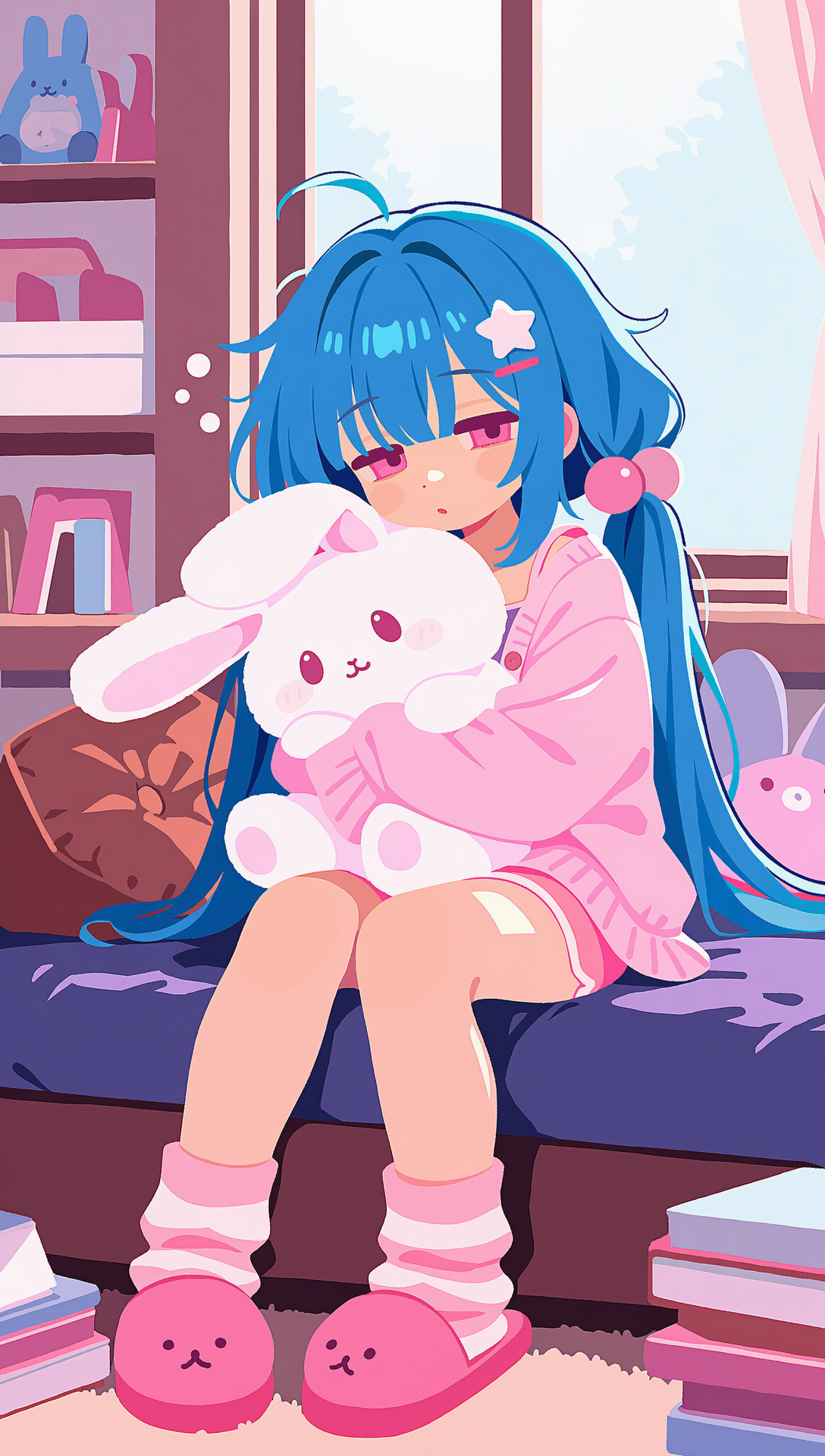
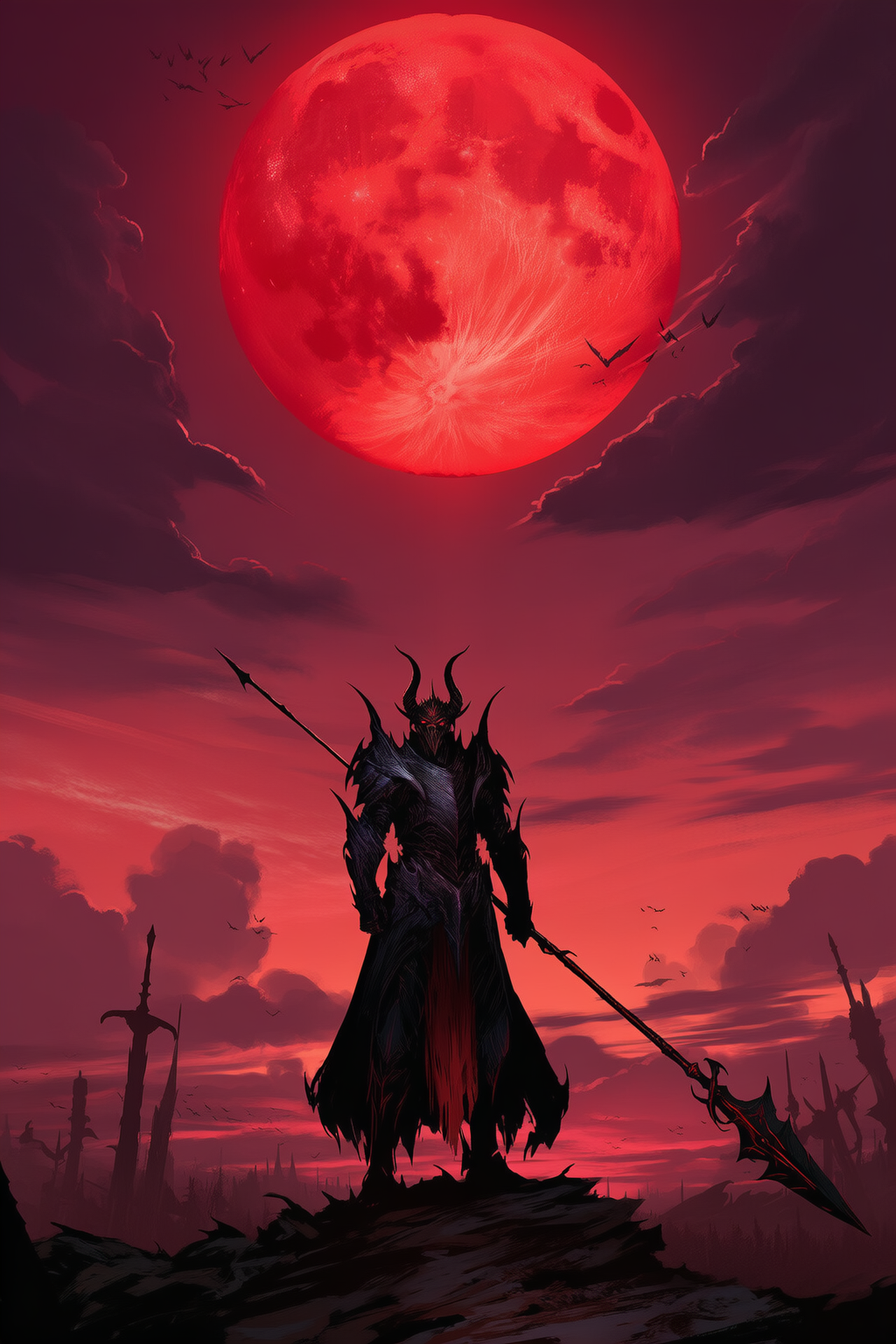
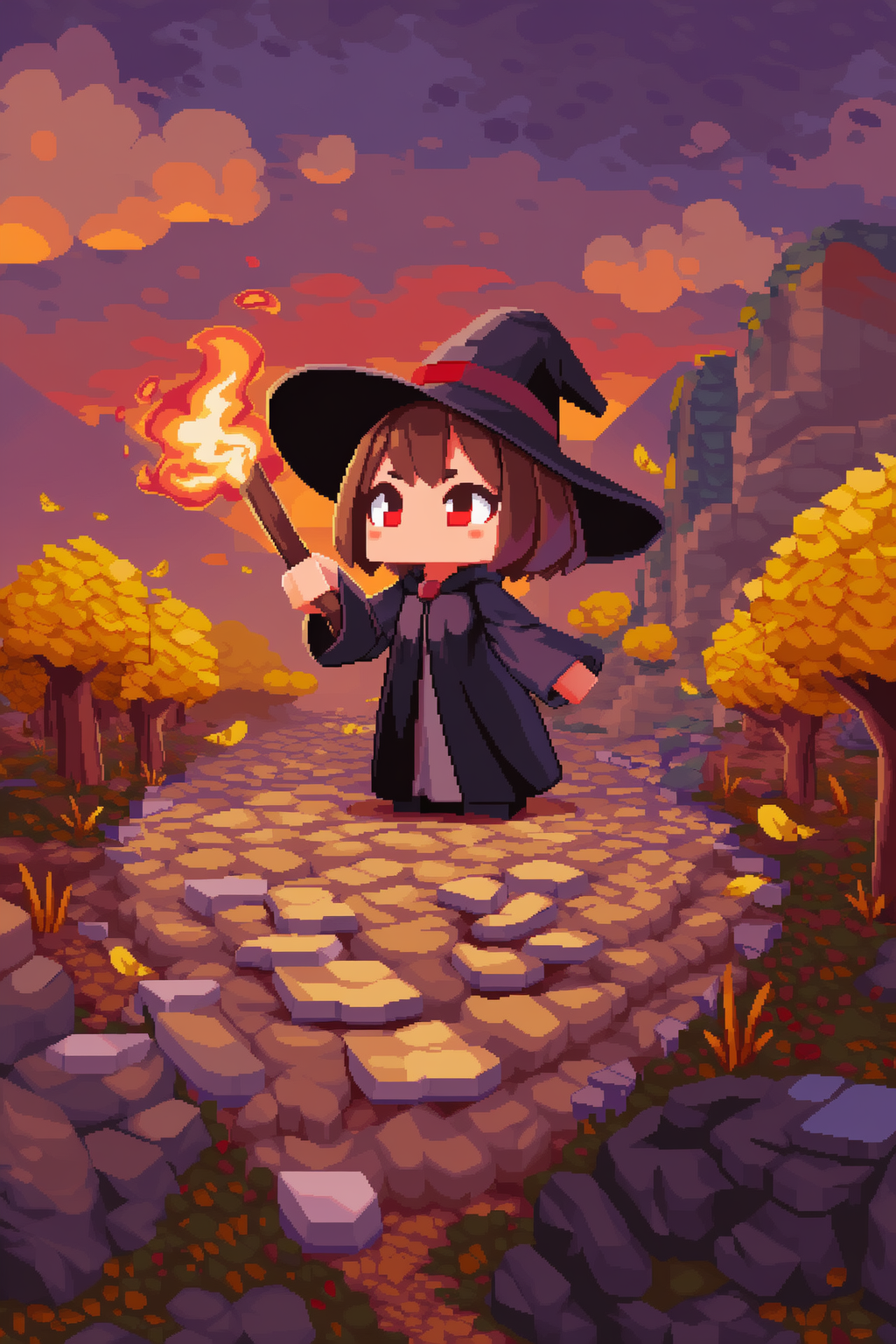
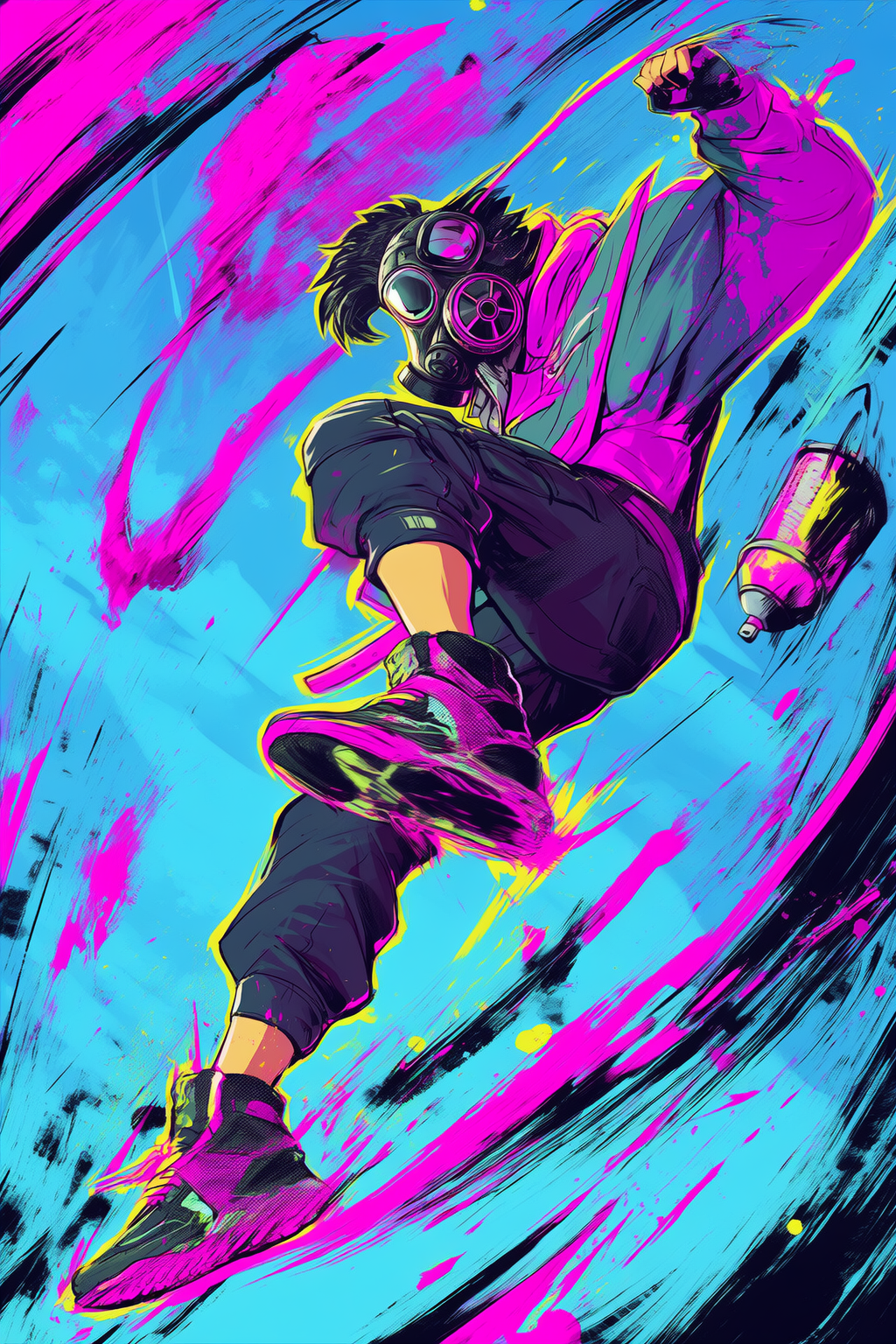
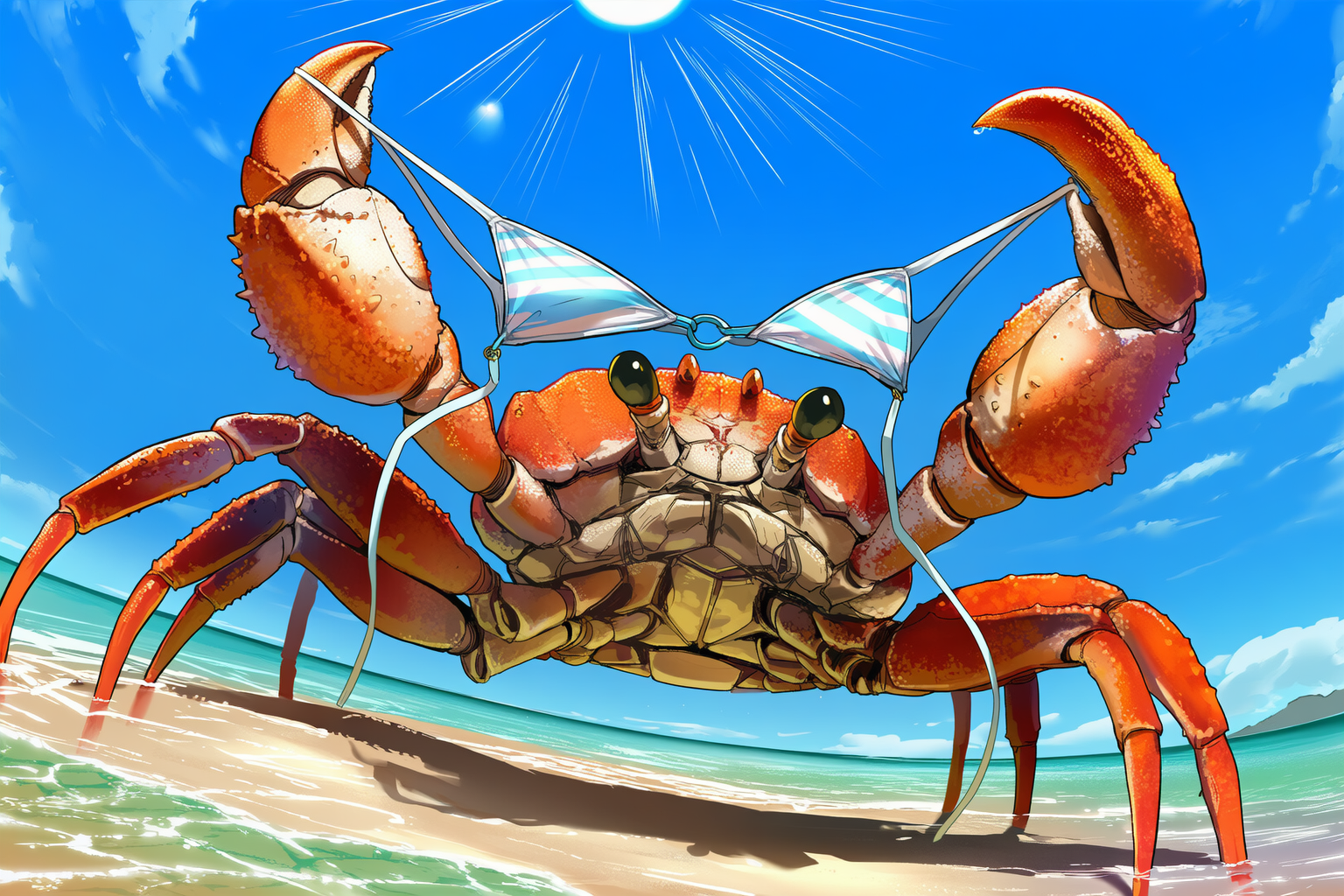
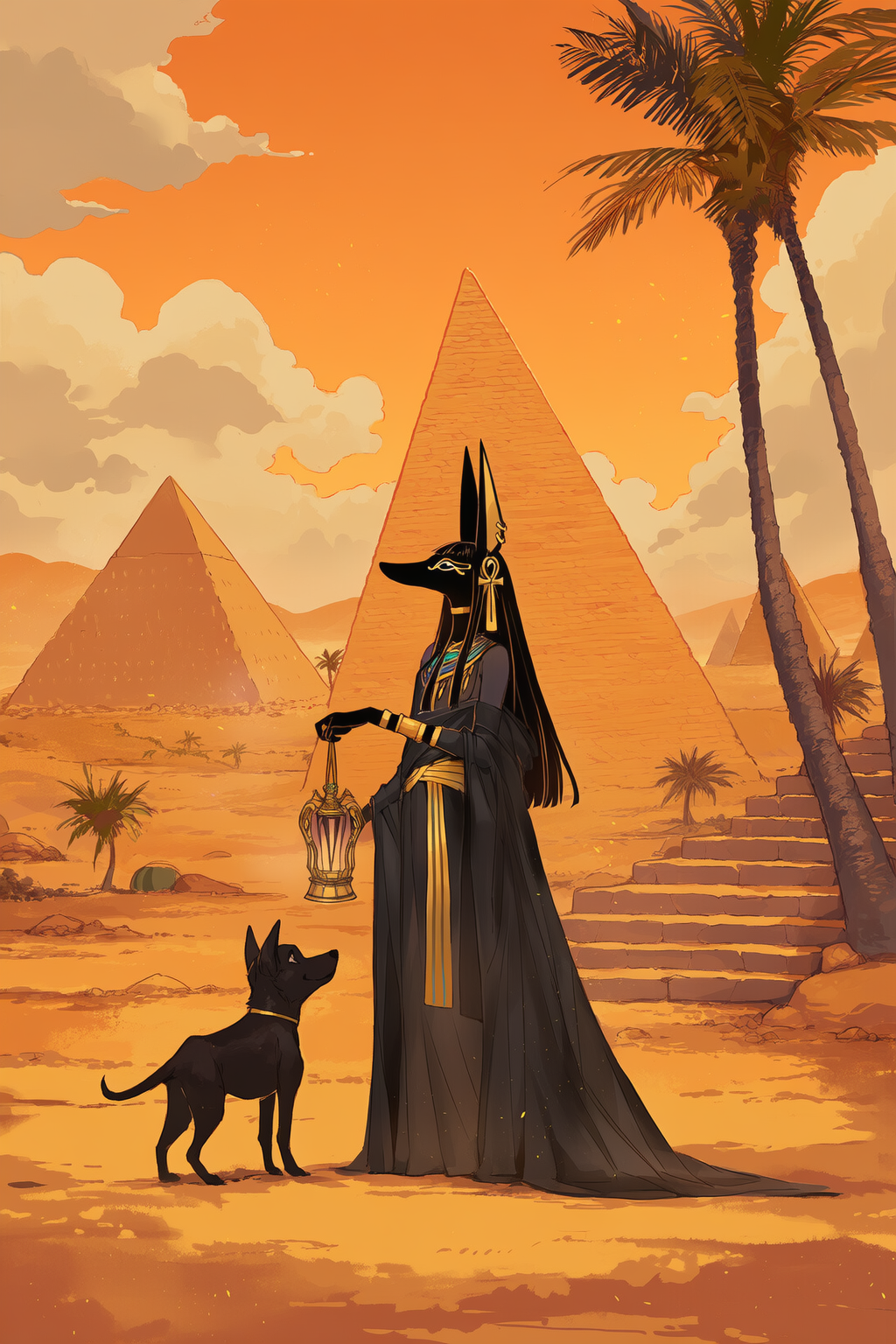
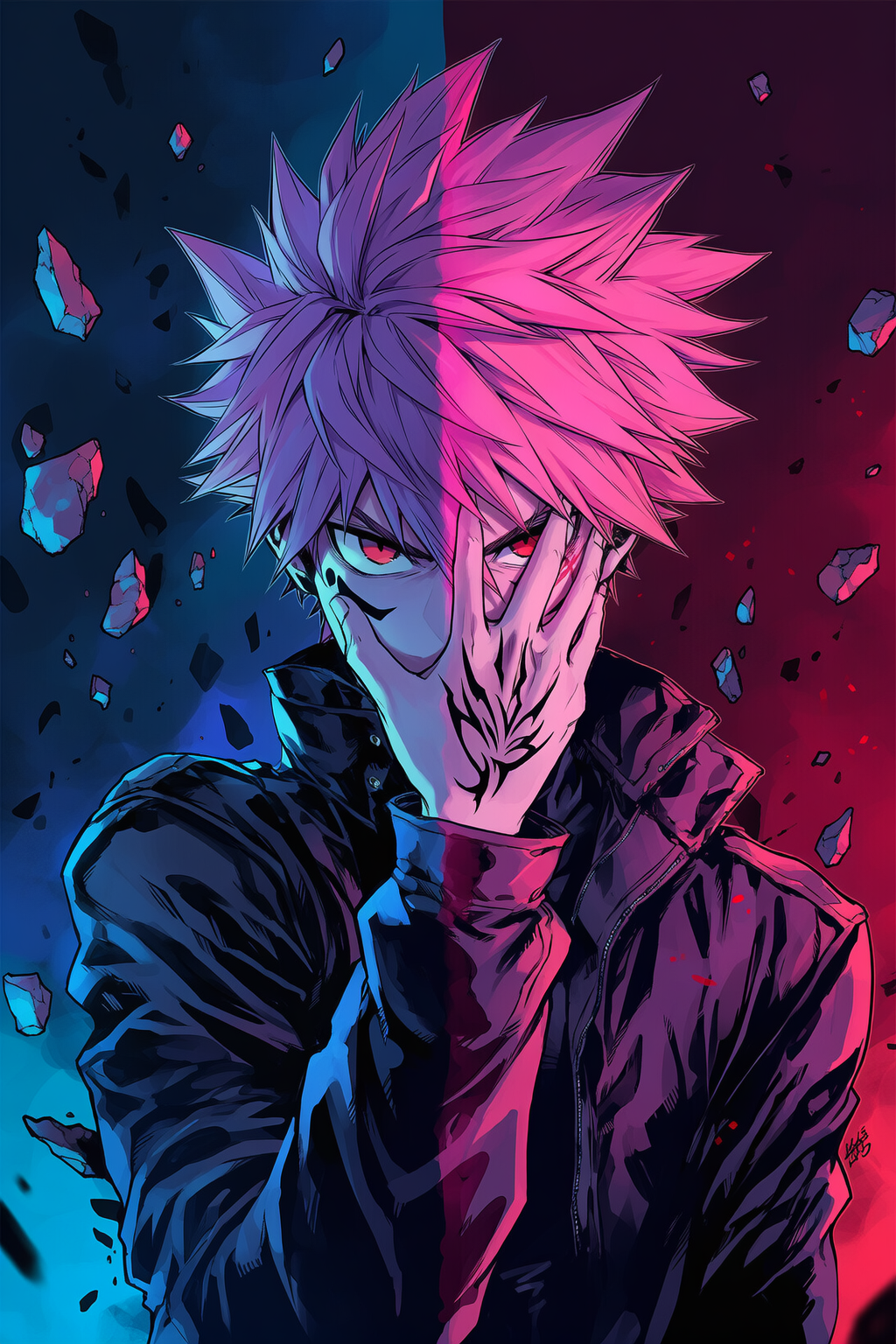
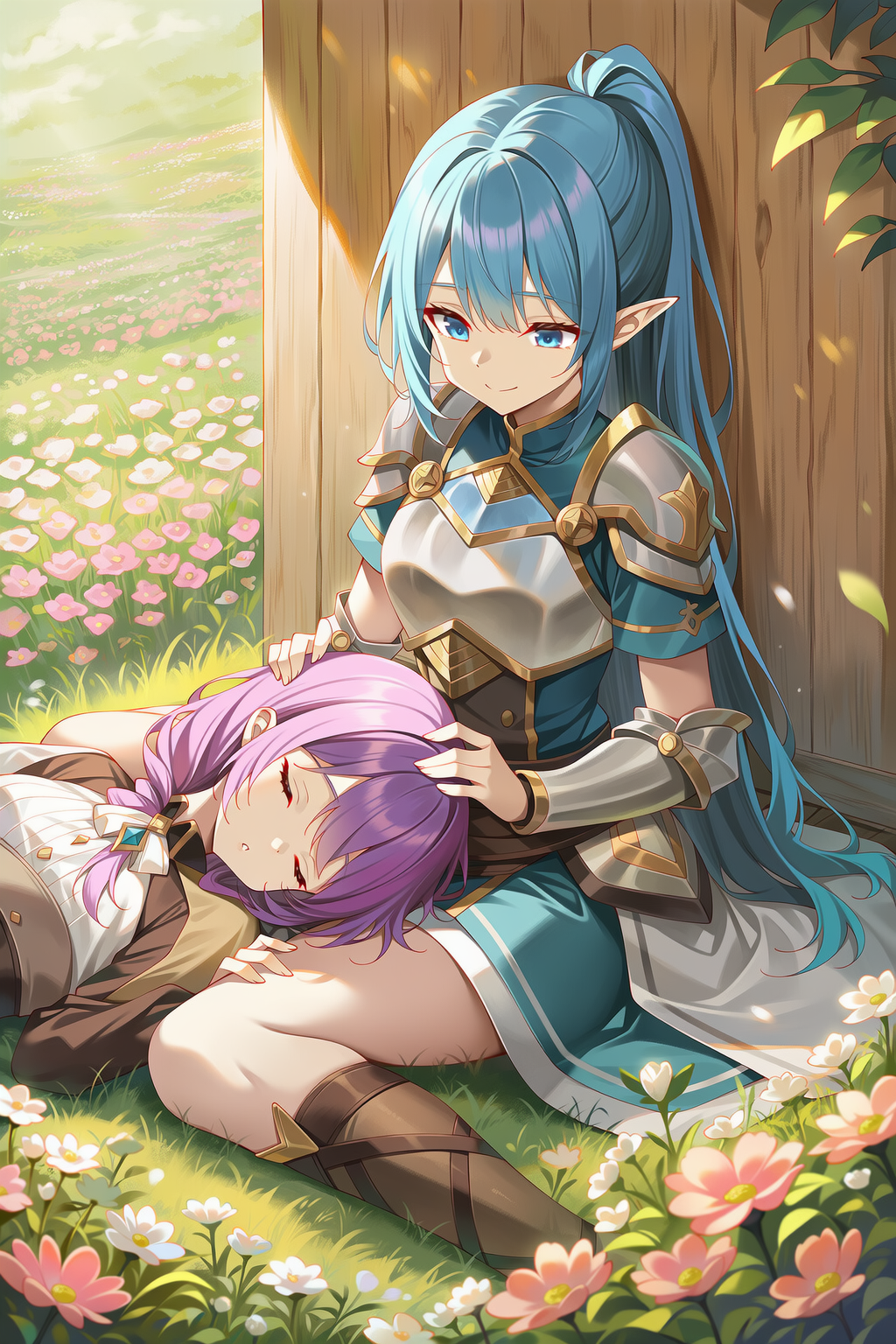
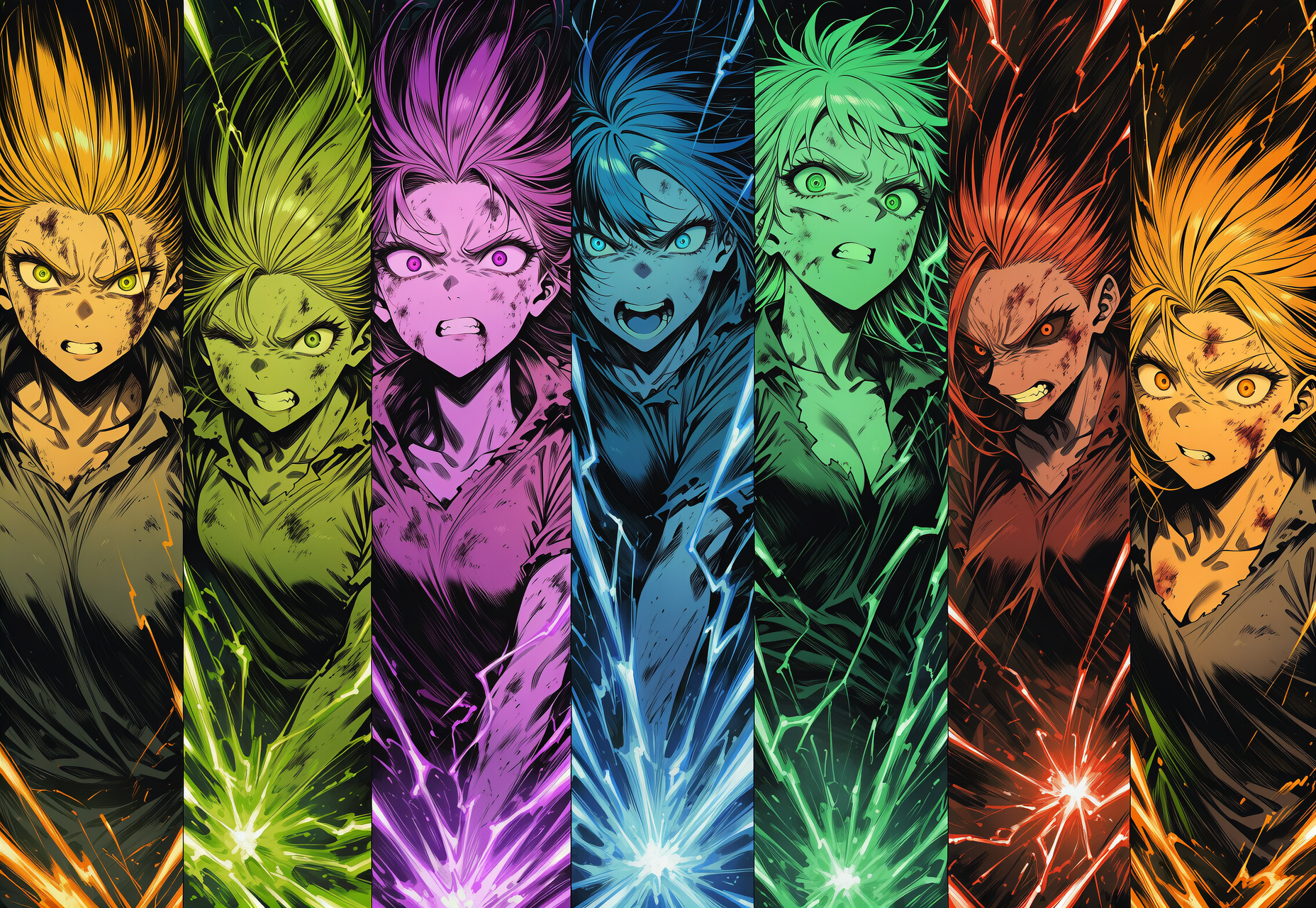
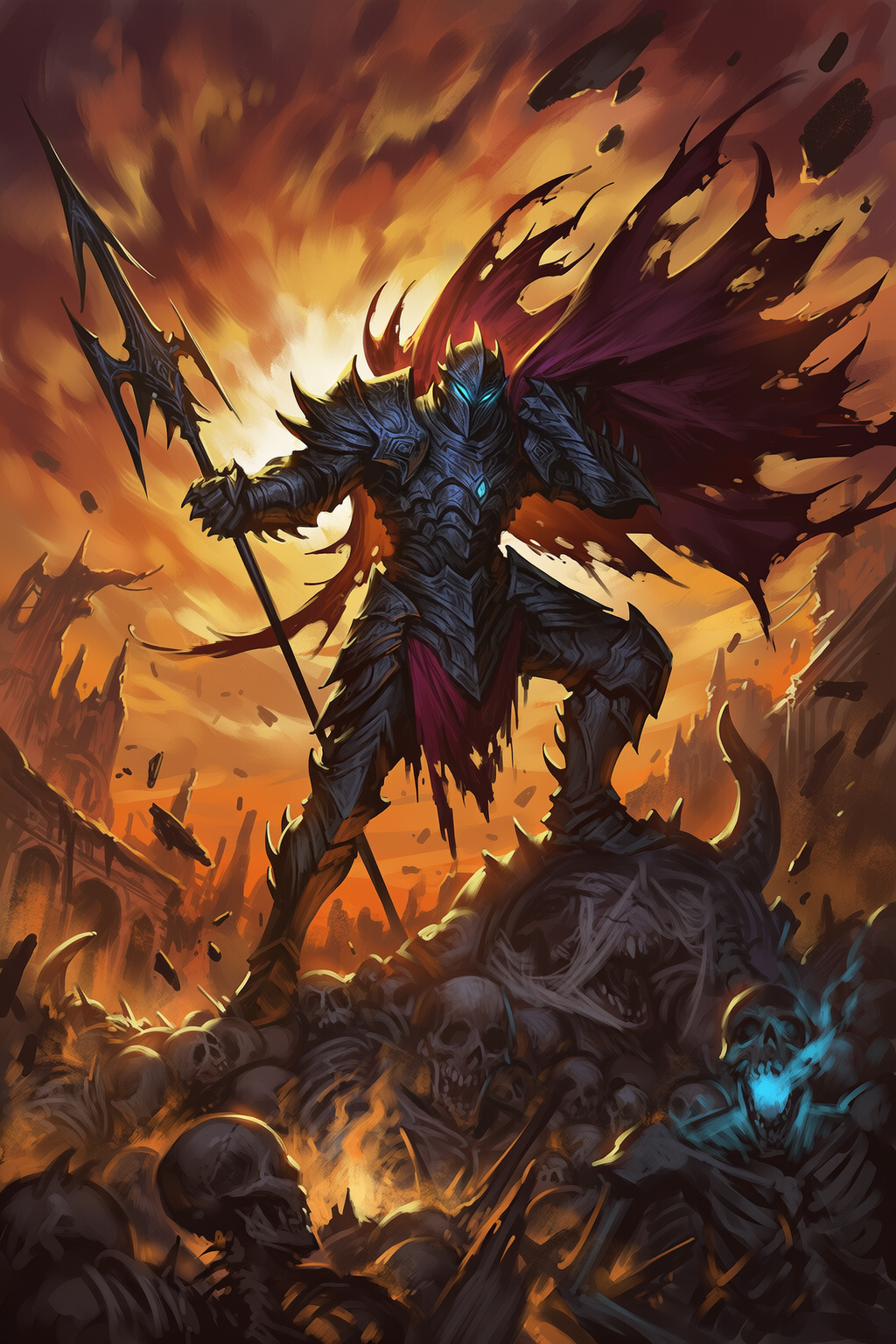
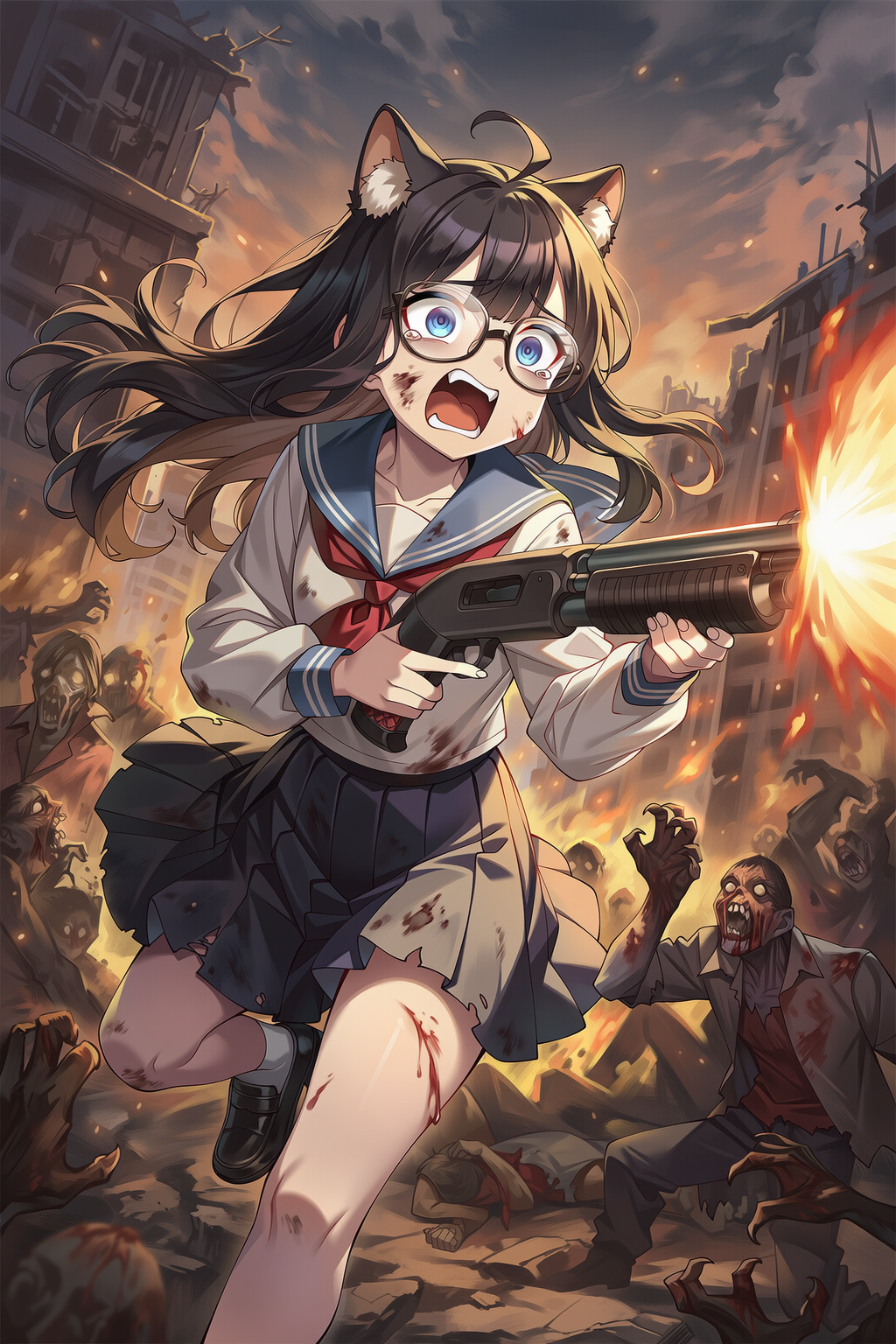
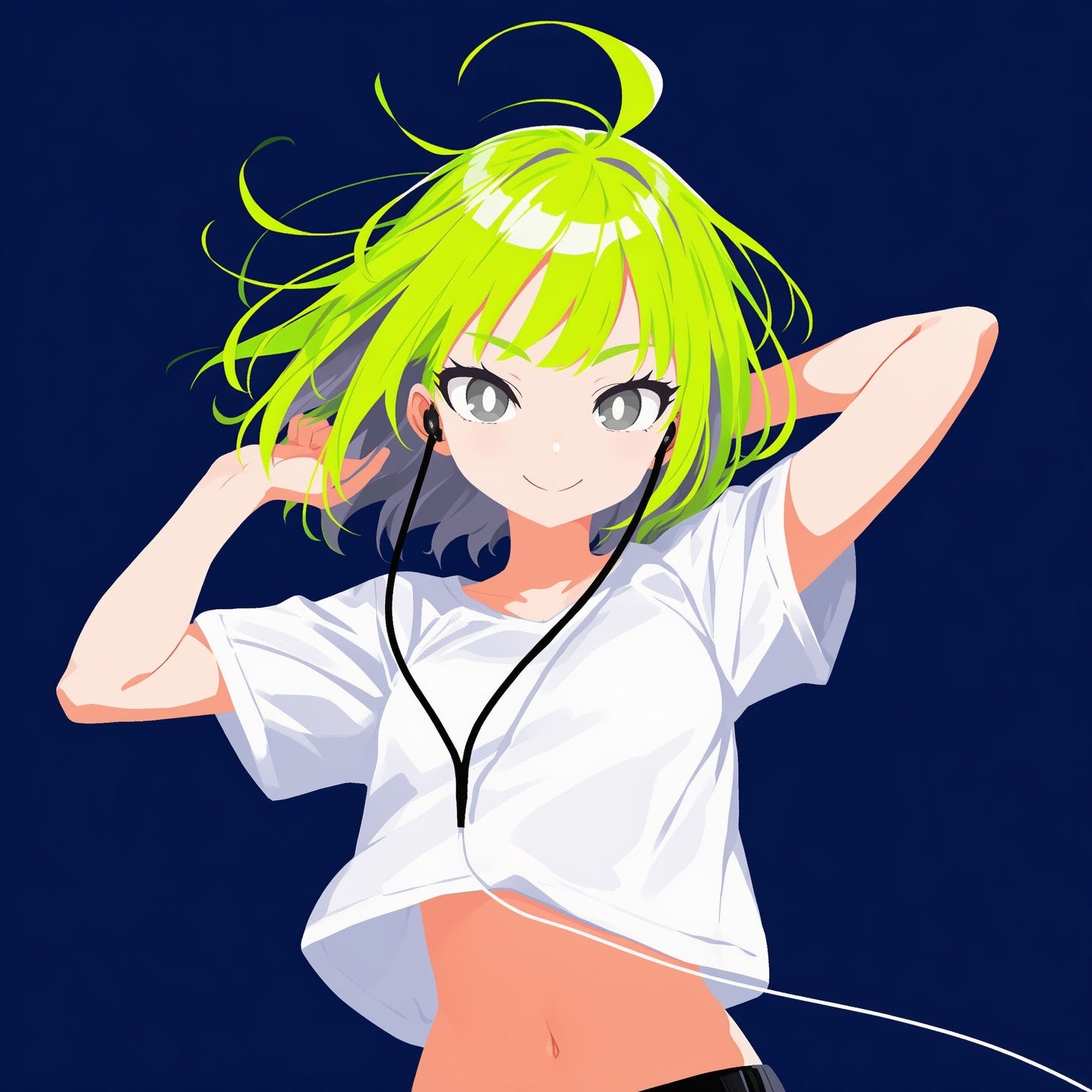
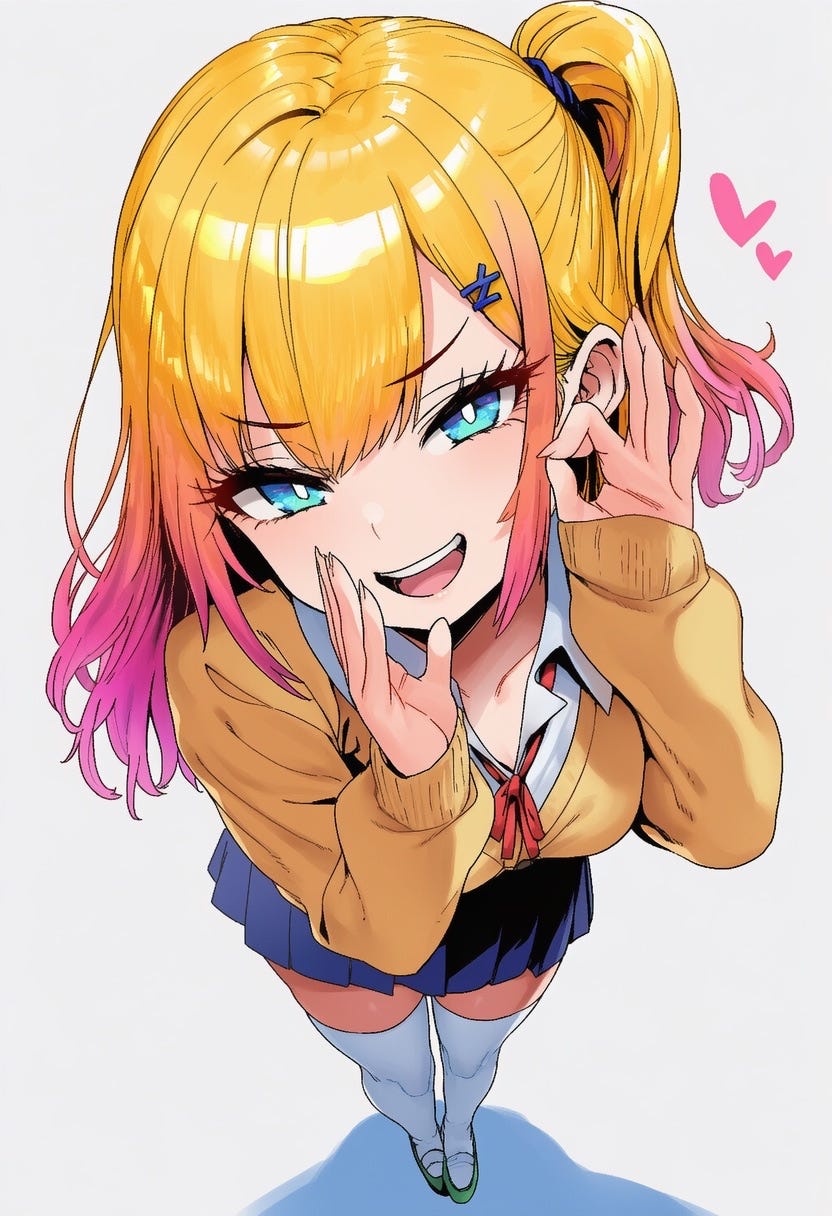
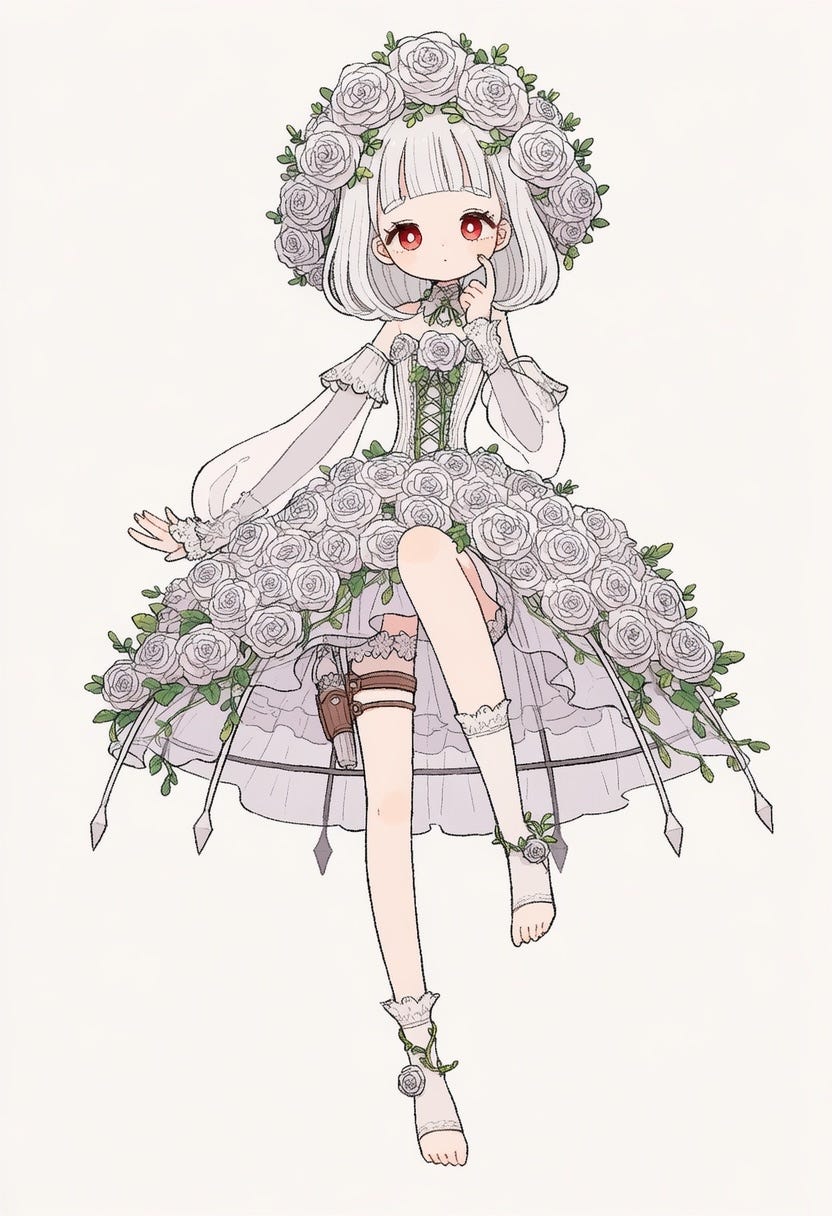
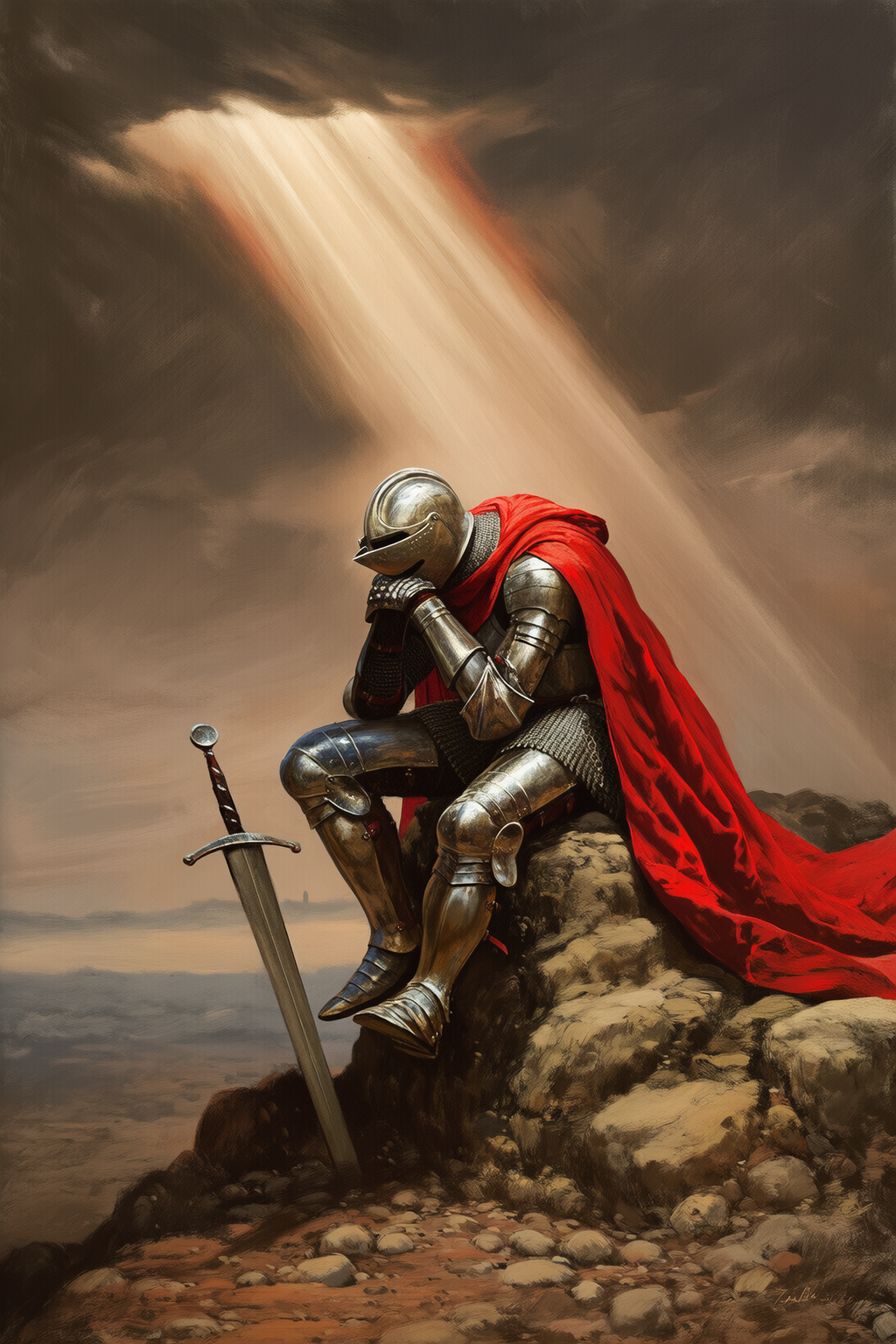
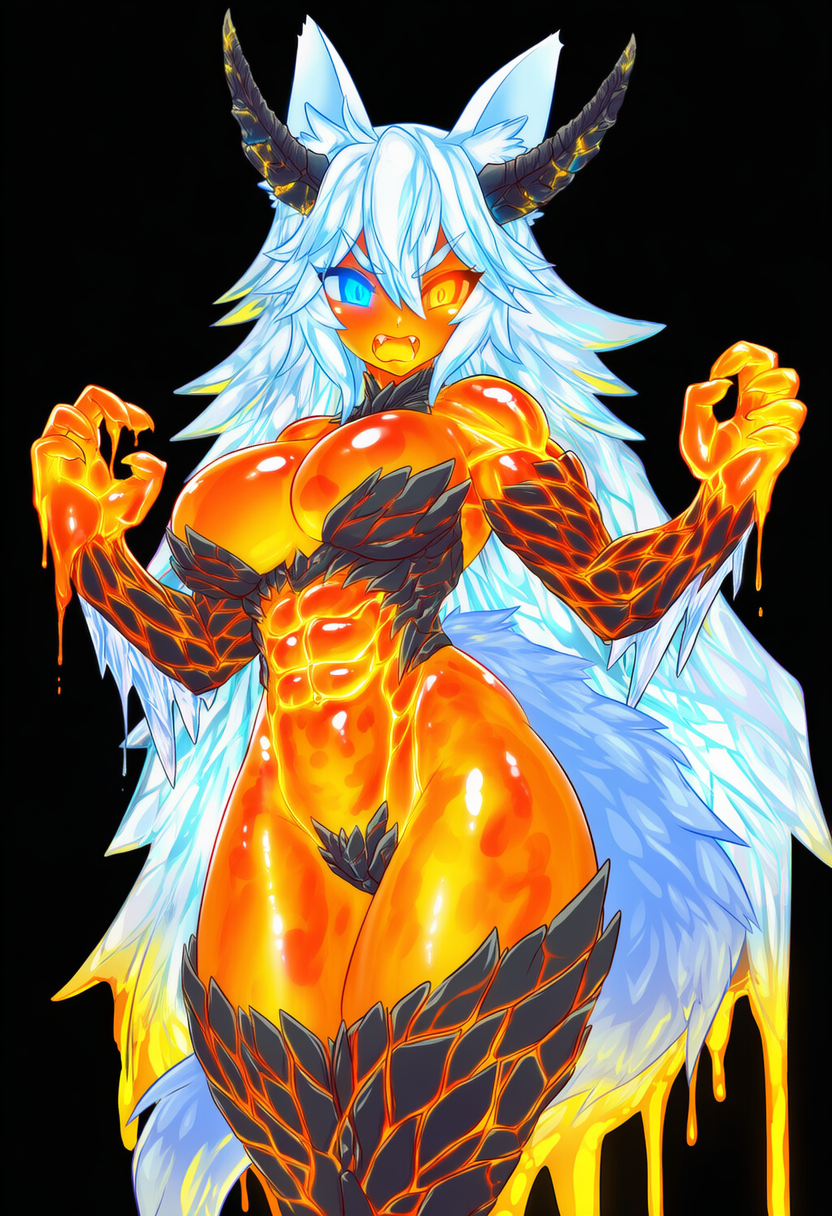
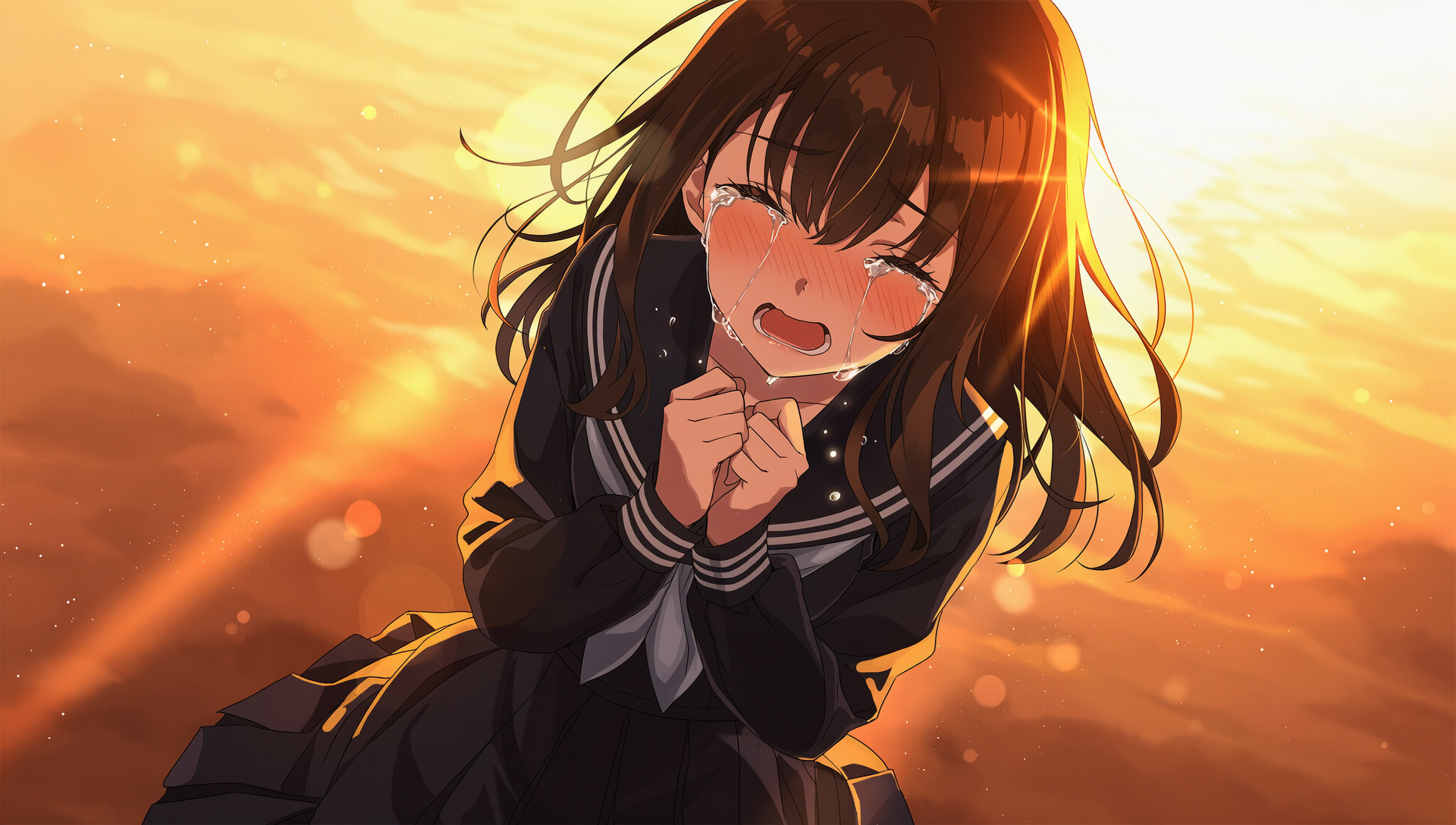
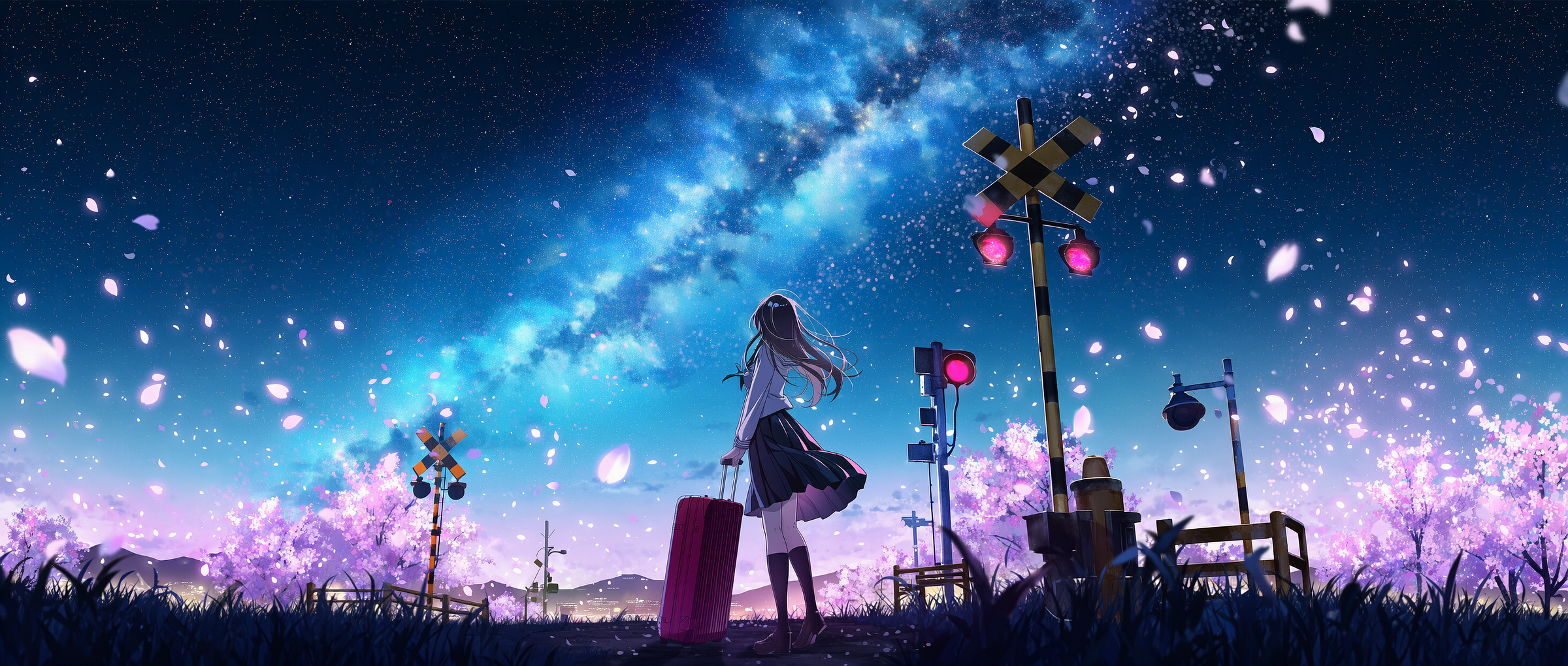
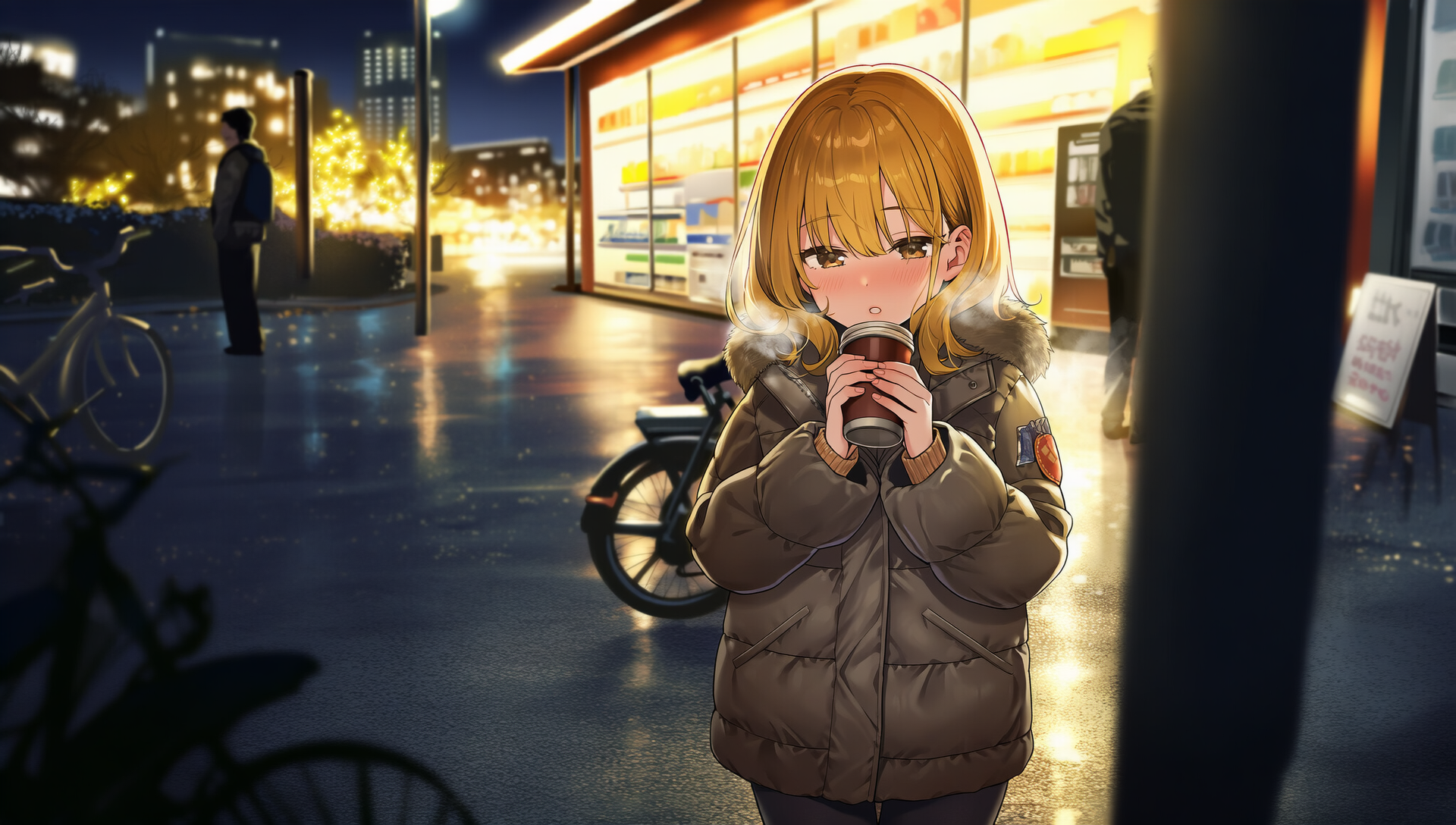
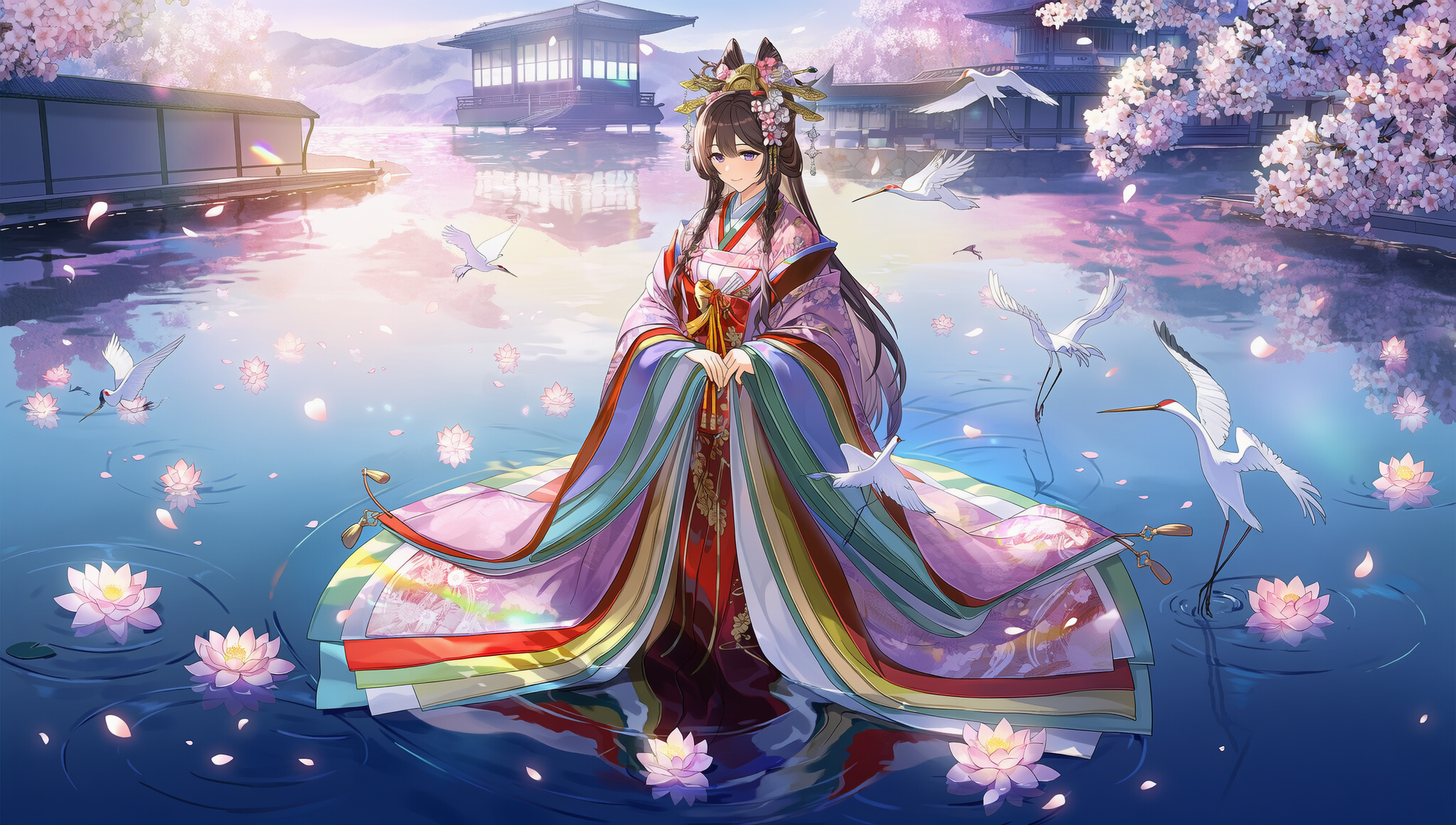
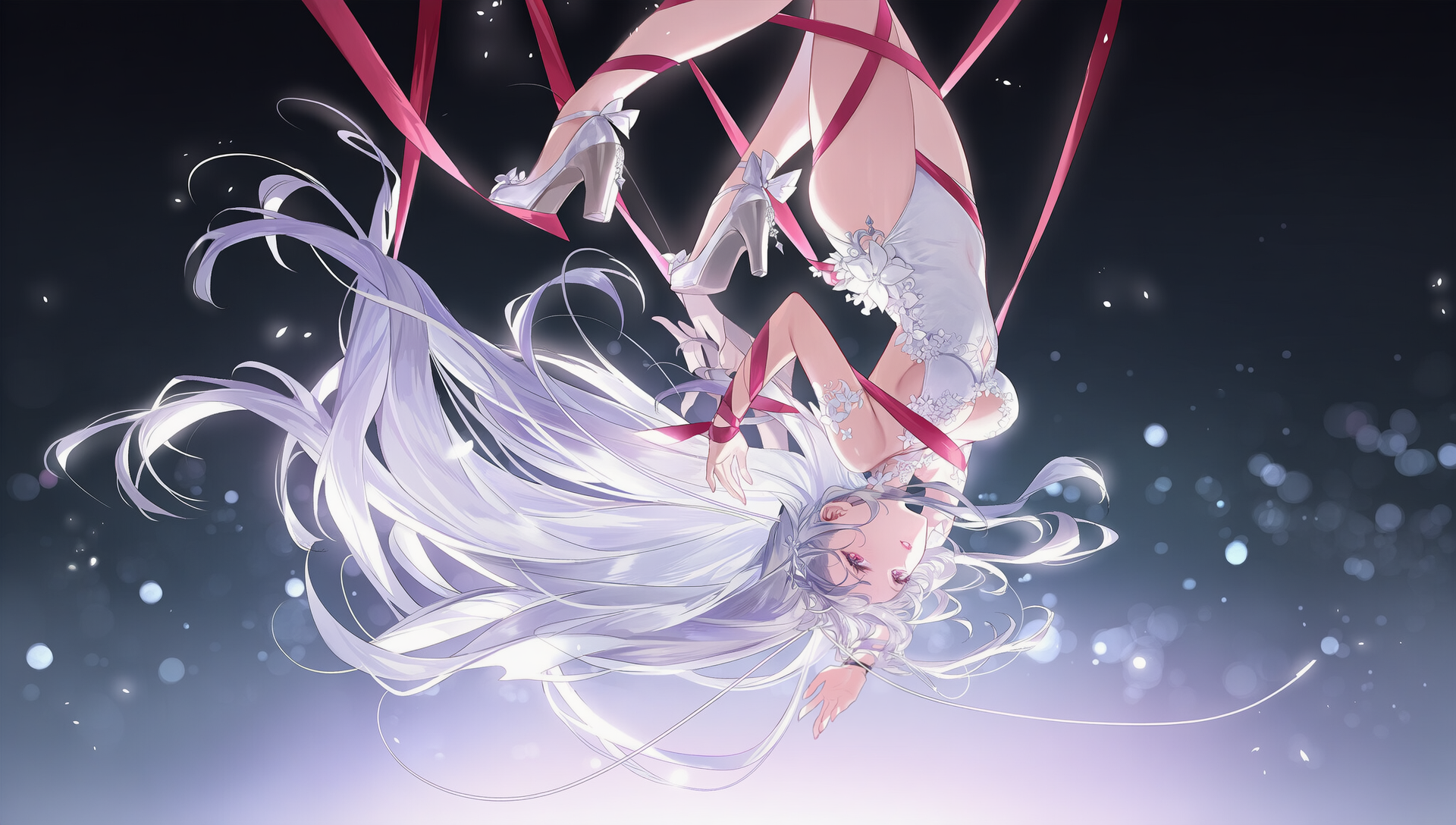
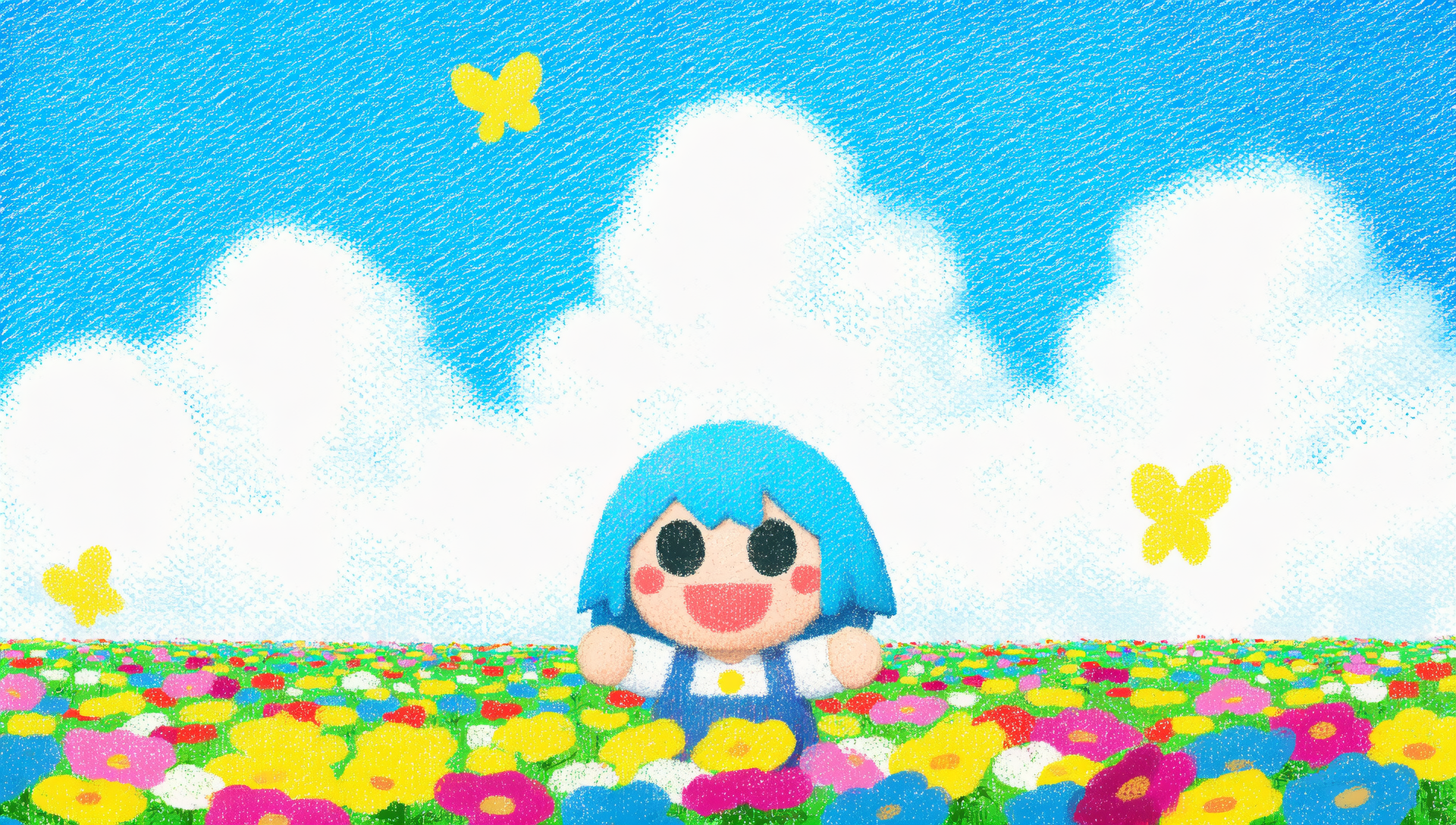
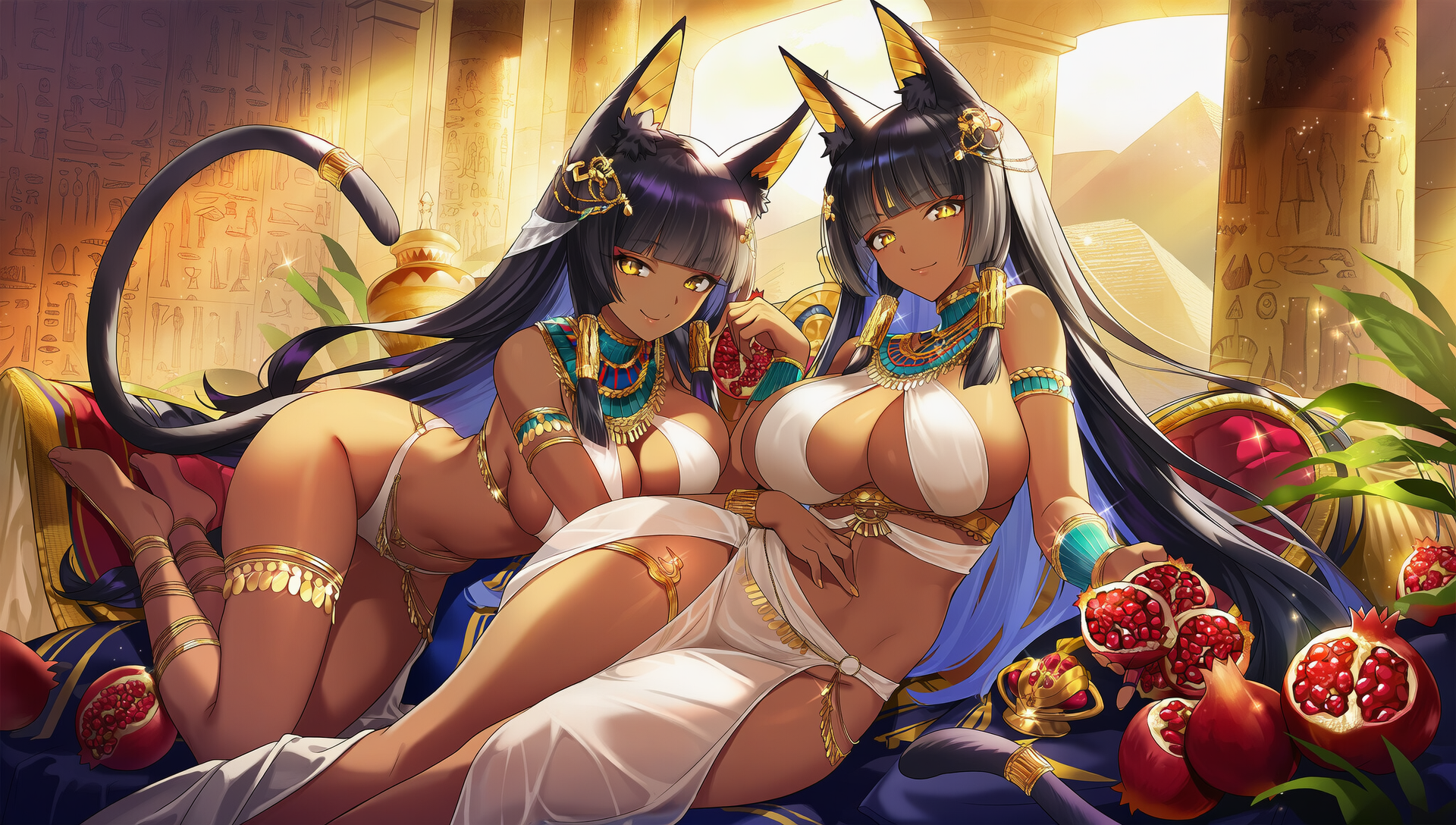
**To get you started with NovelAI Diffusion V4.5 Full, be sure to check out this collection of images. They have metadata attached, so you can simply drag and drop them into our image generation page to import the prompts and settings and generate your own!
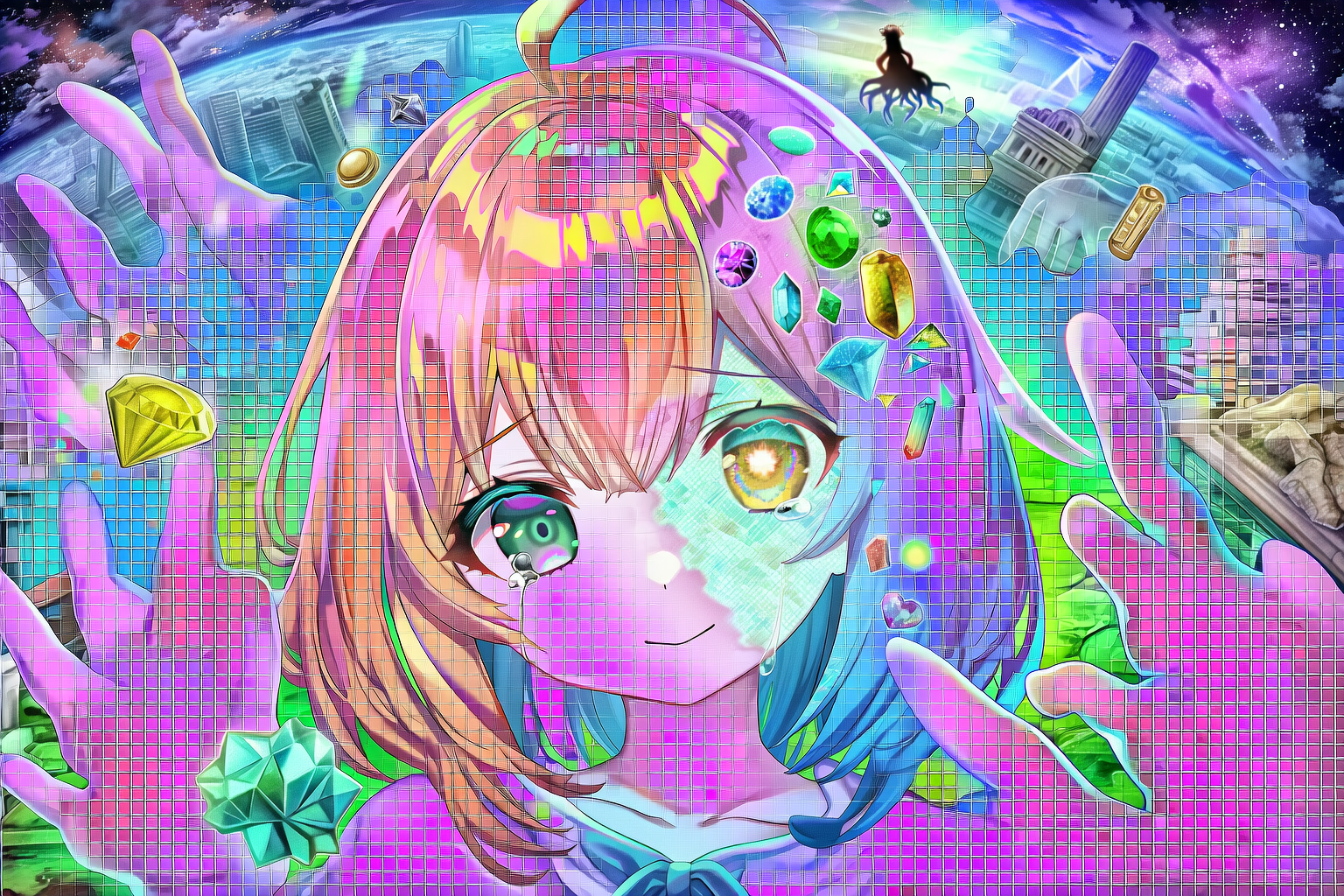
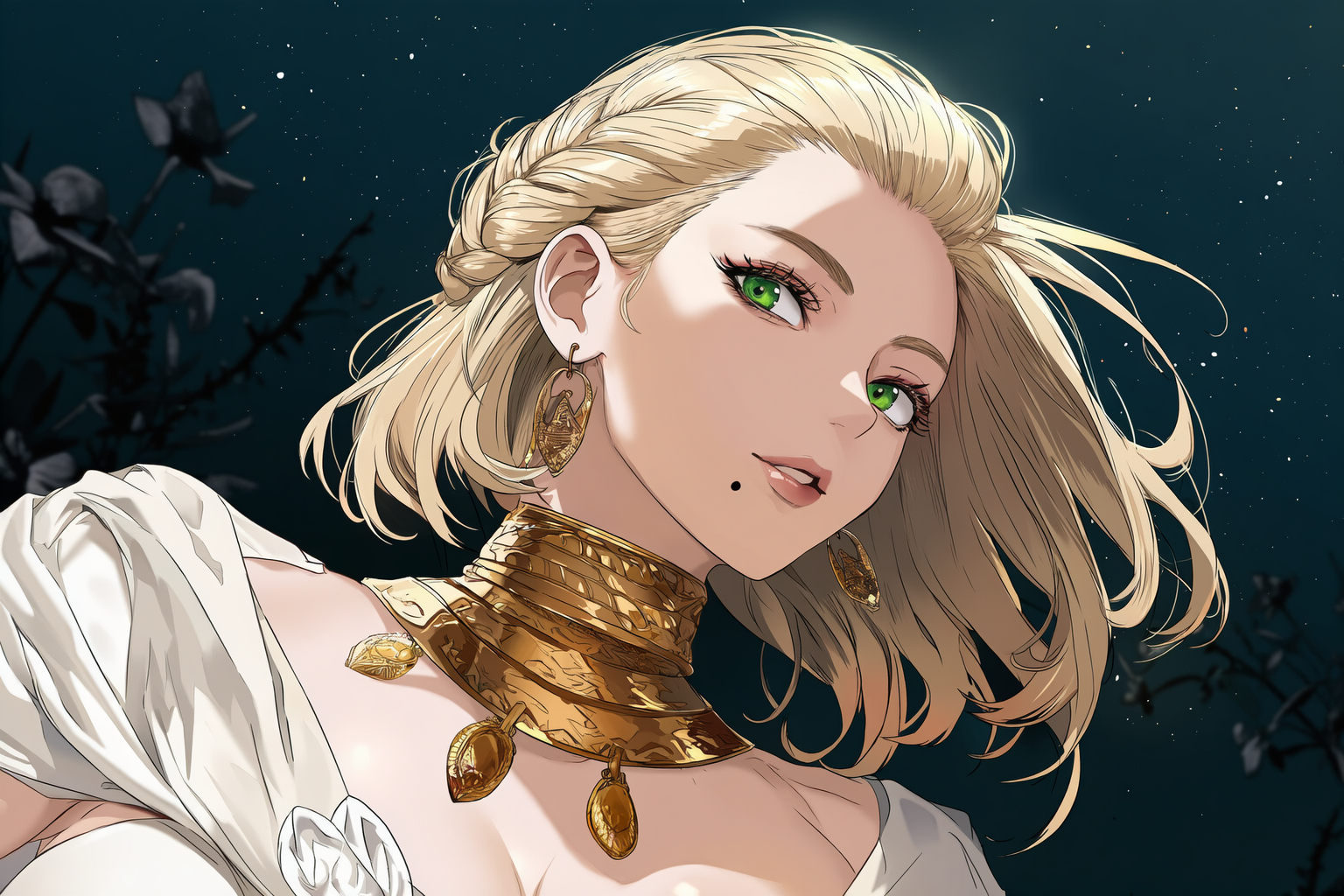
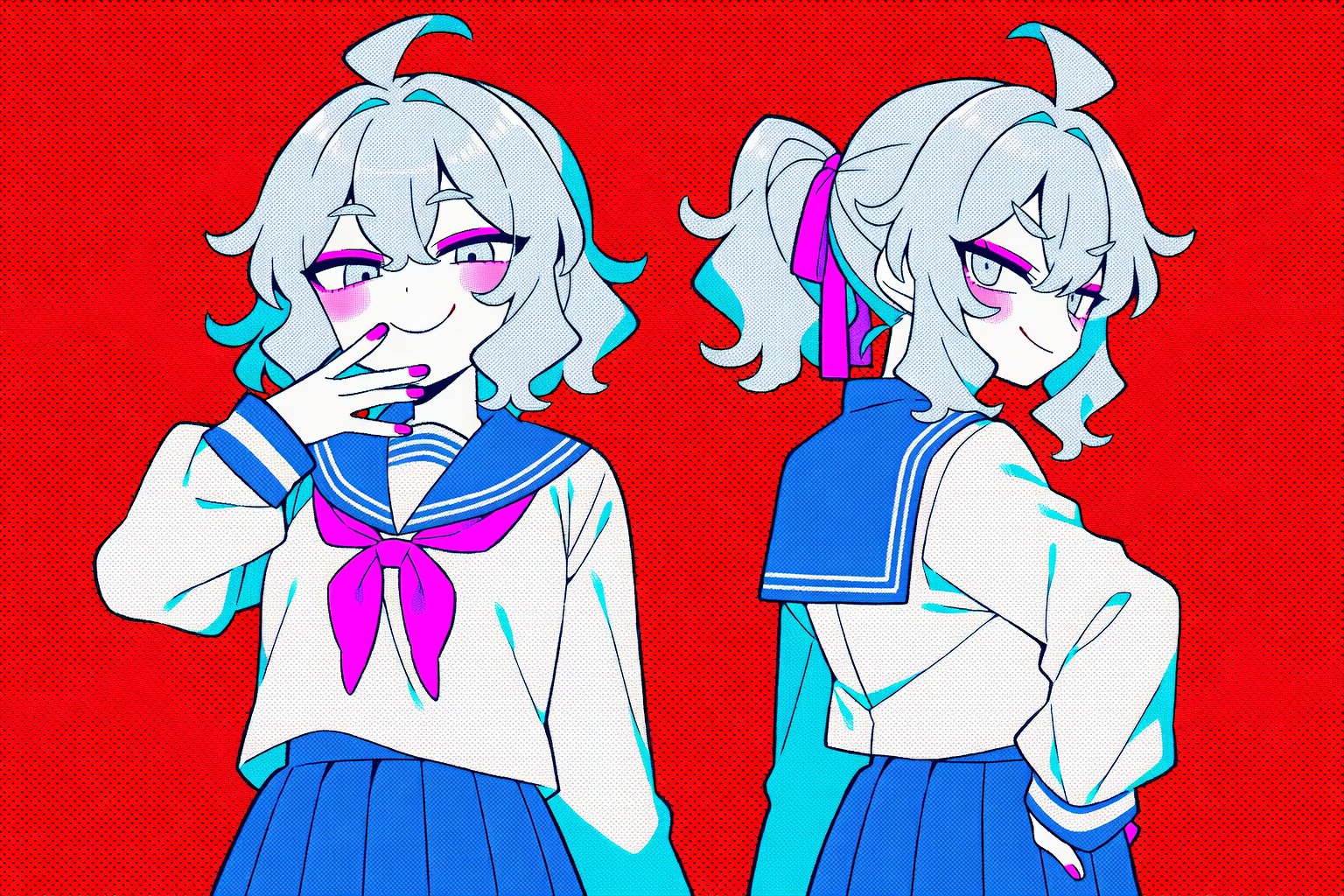
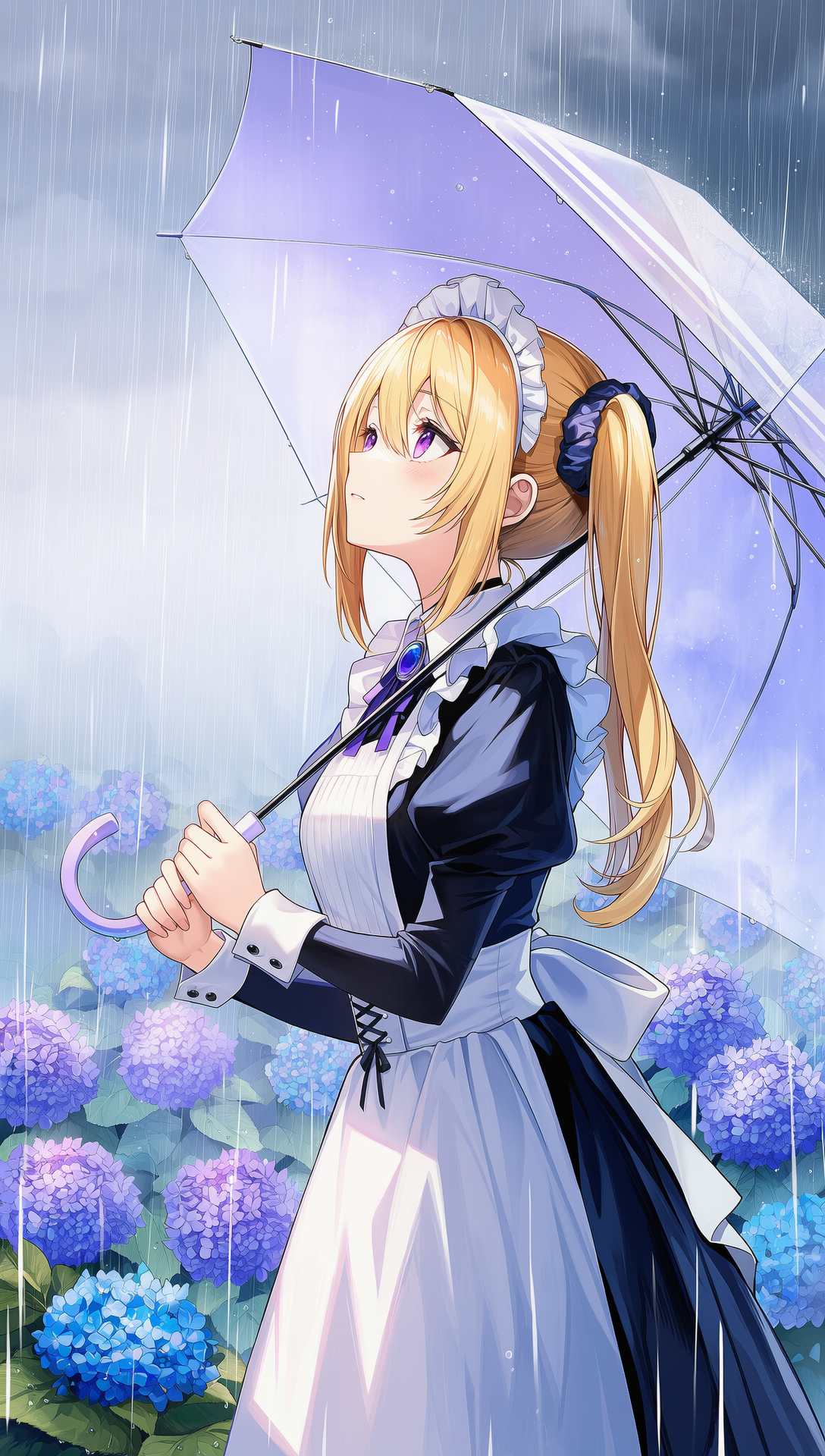
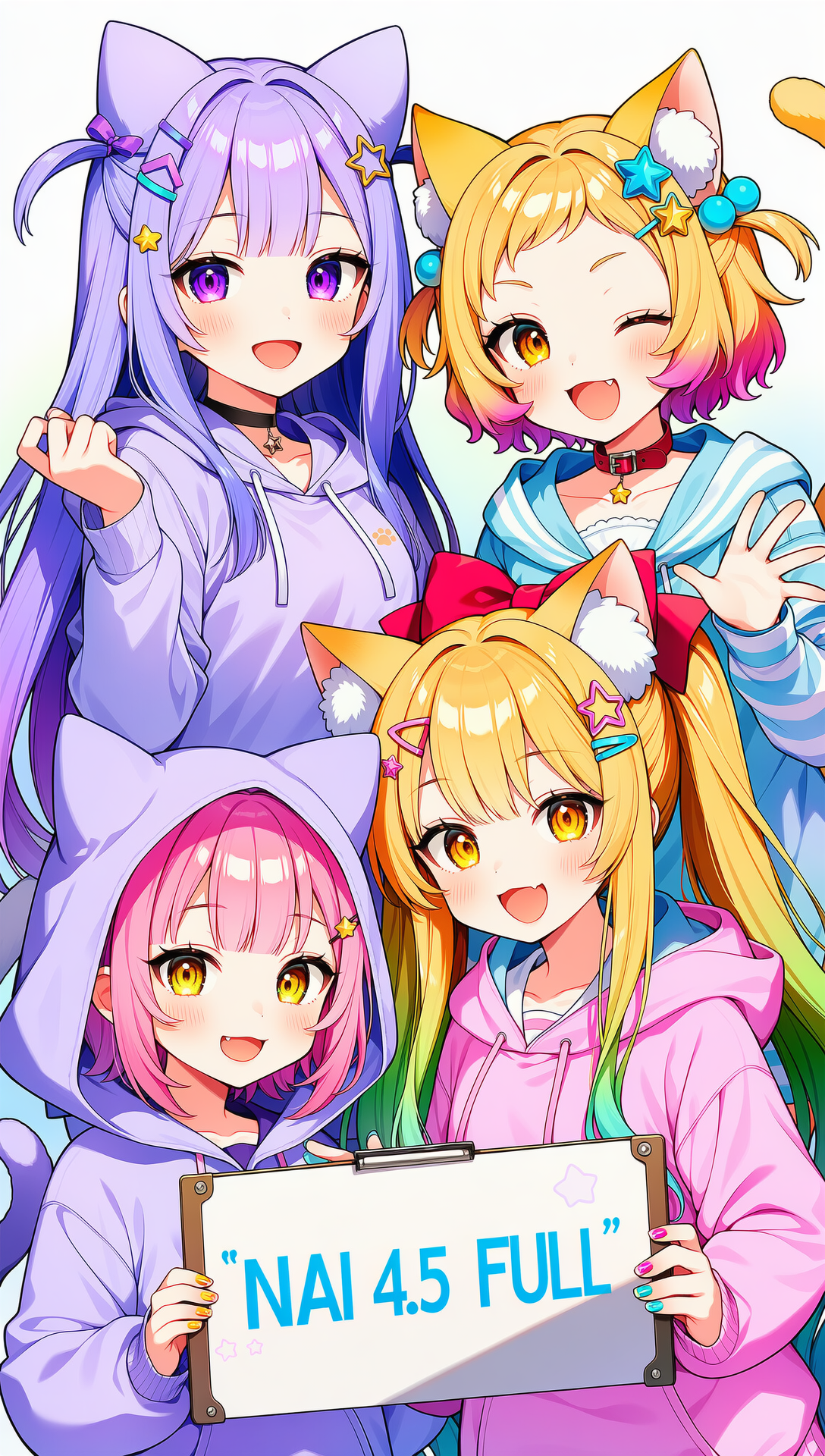
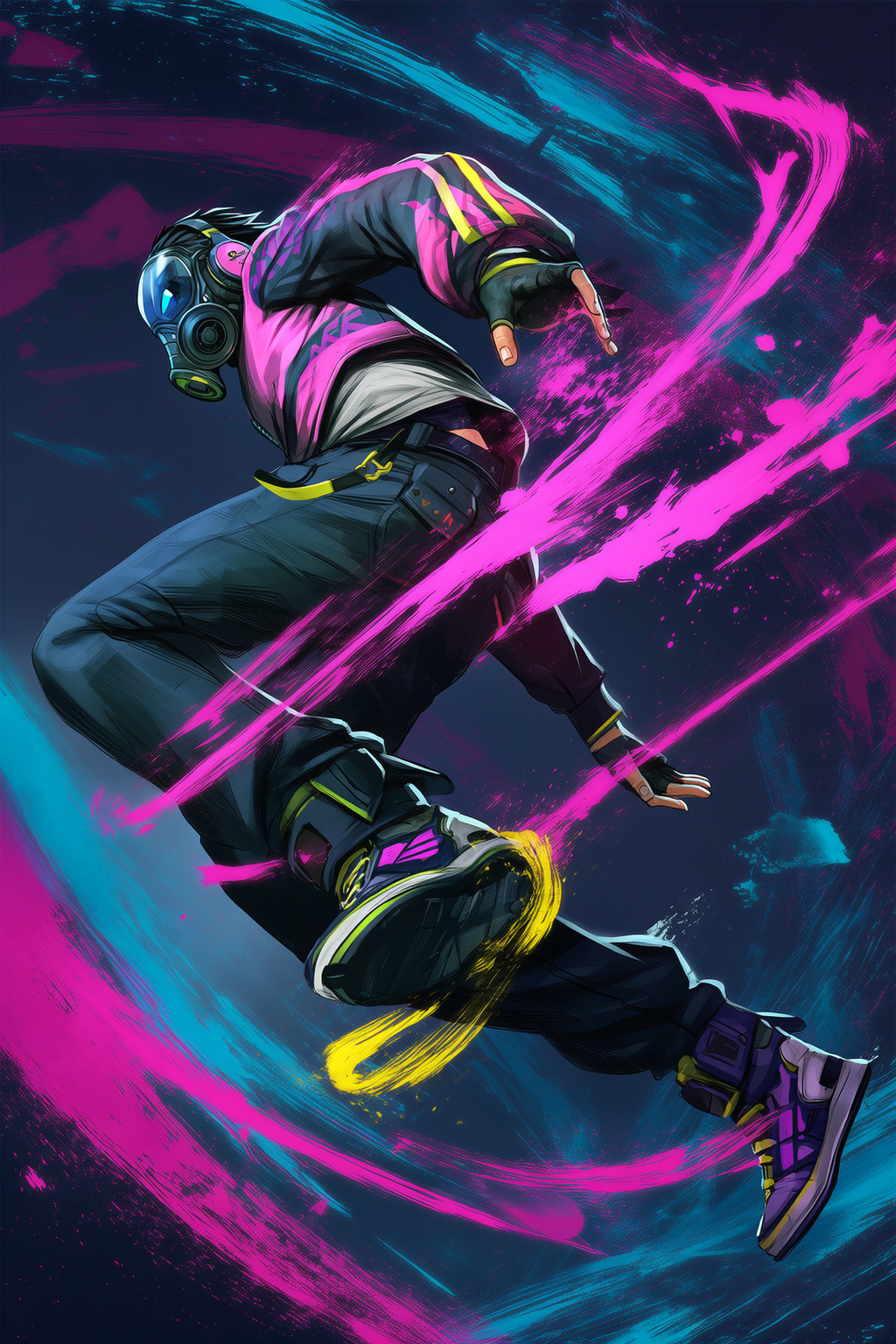
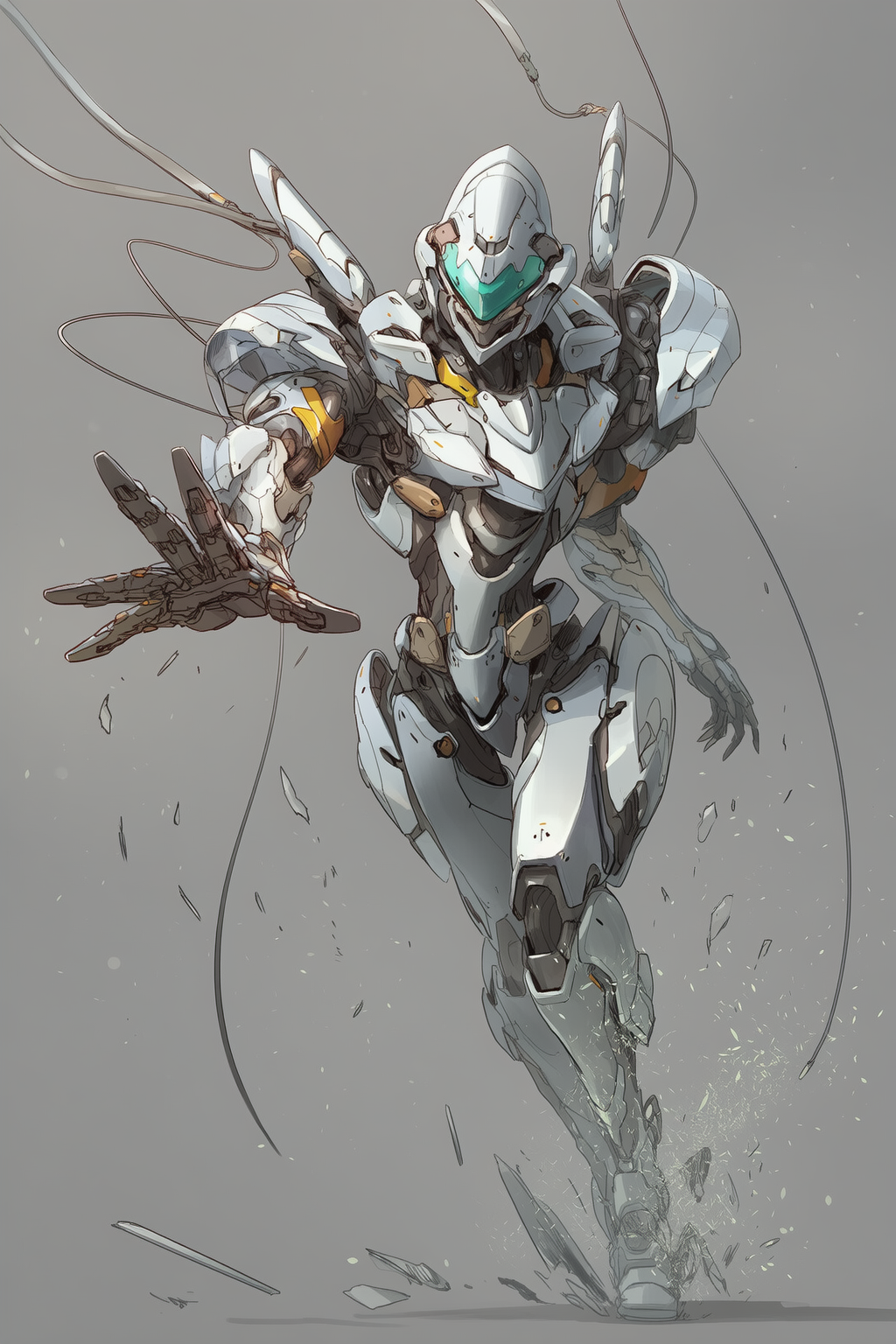
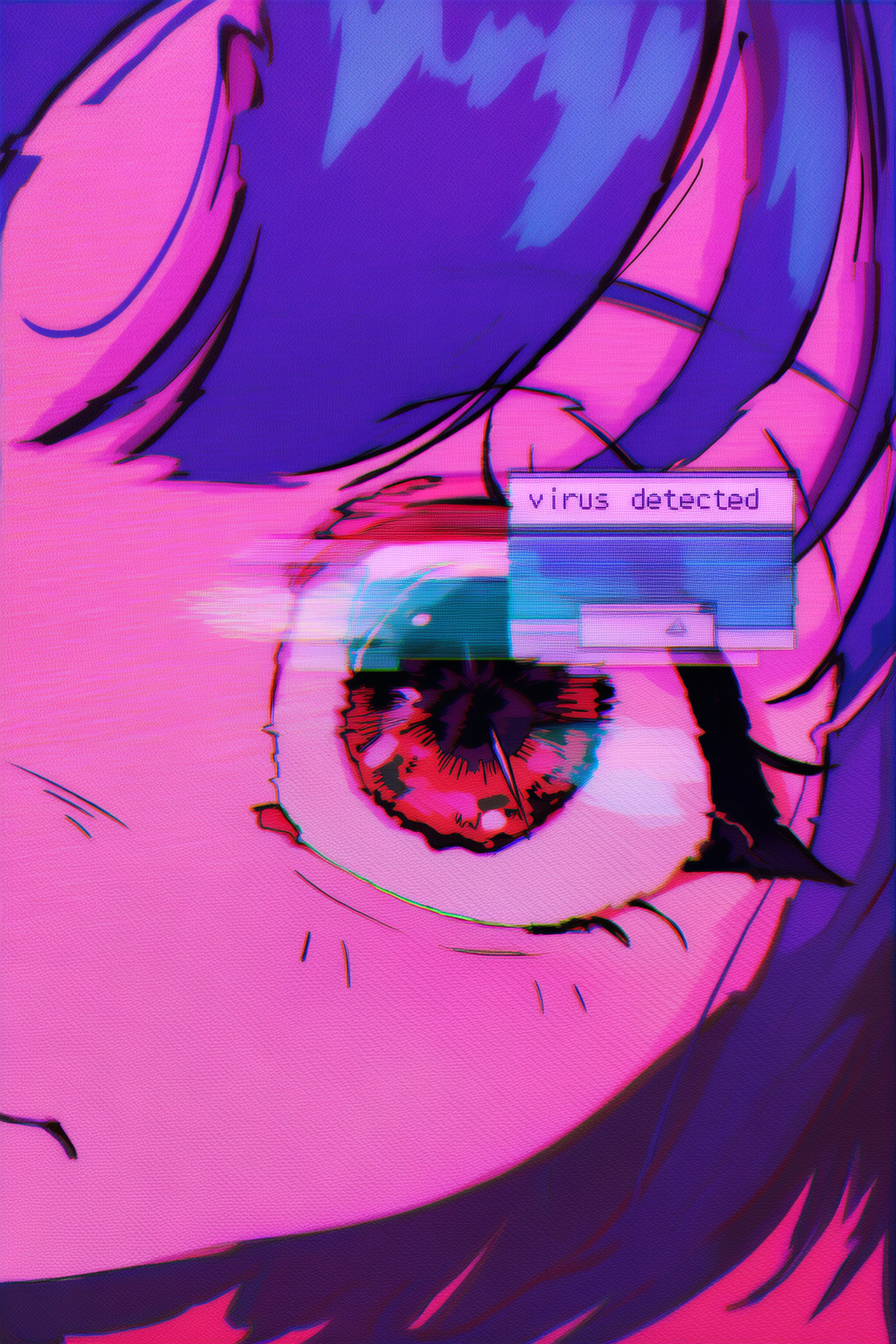
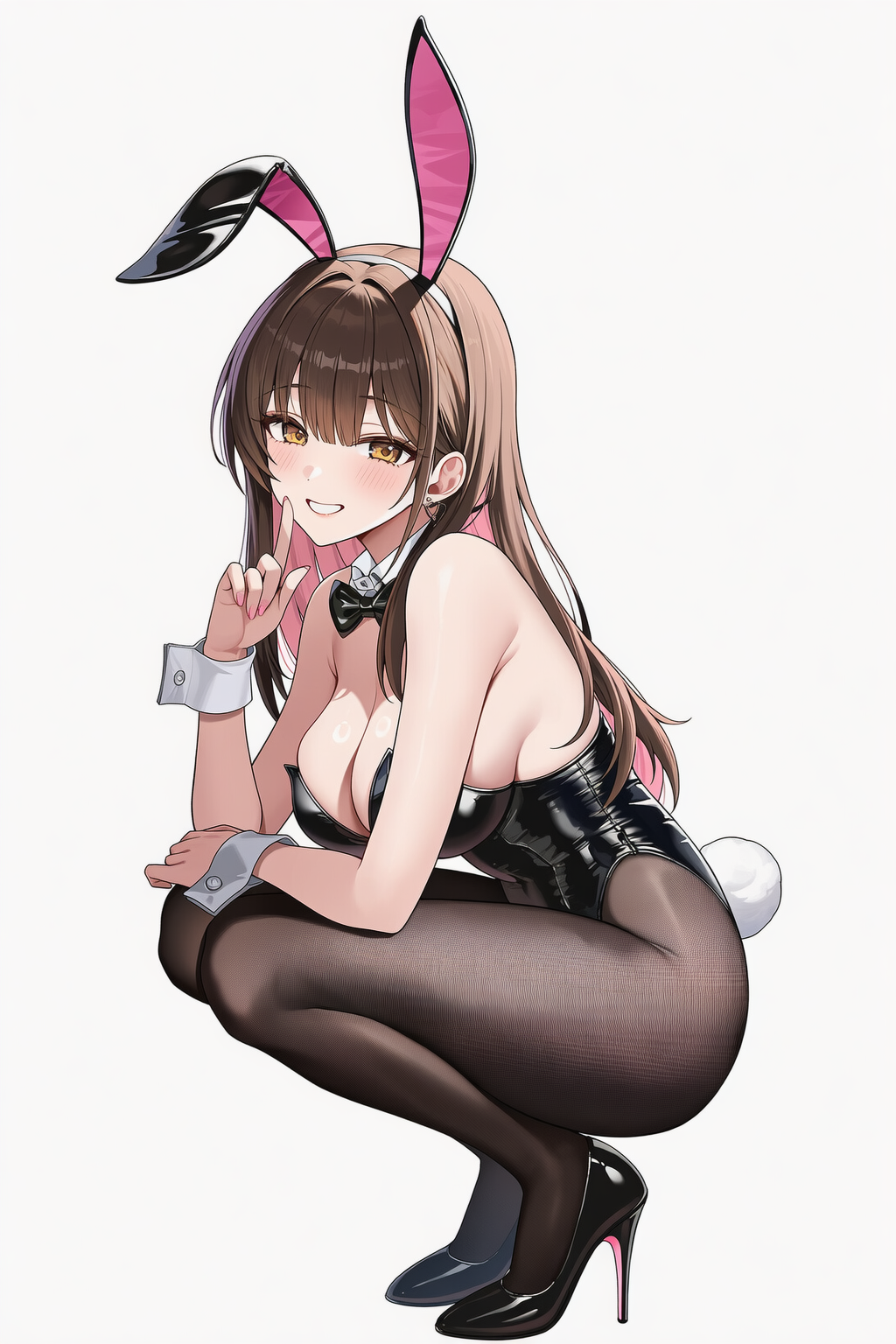
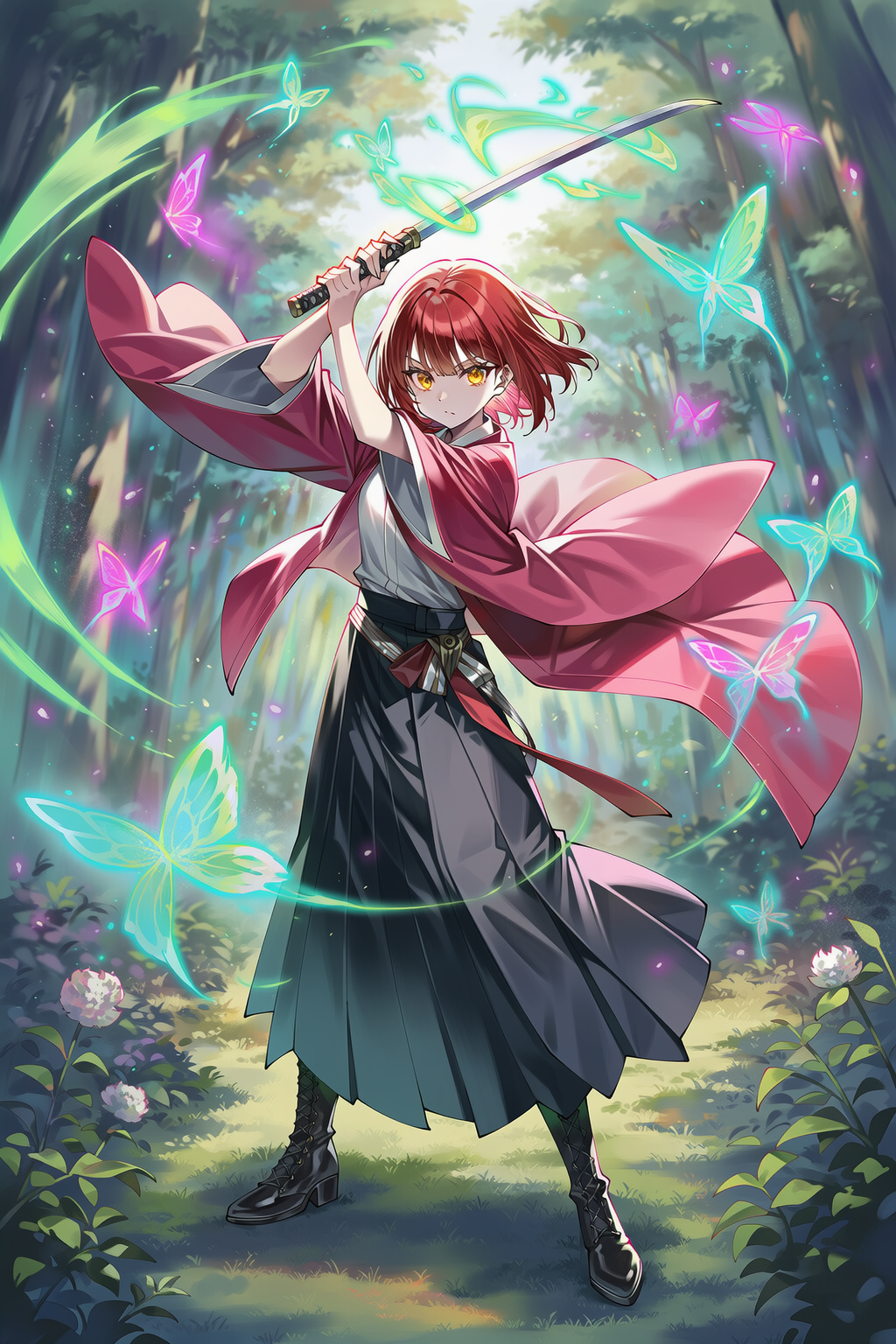
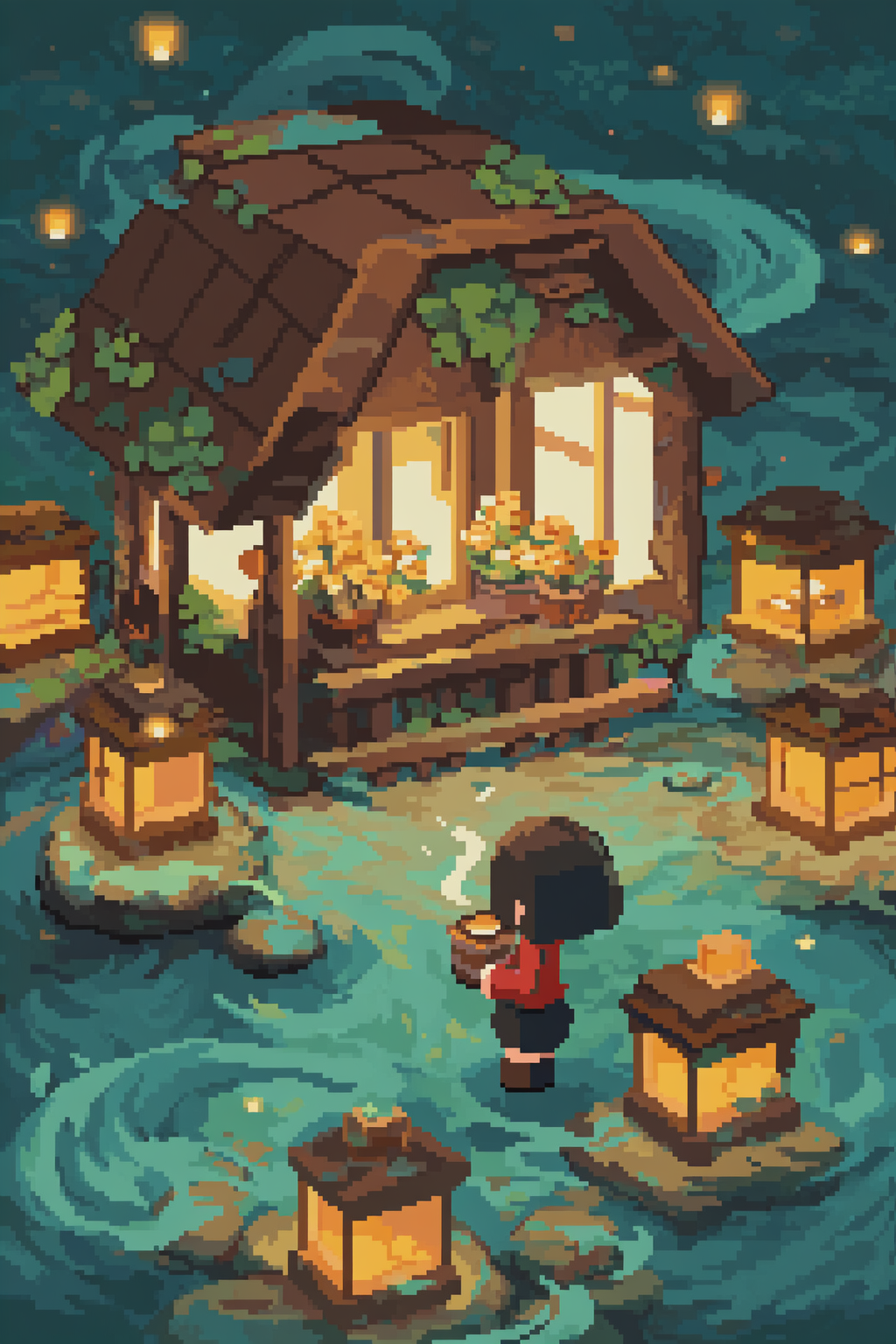
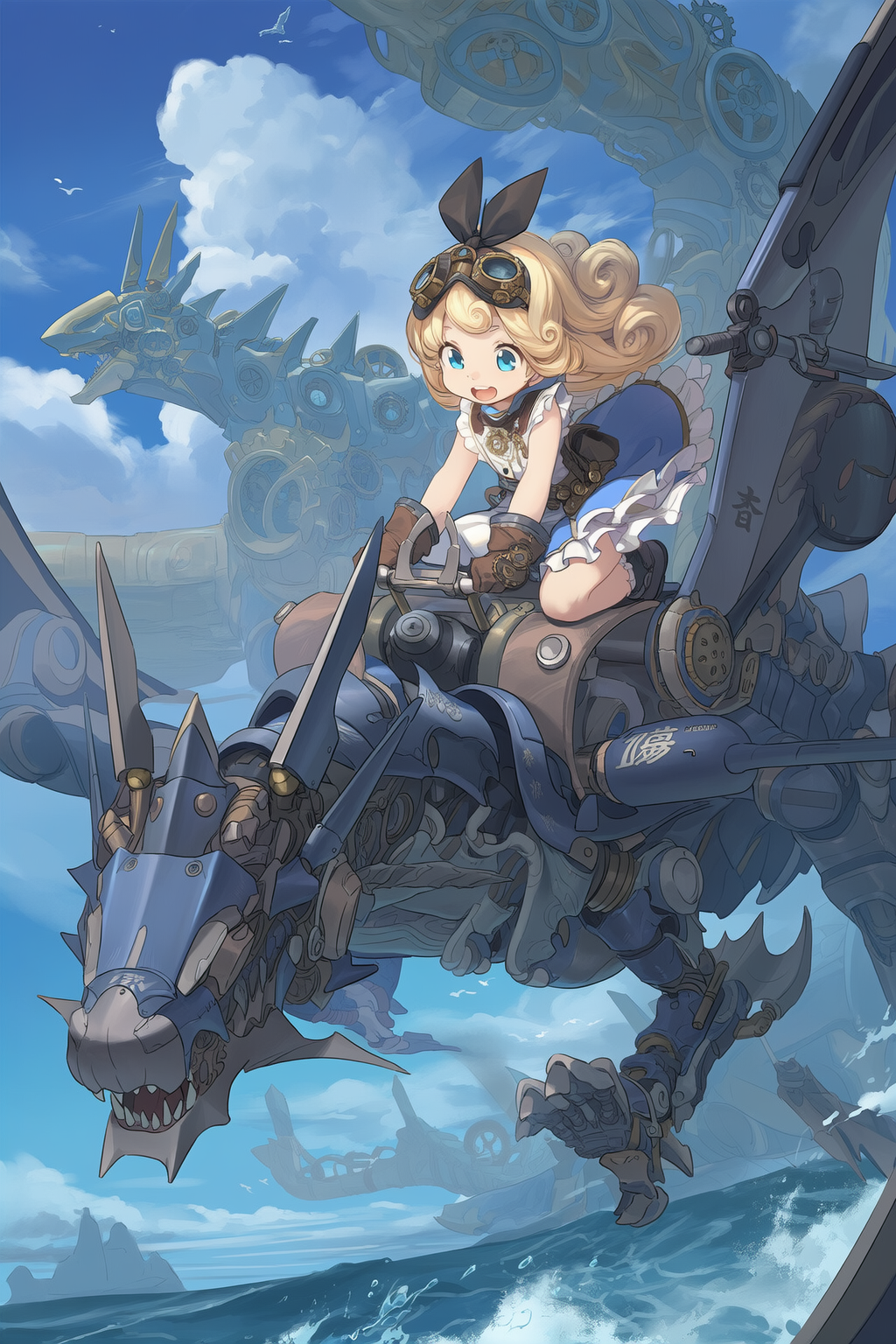
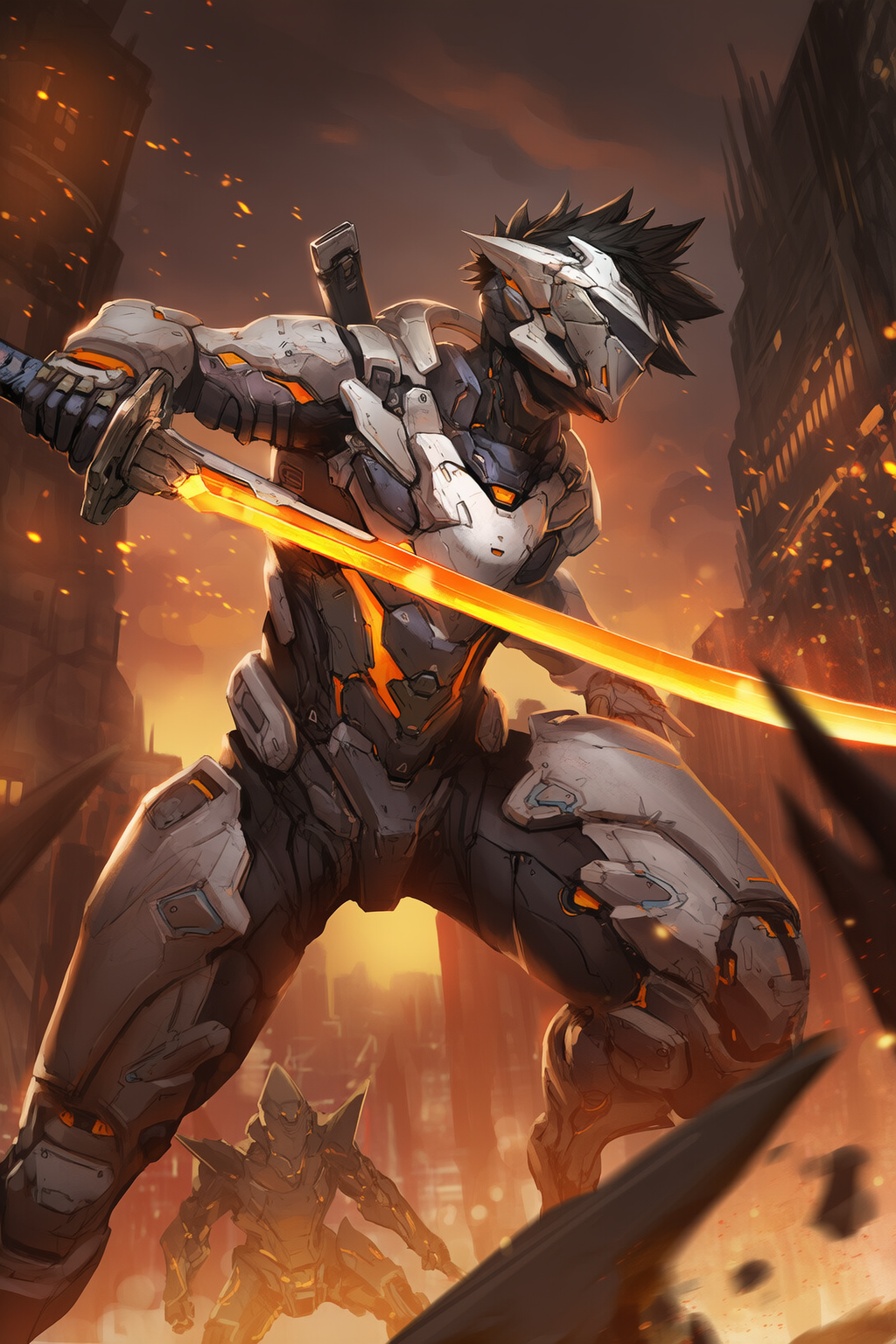
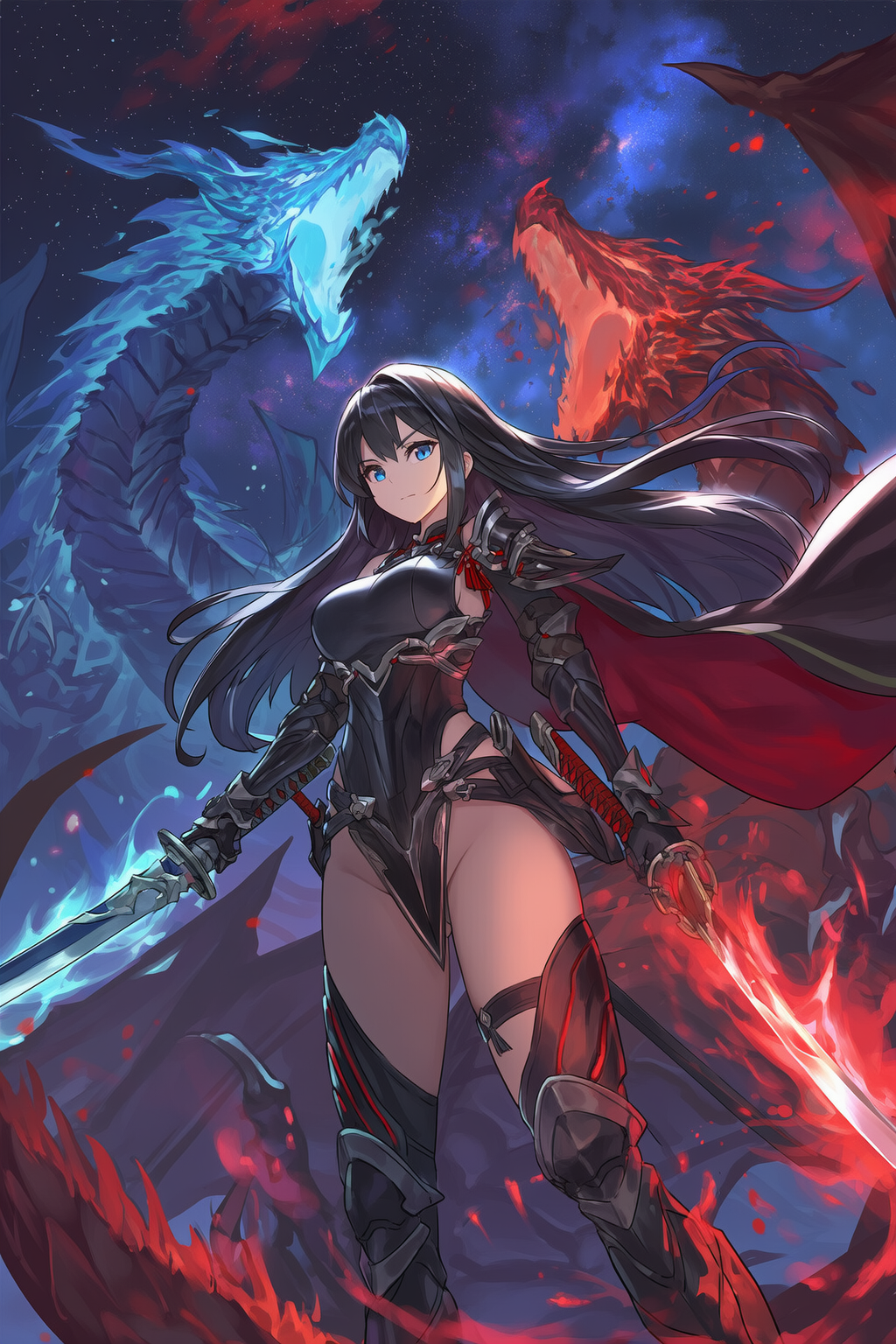
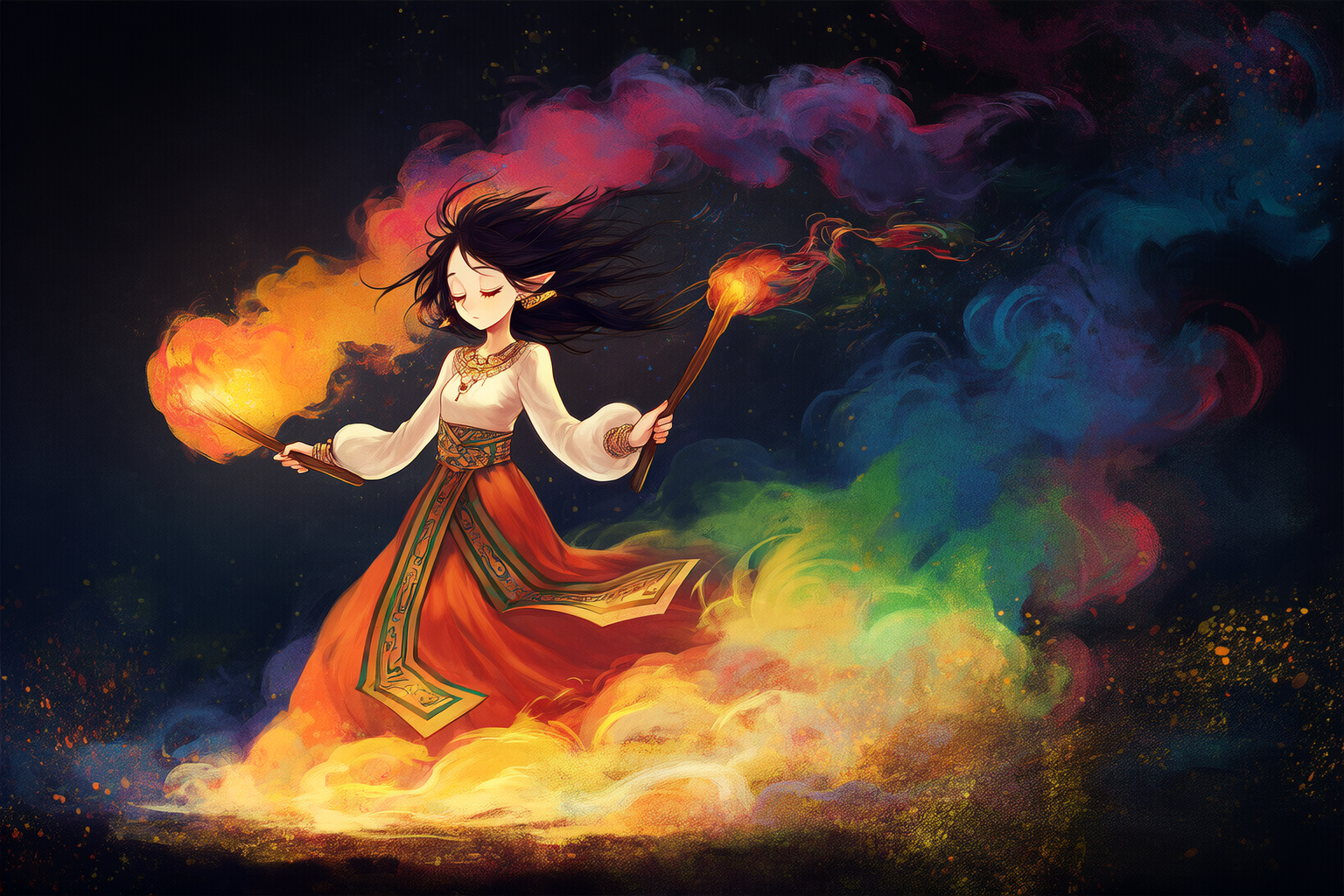
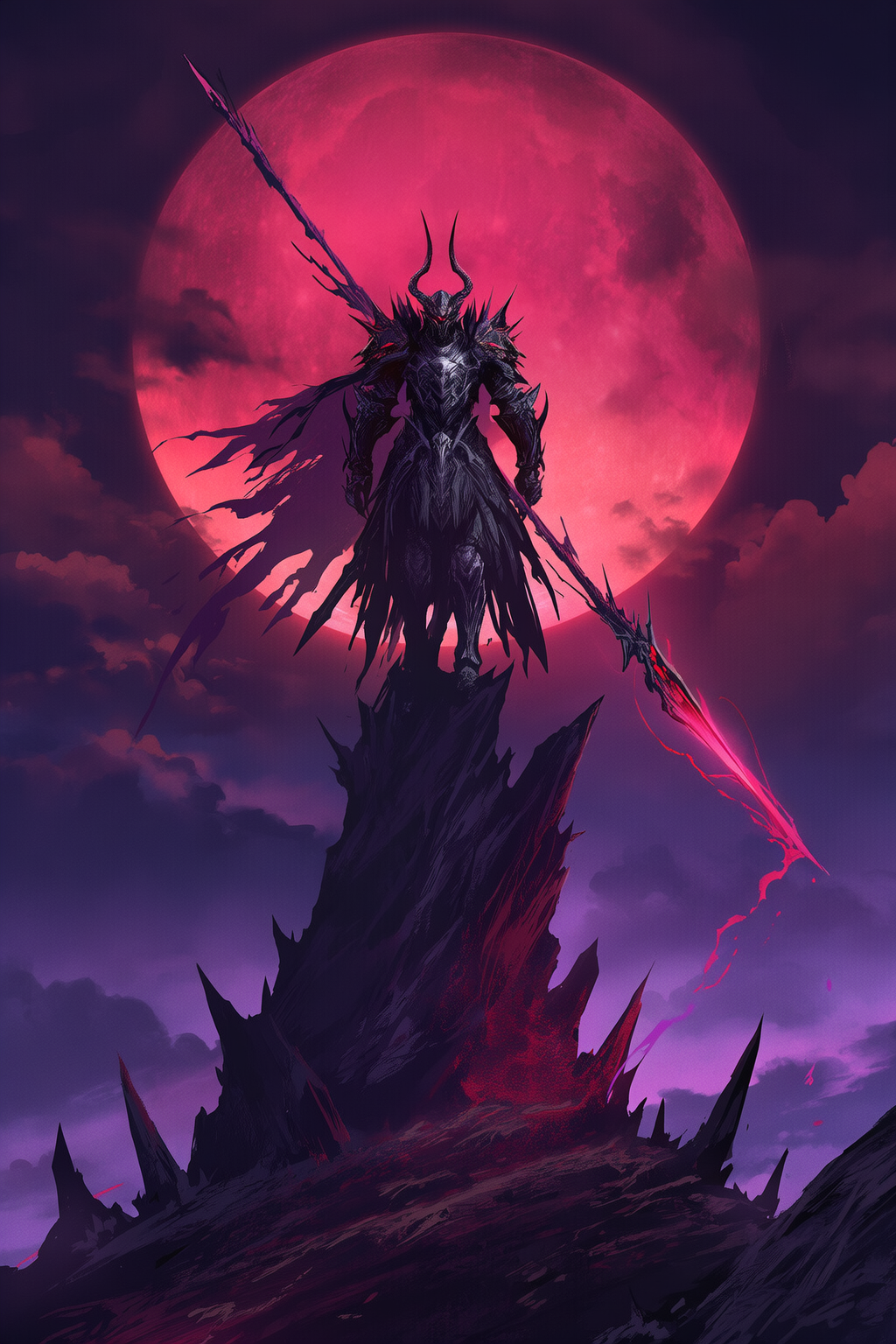
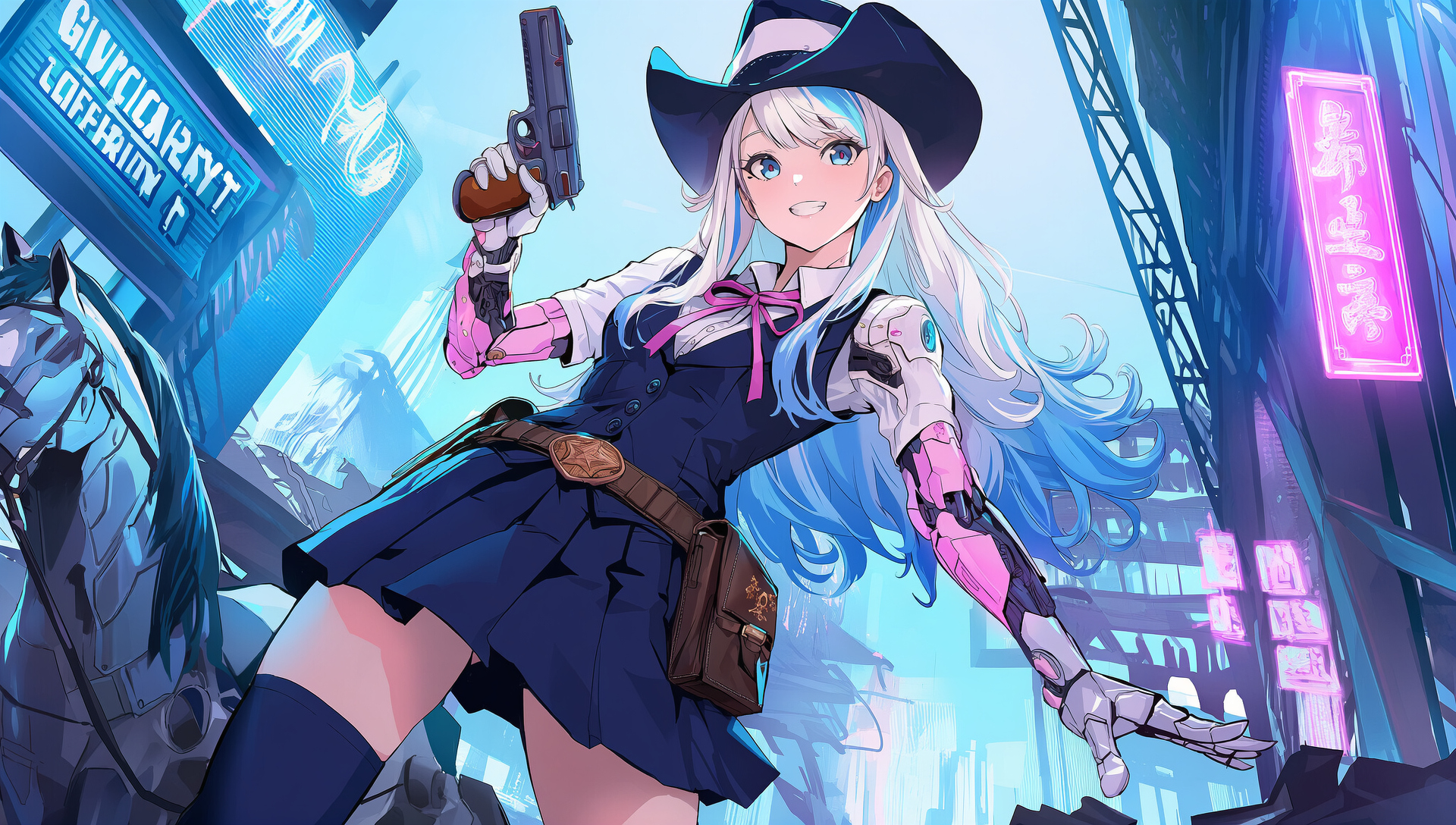
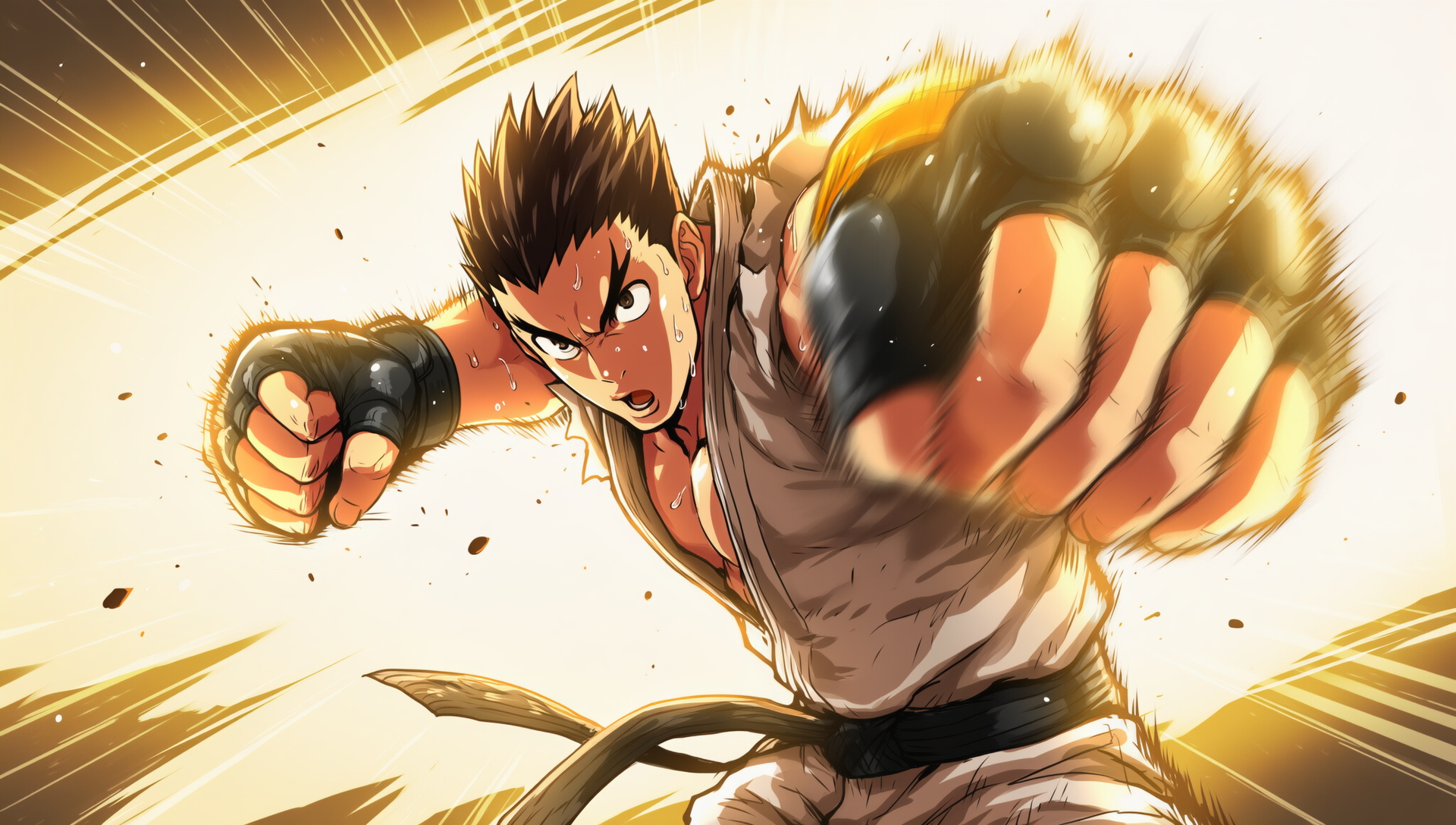
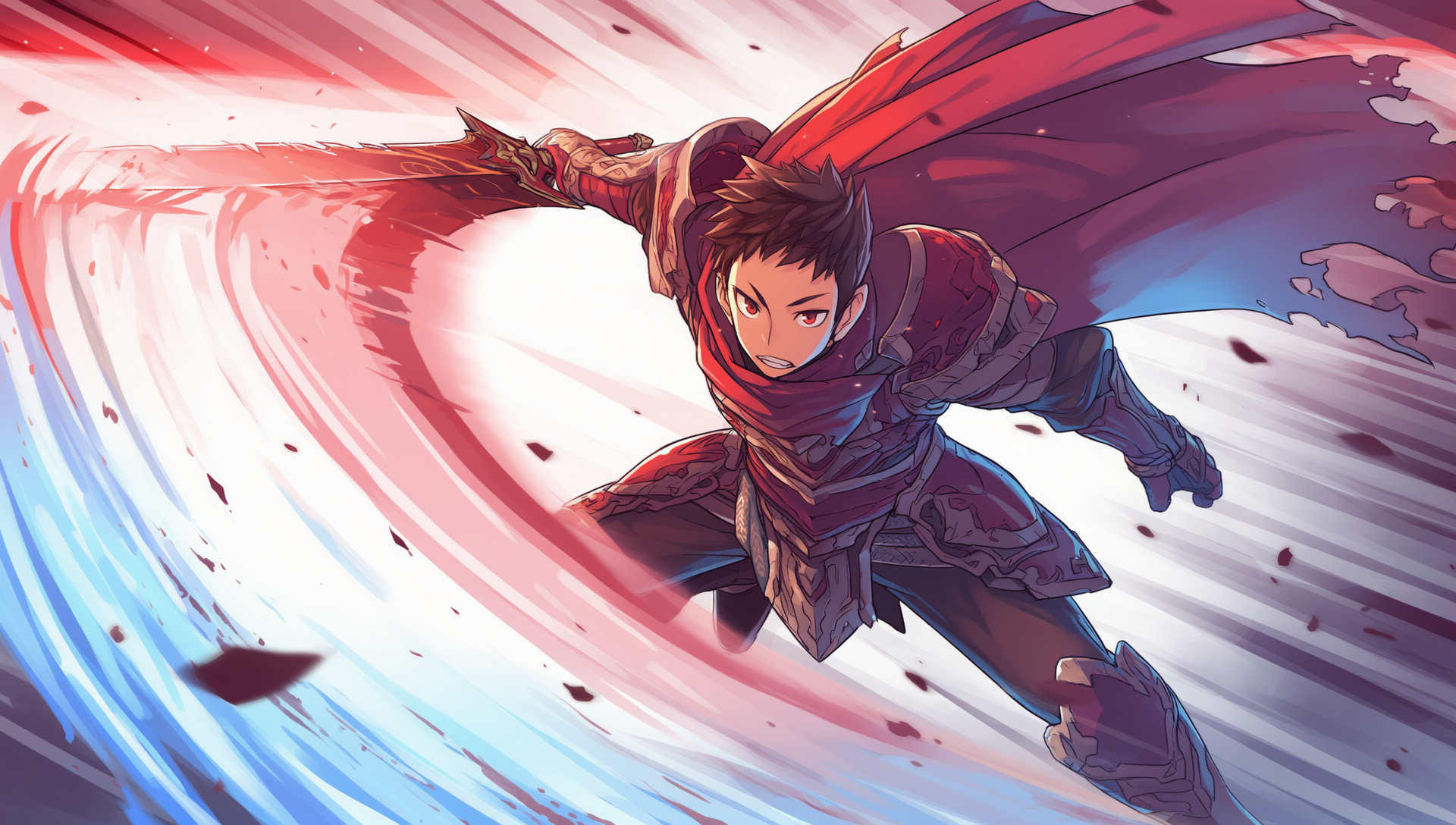
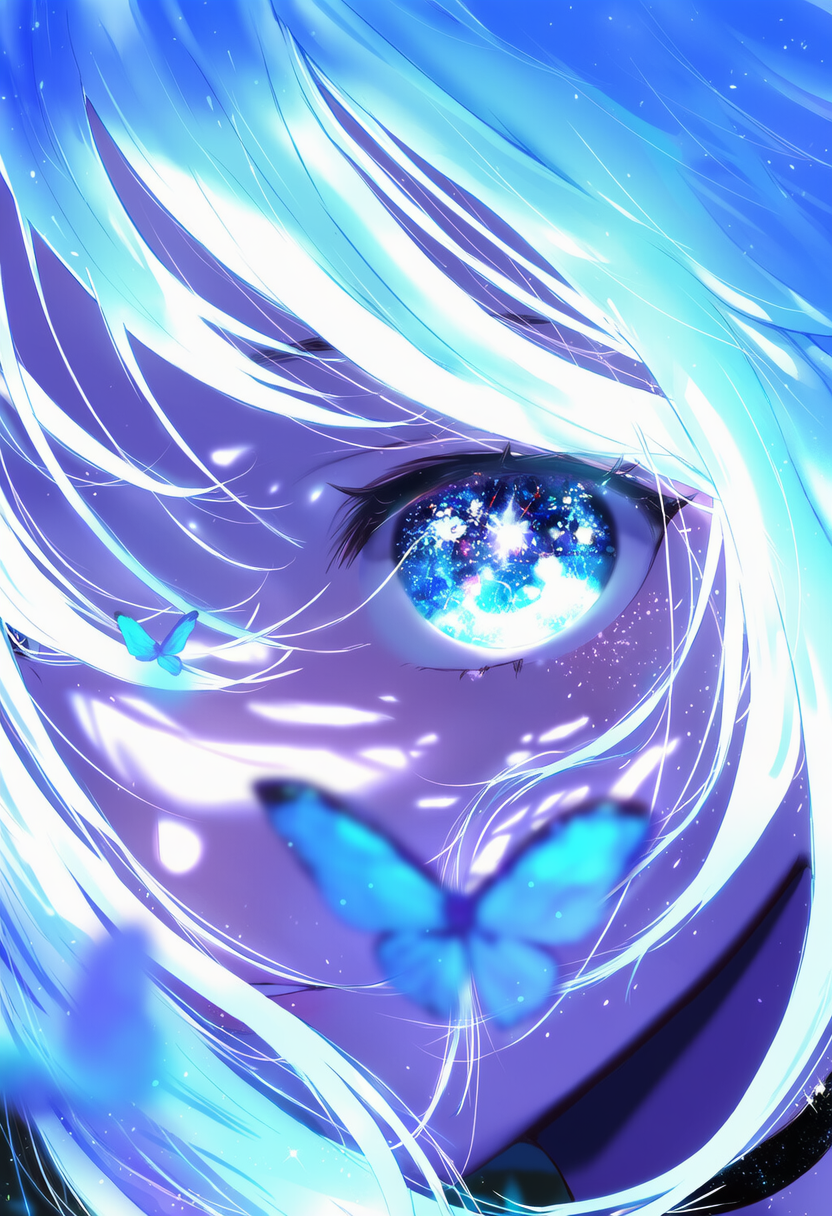
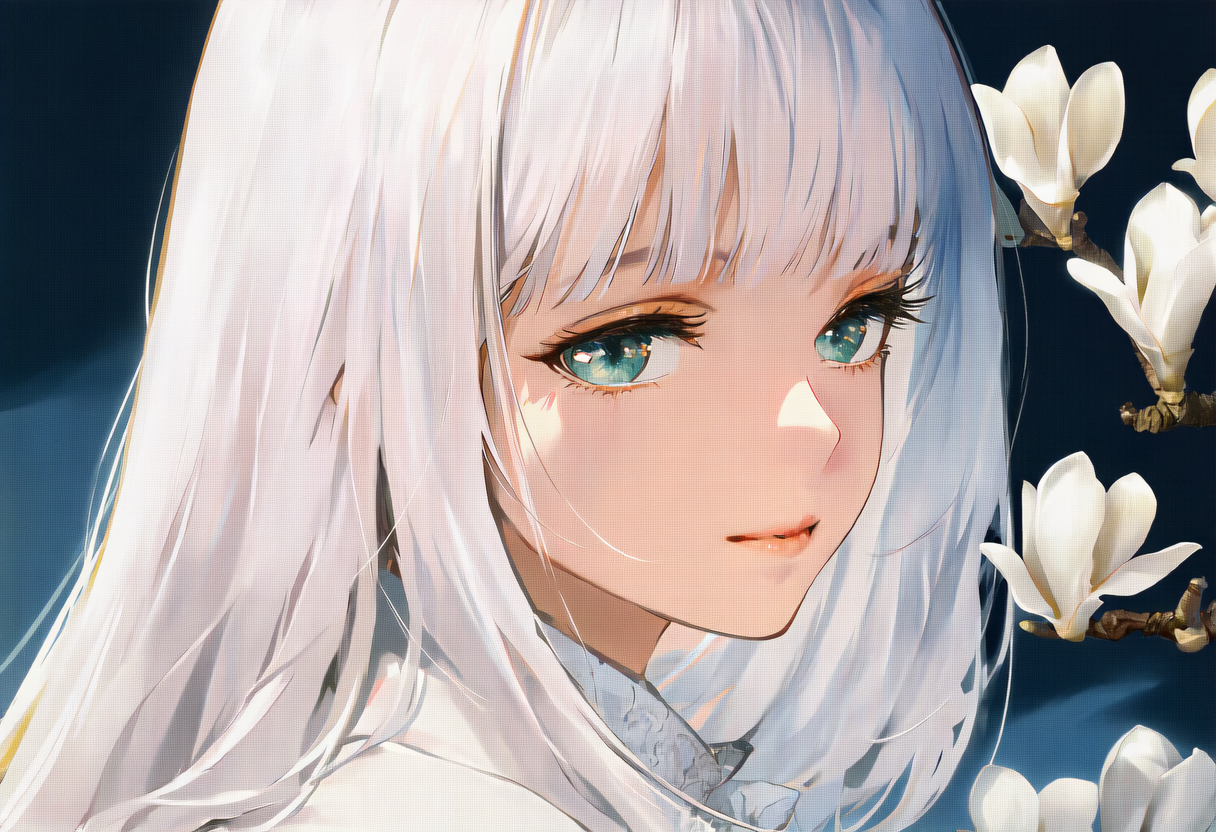
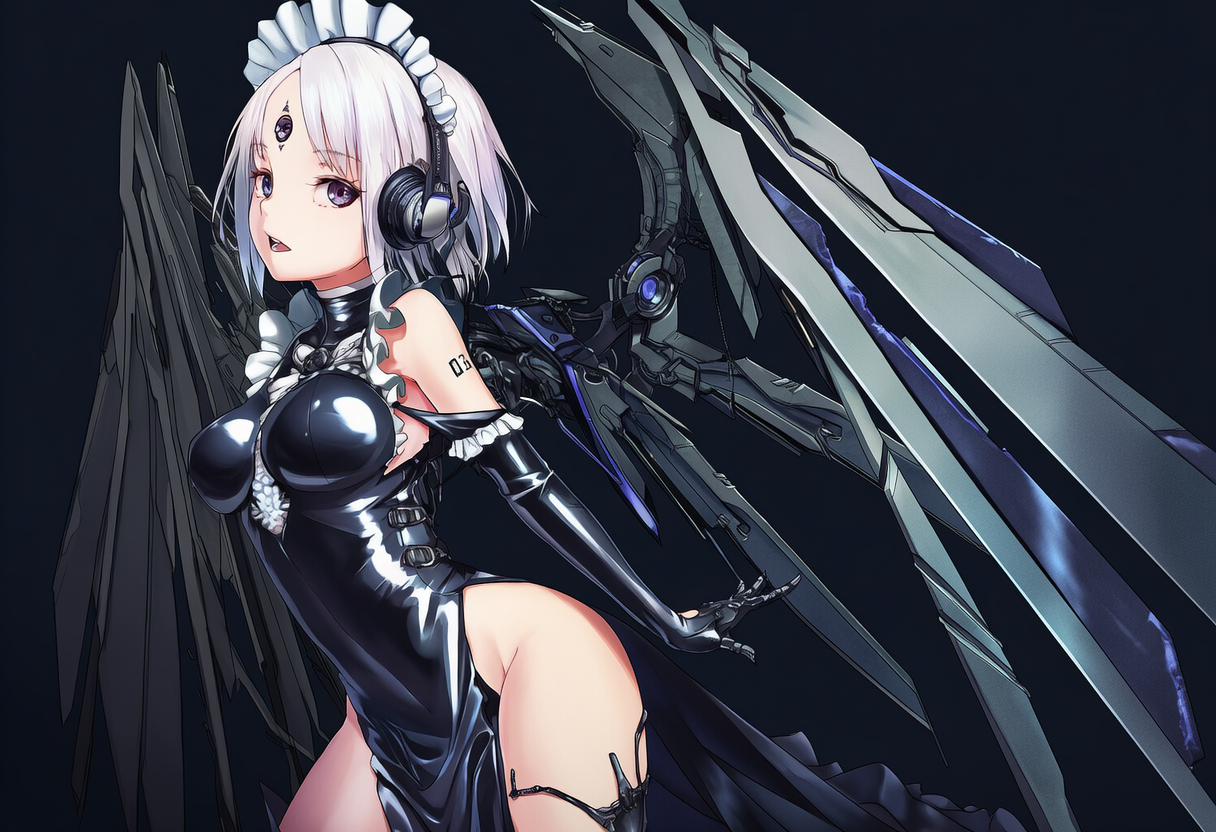
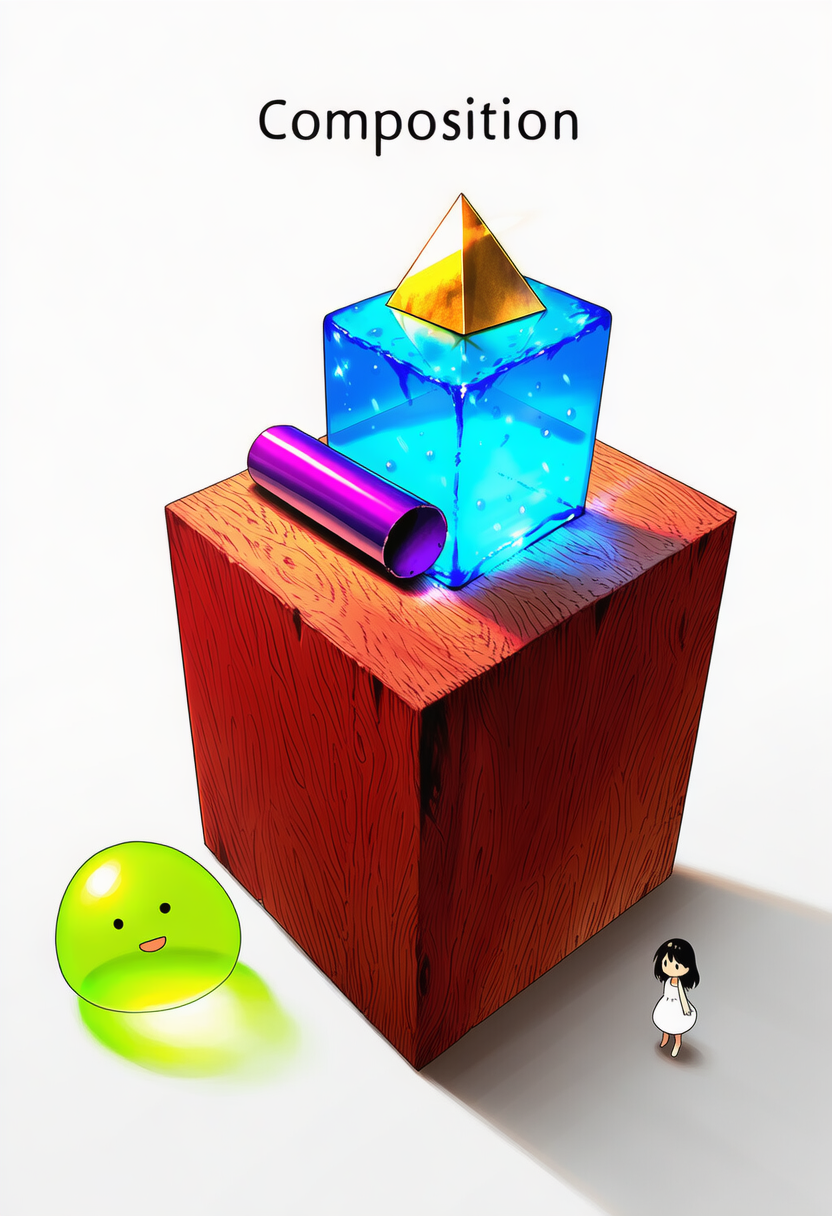
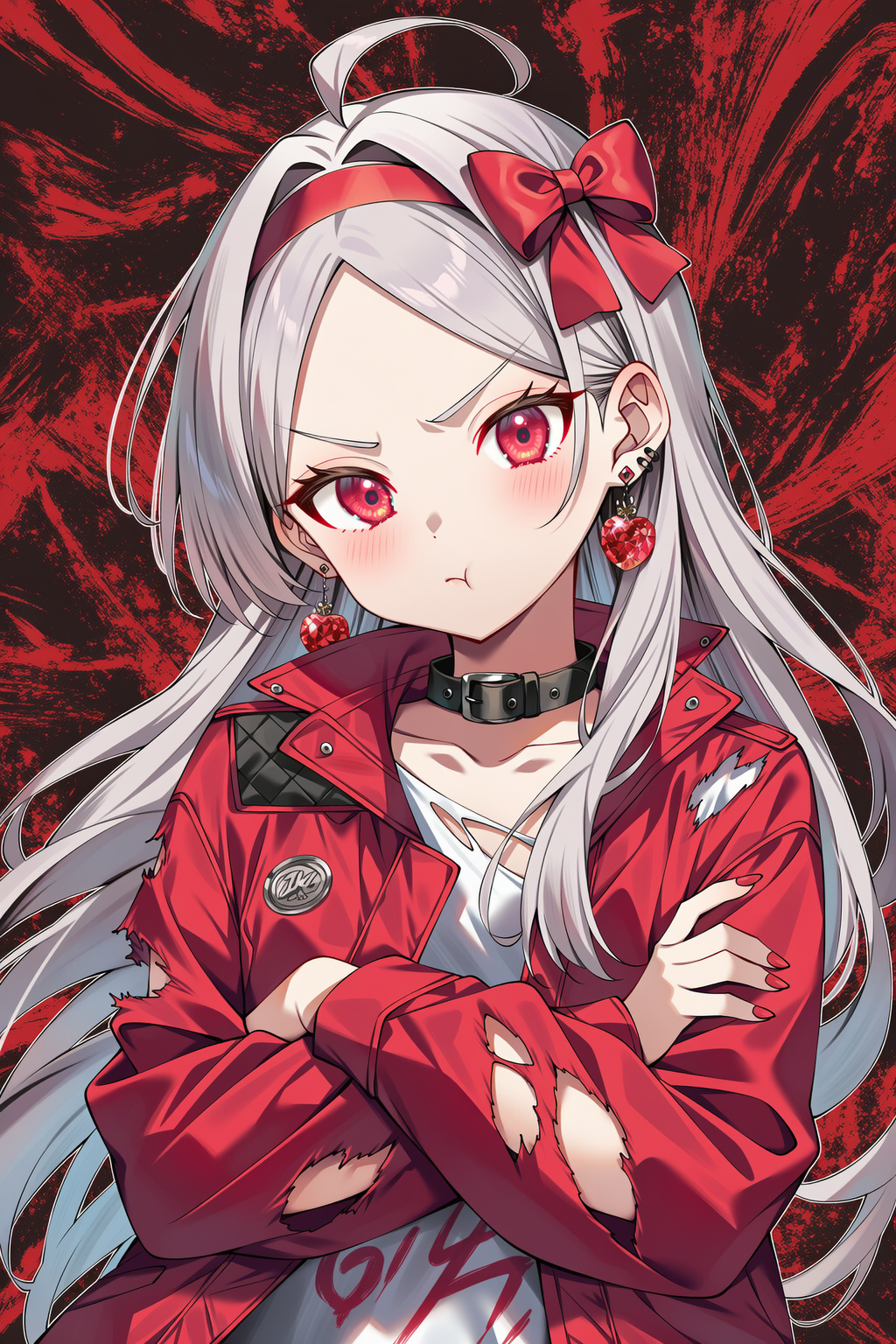
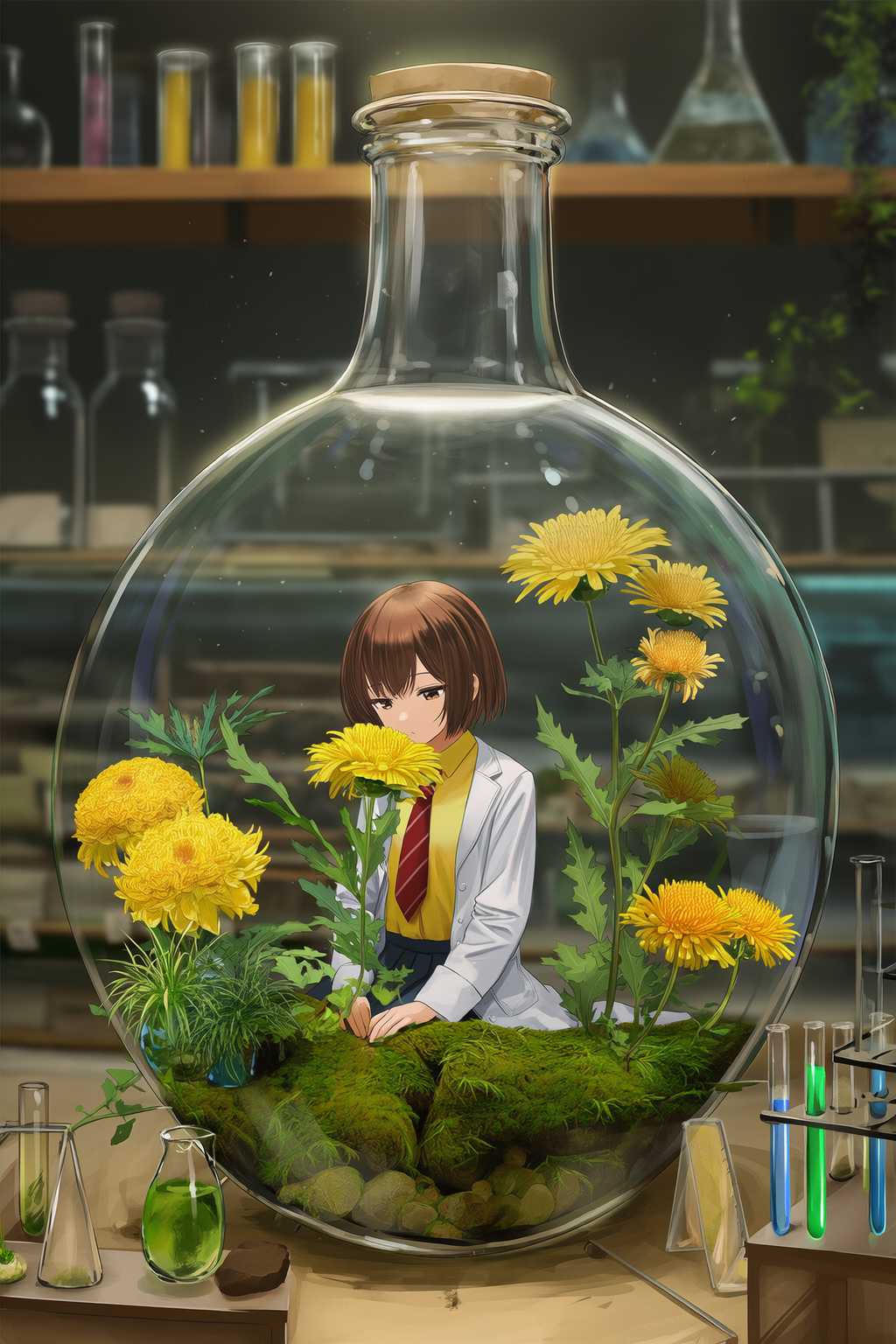
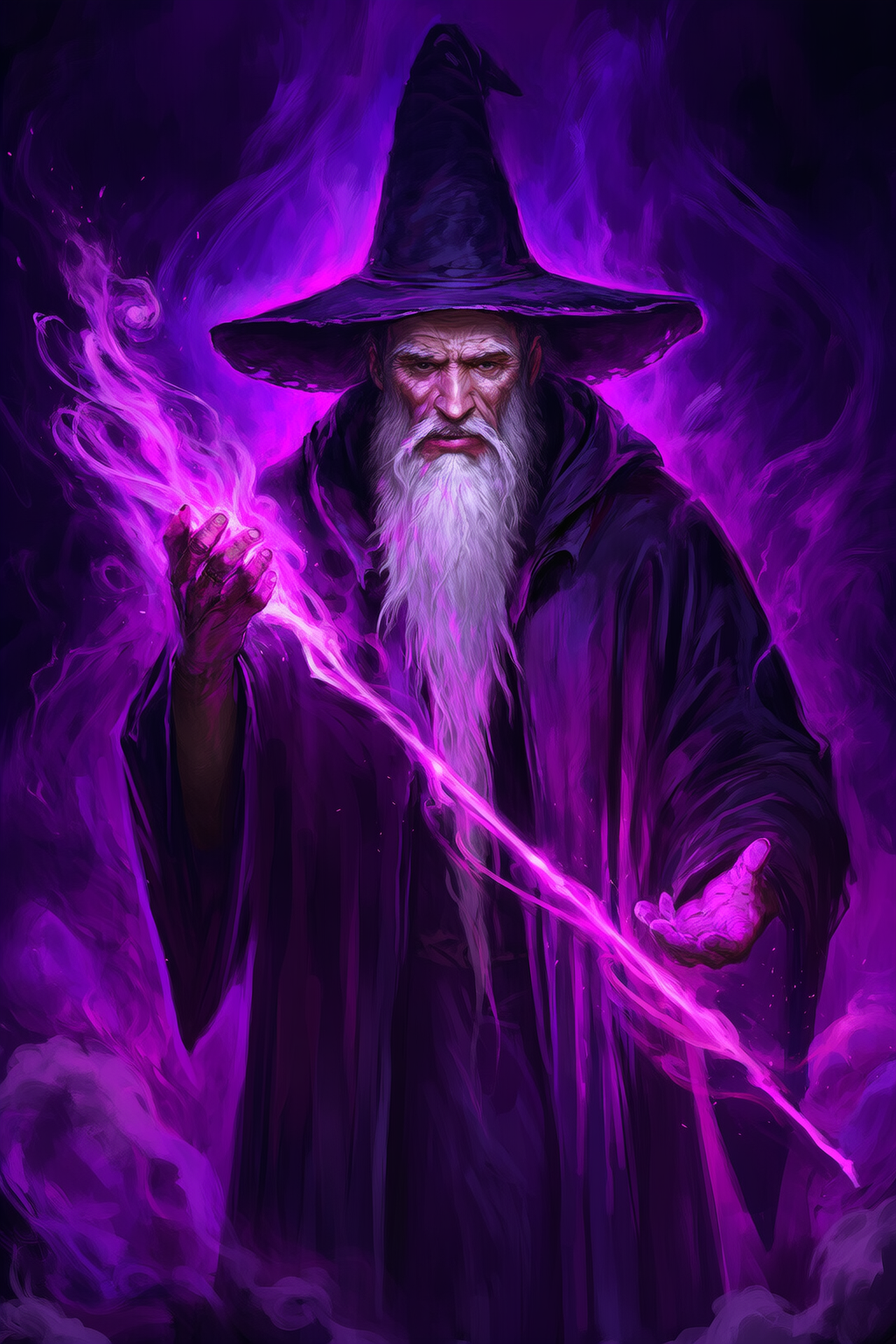
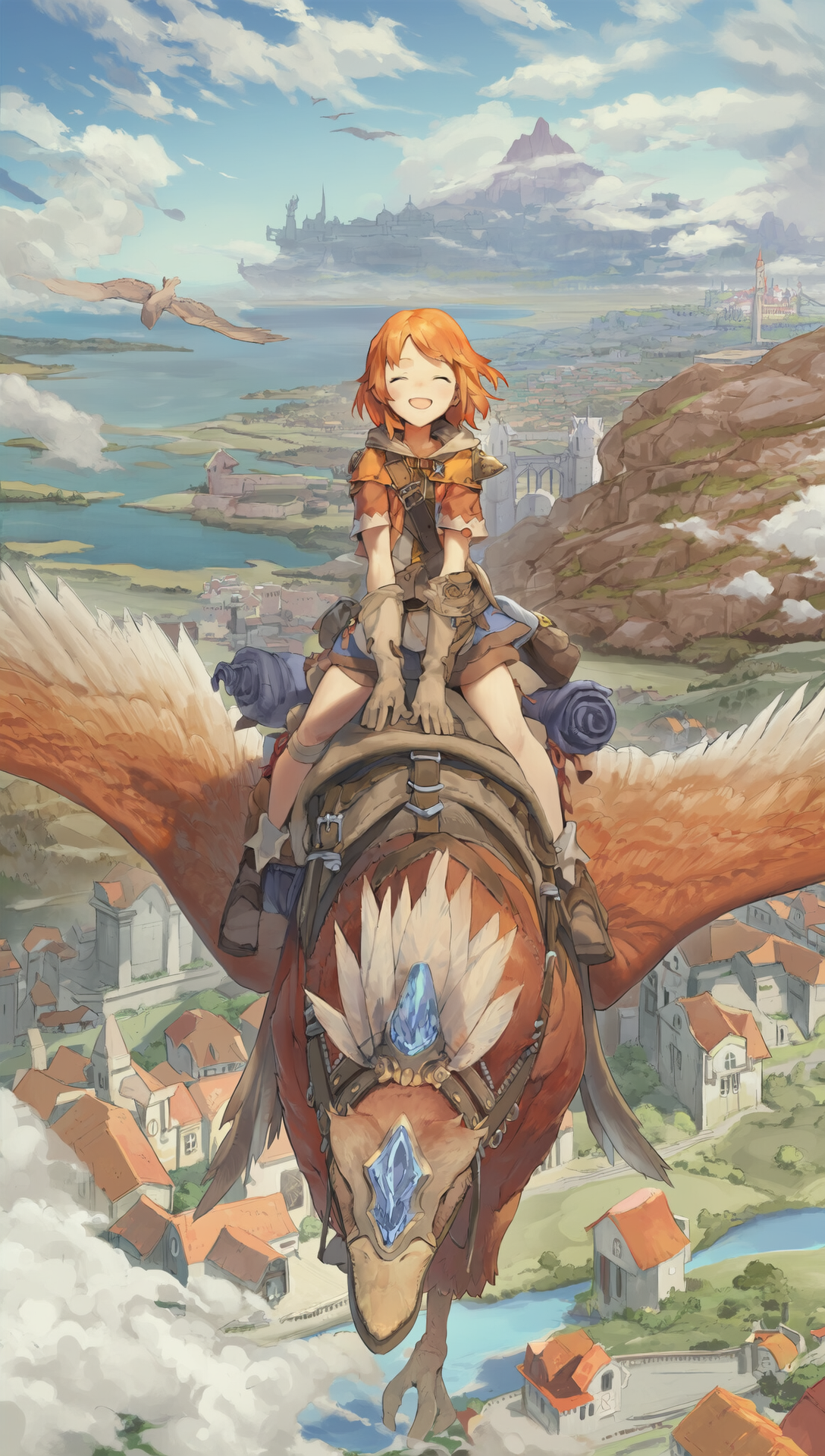
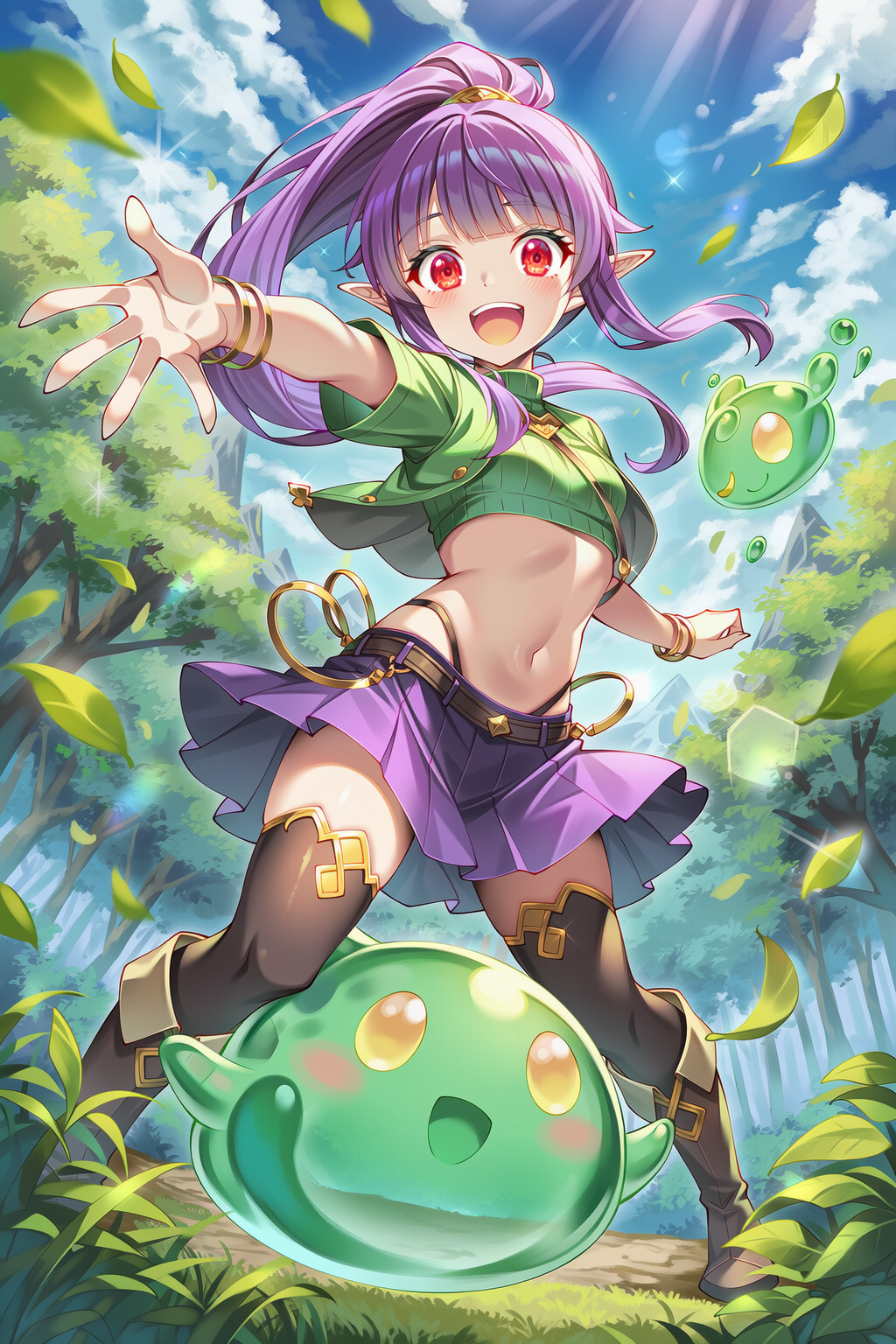
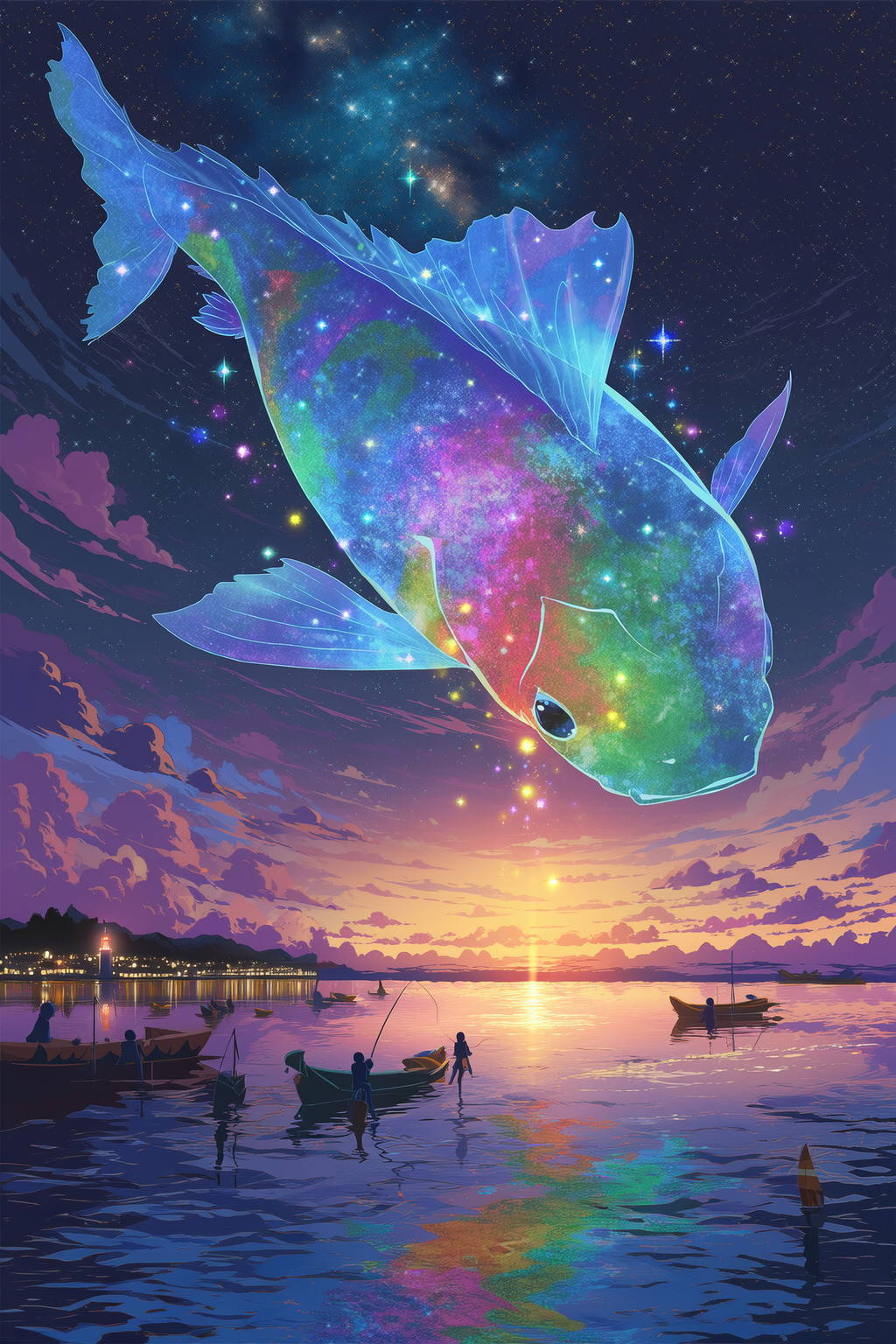
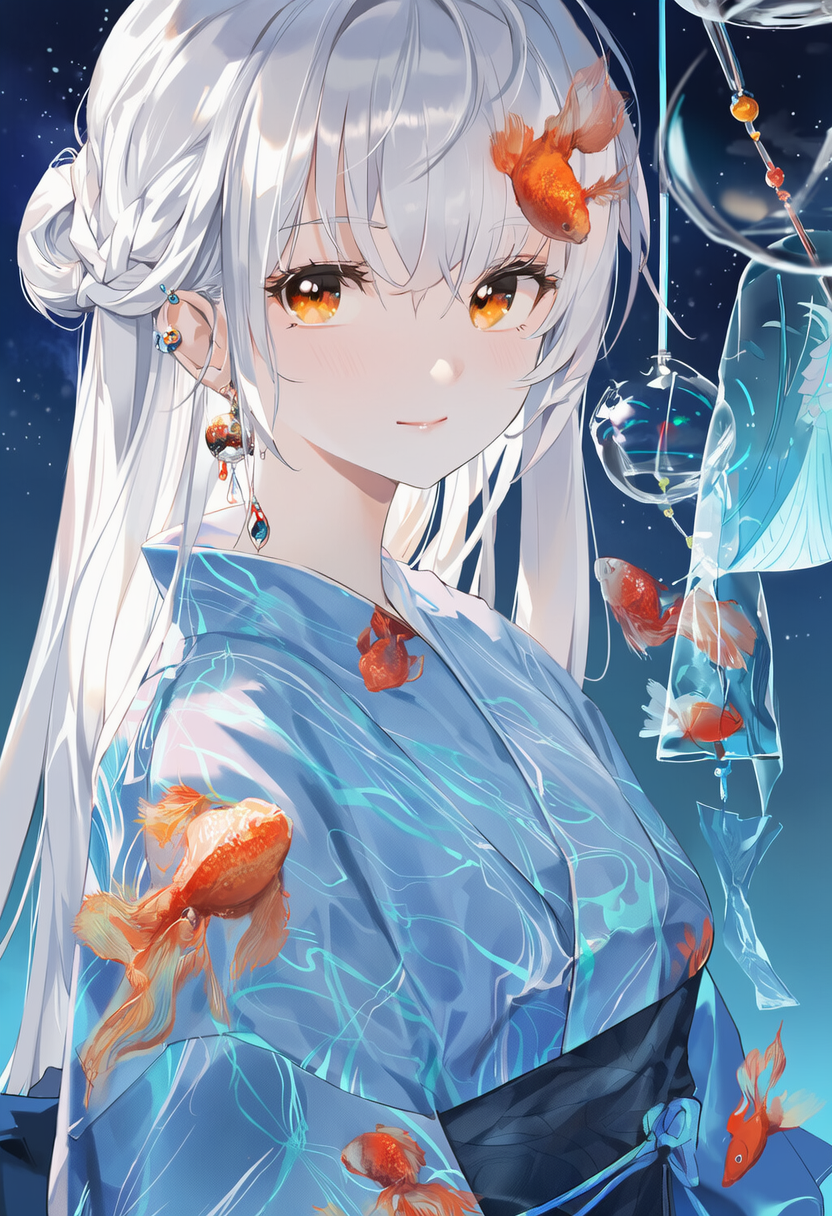
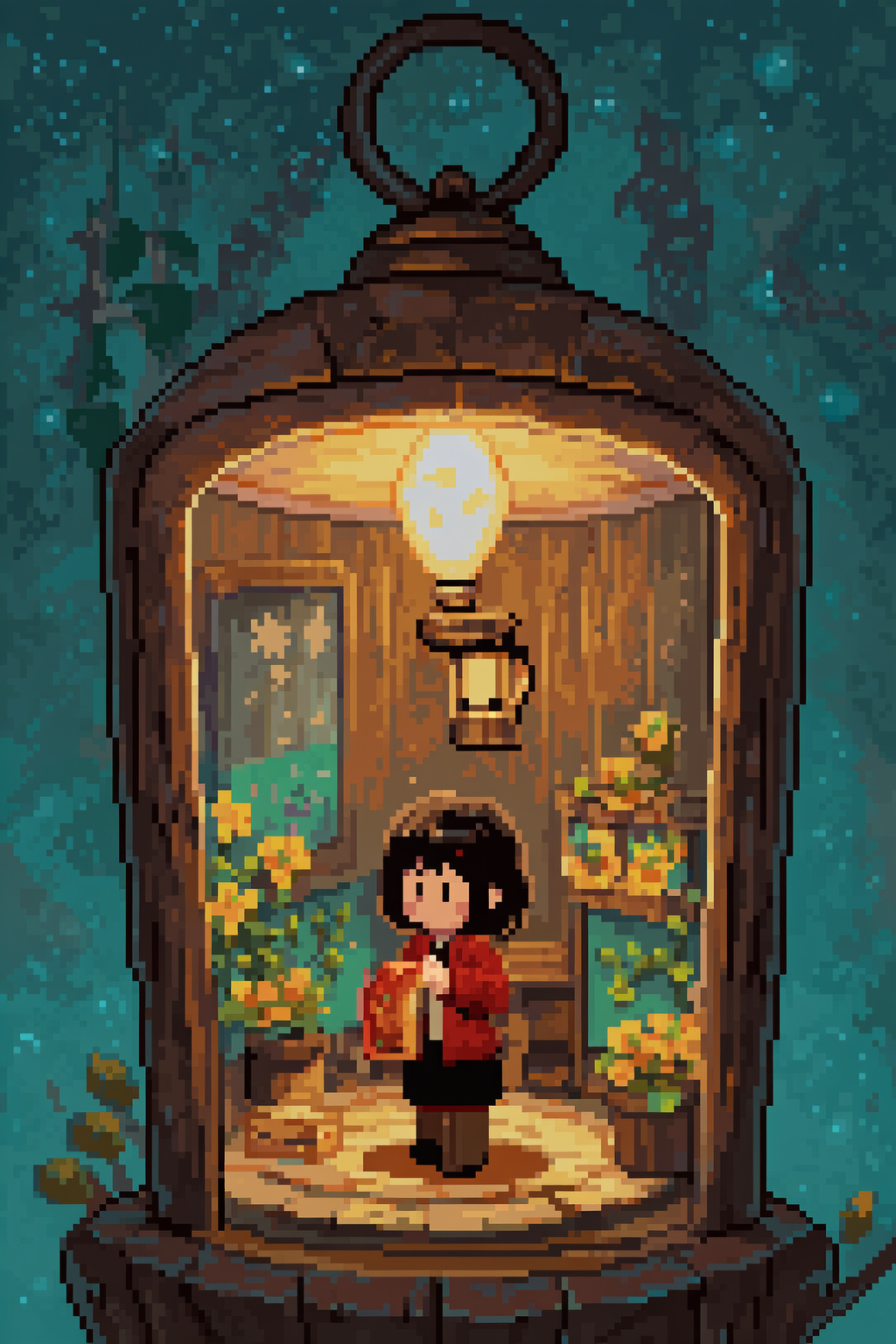
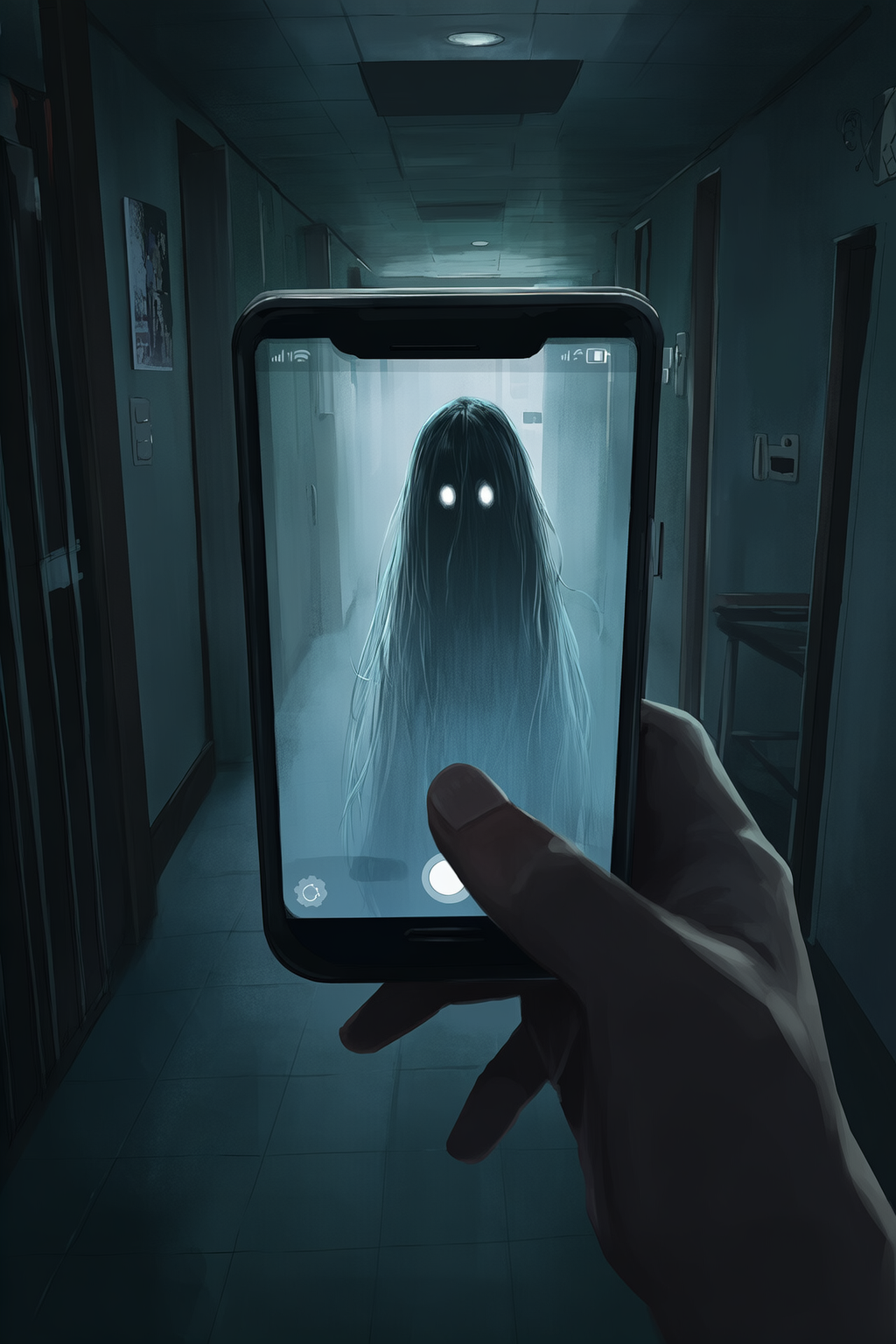
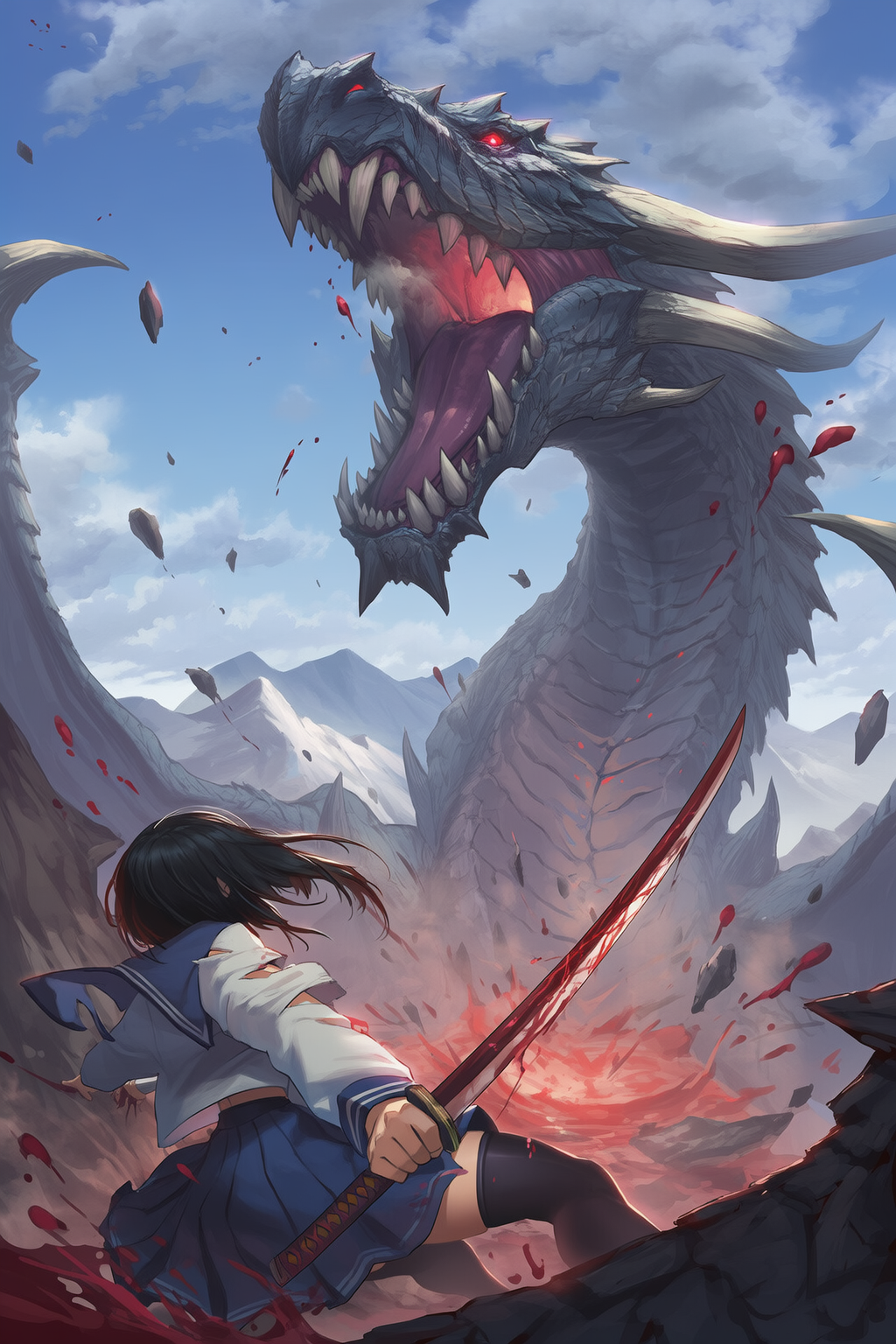
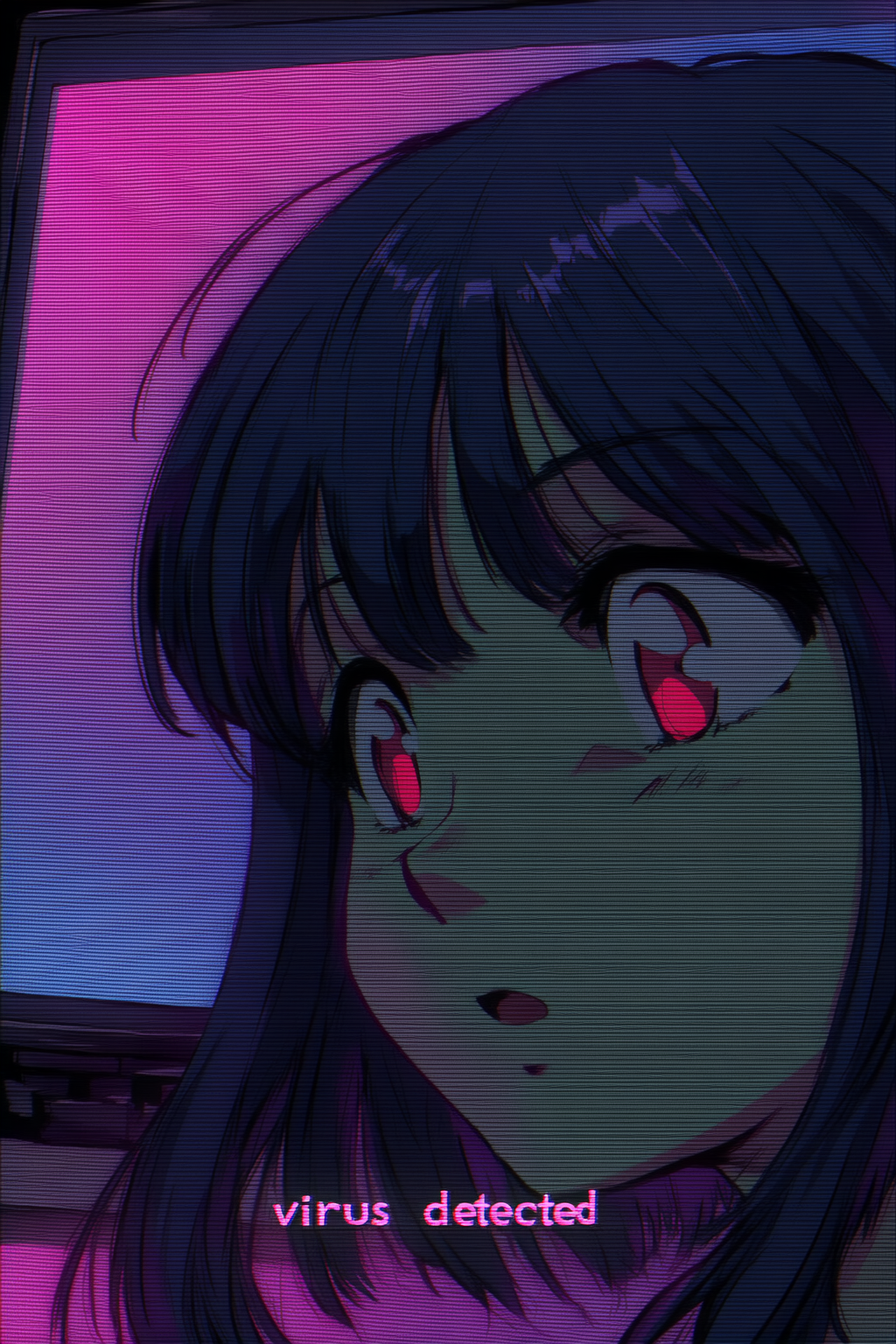
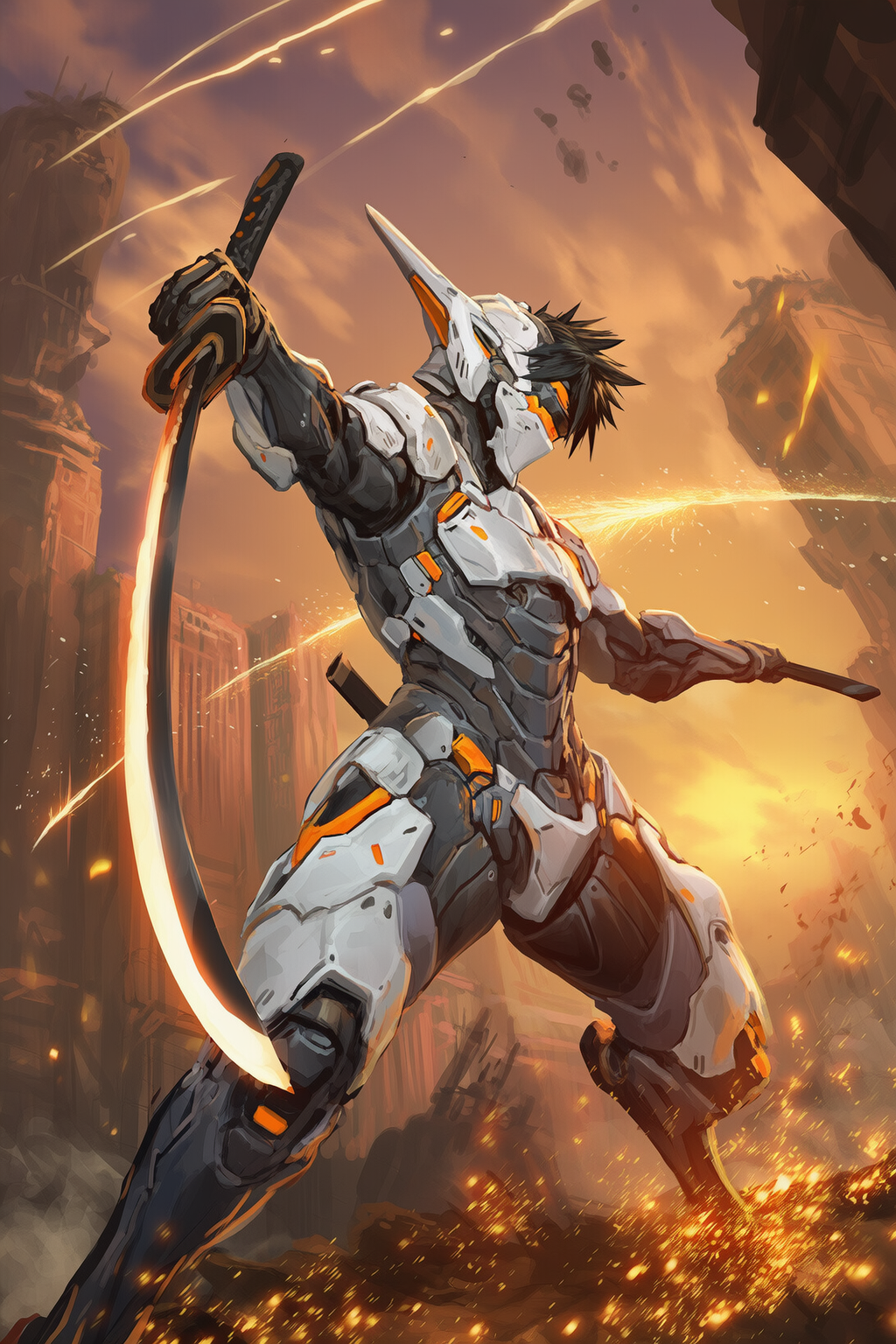
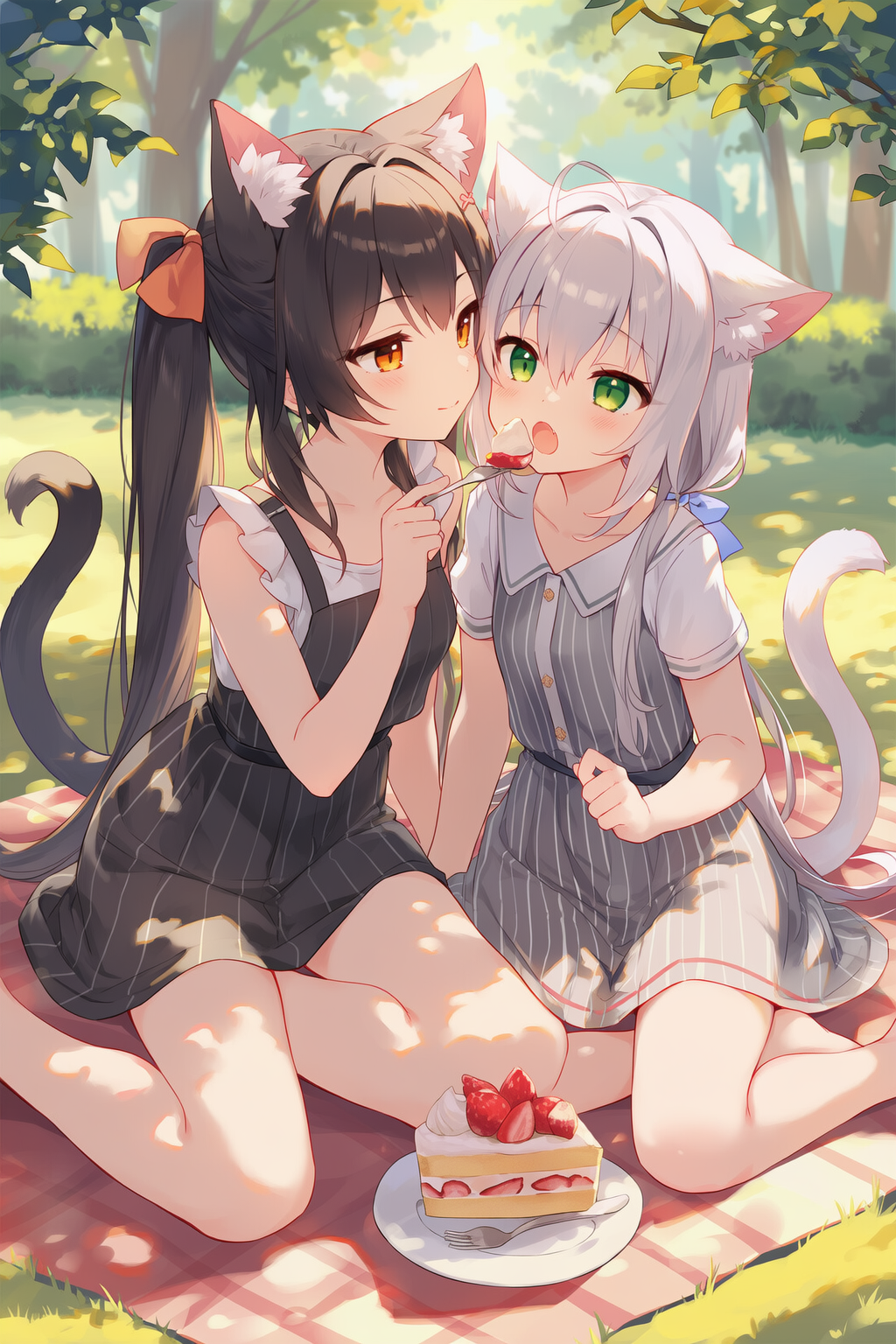
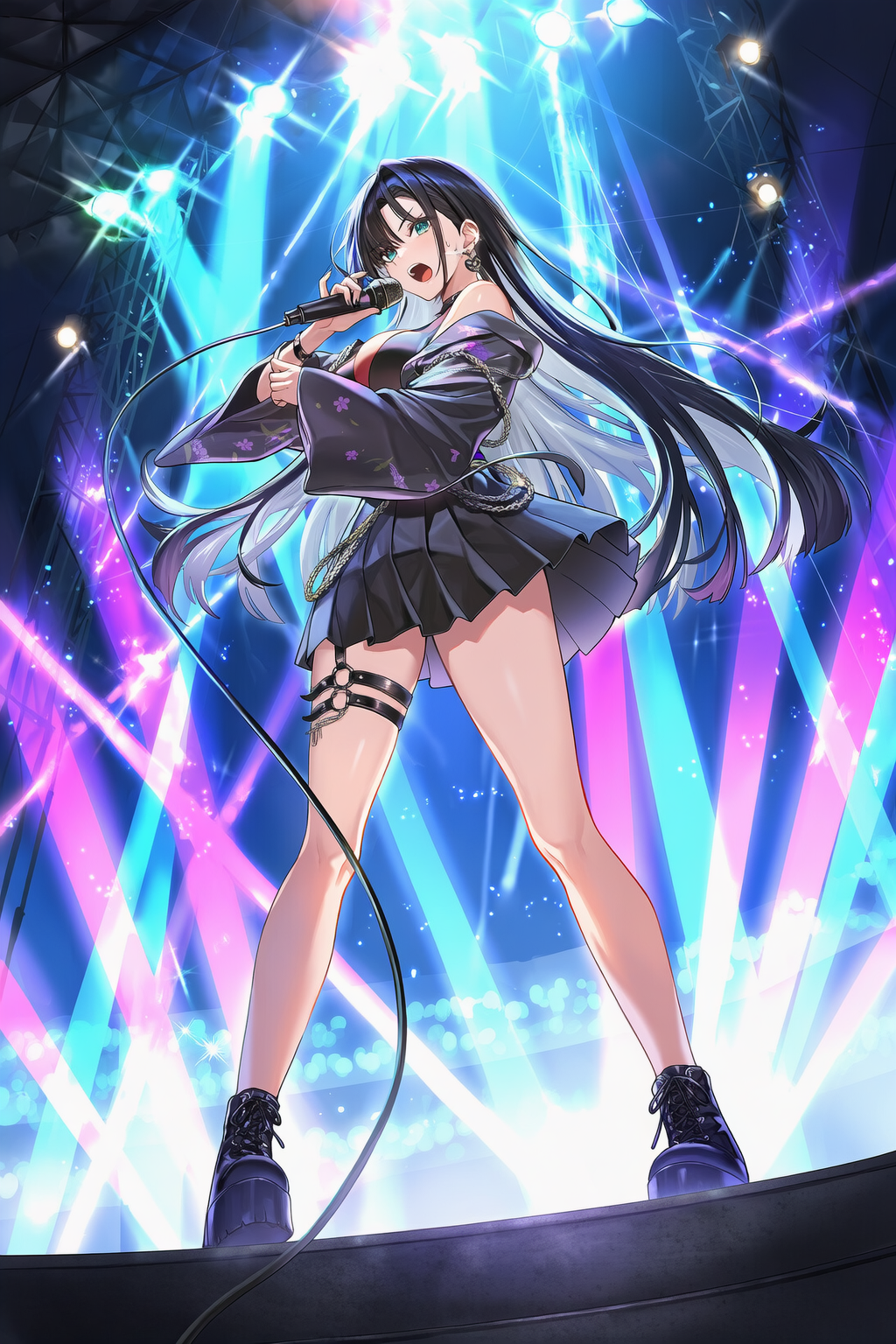
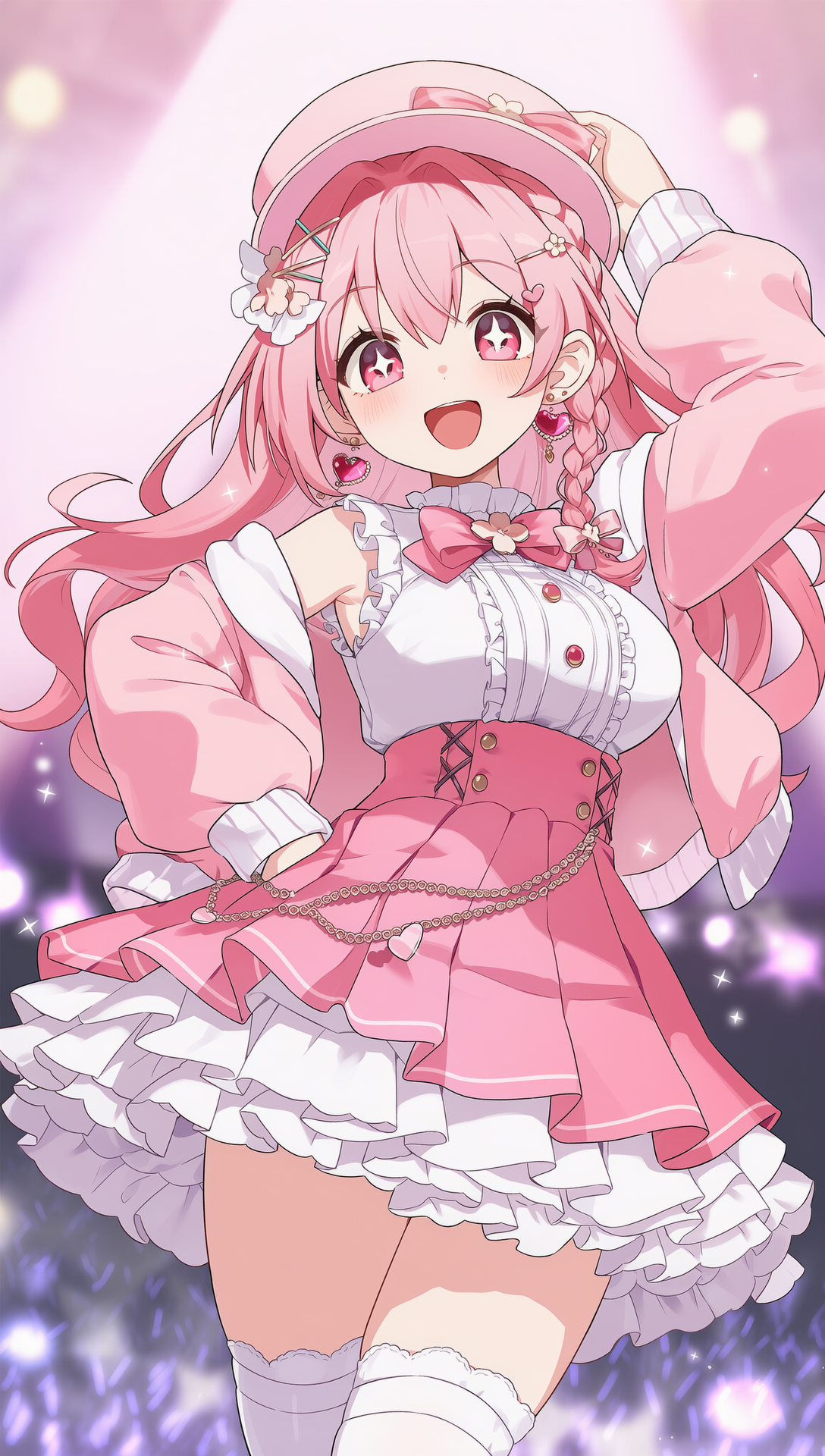
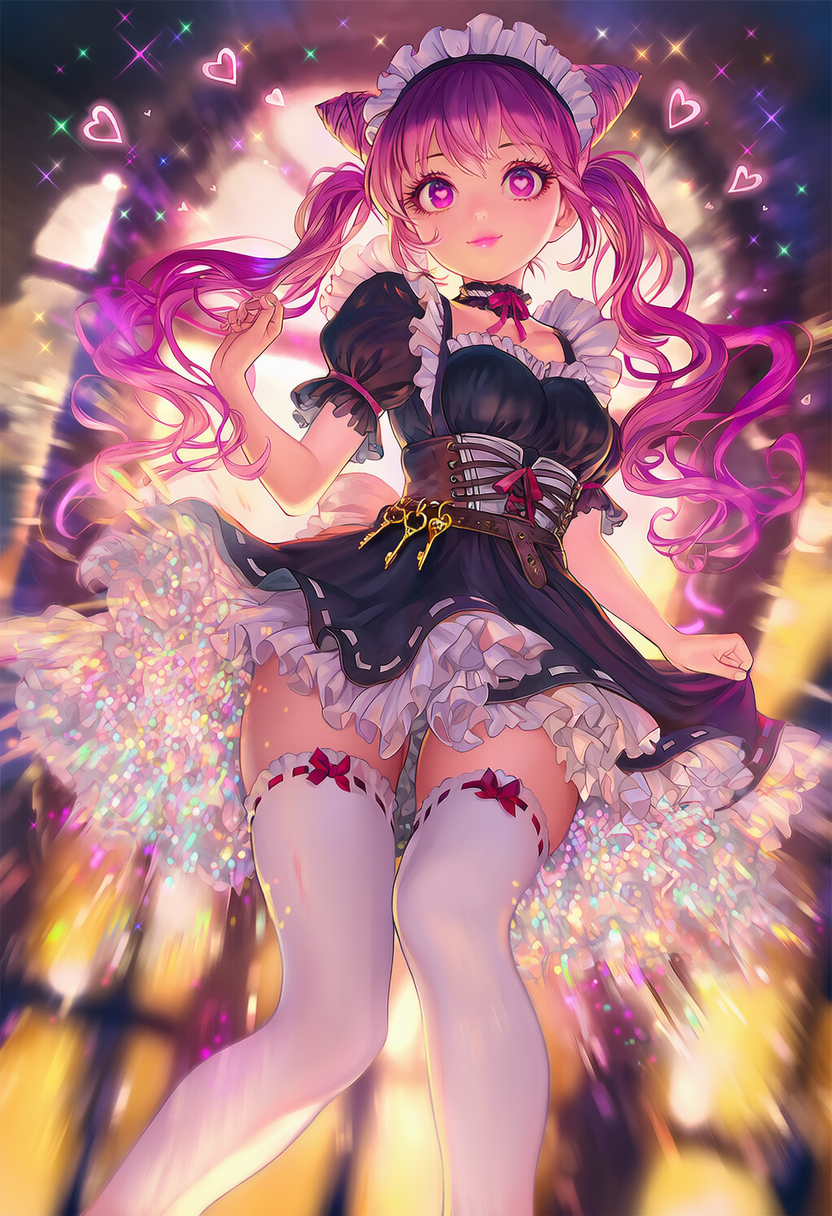
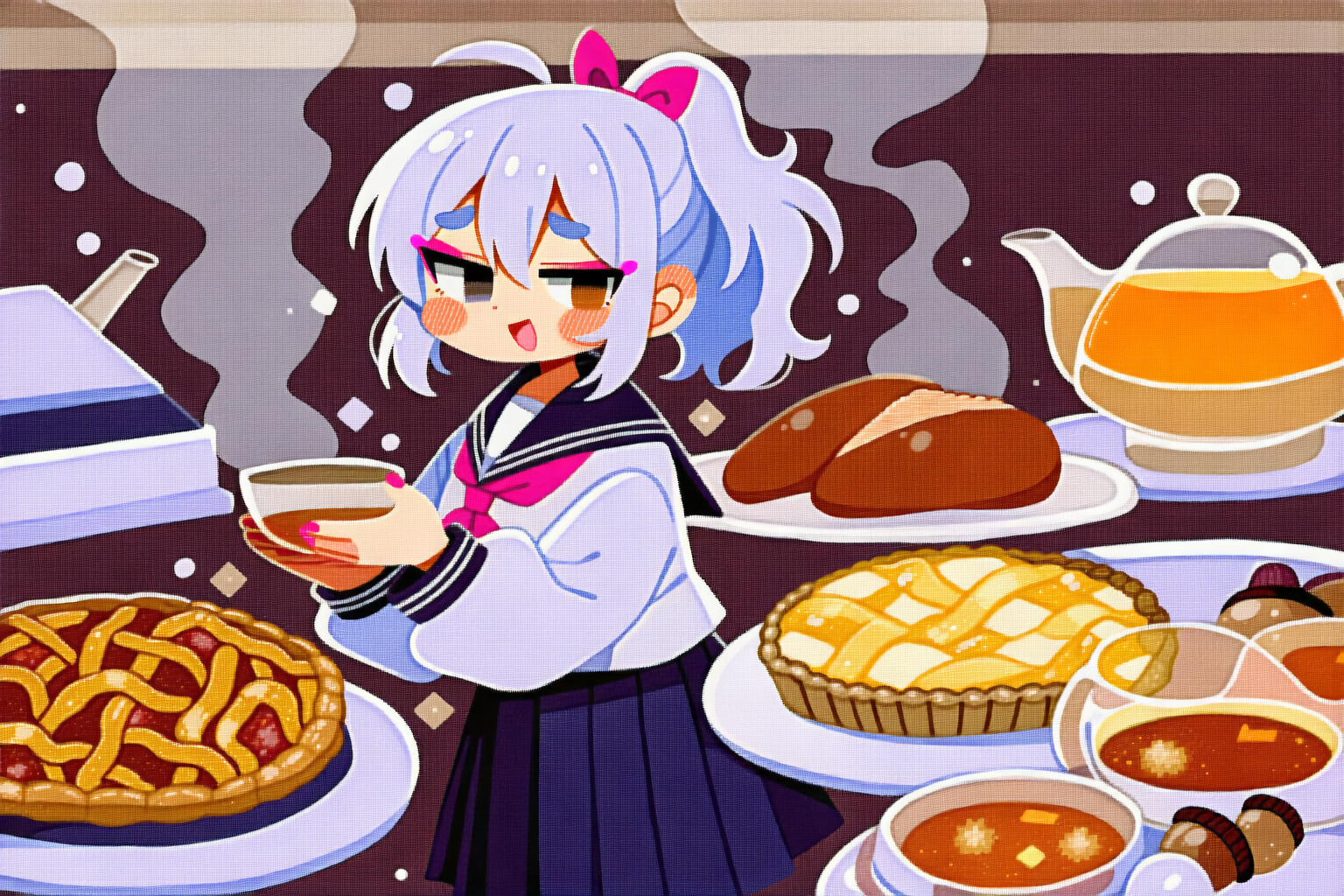
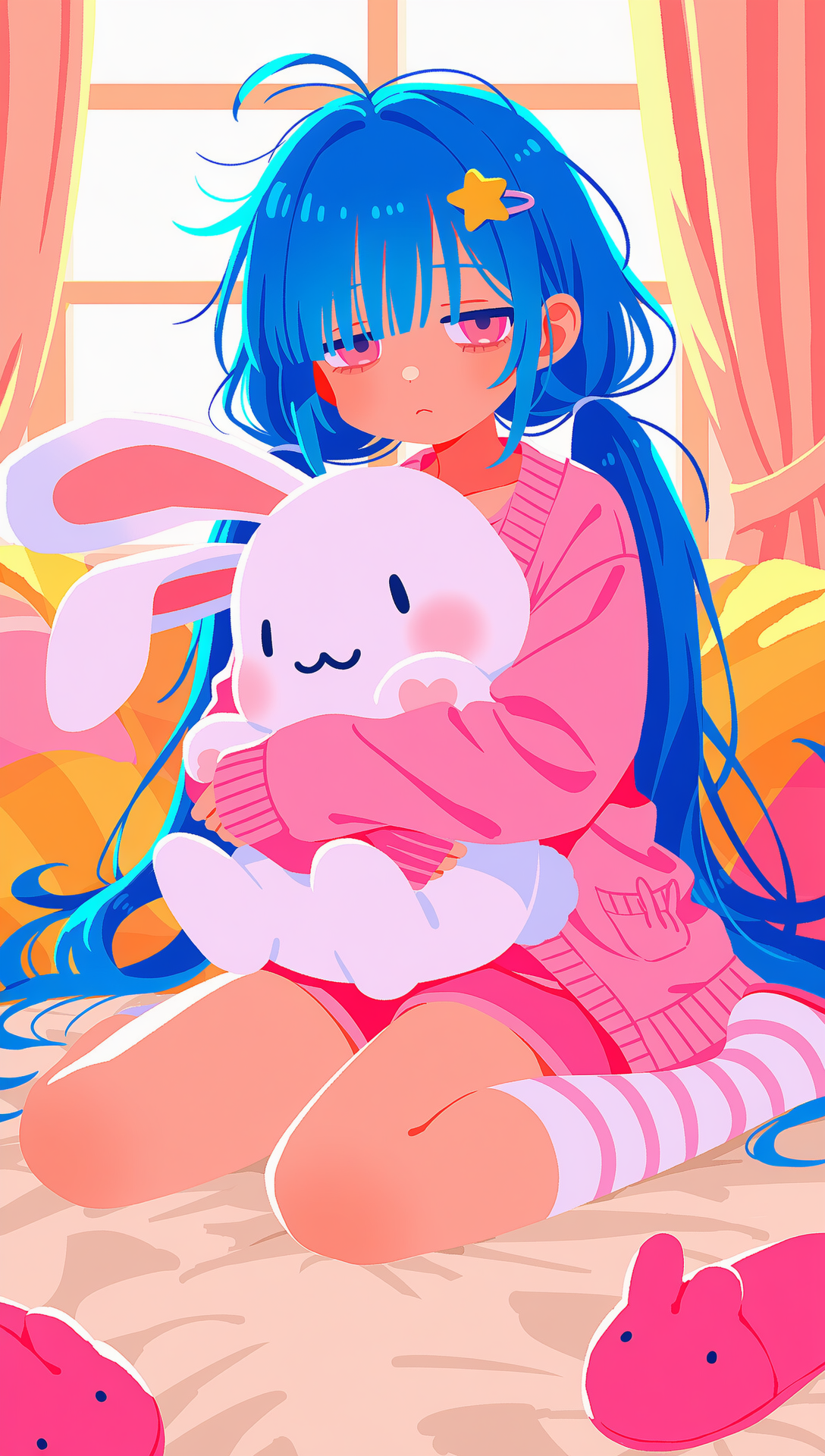
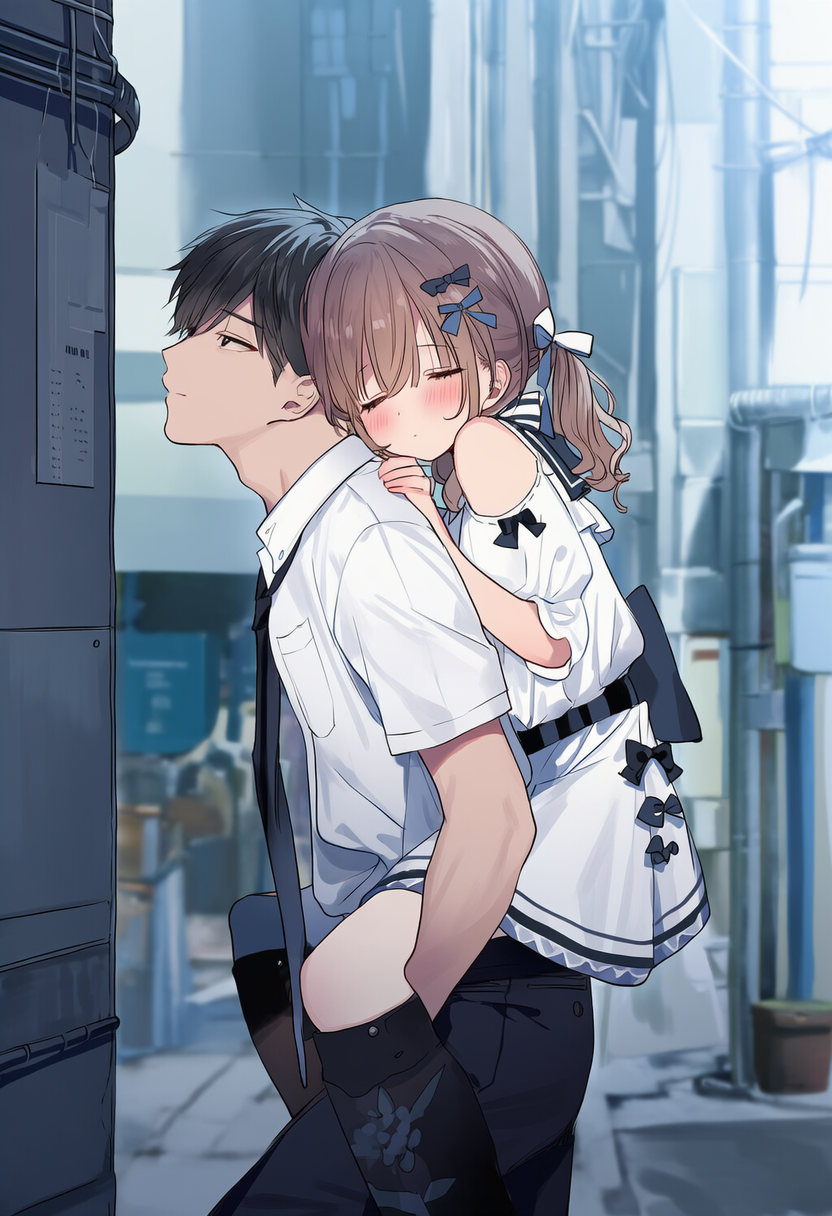

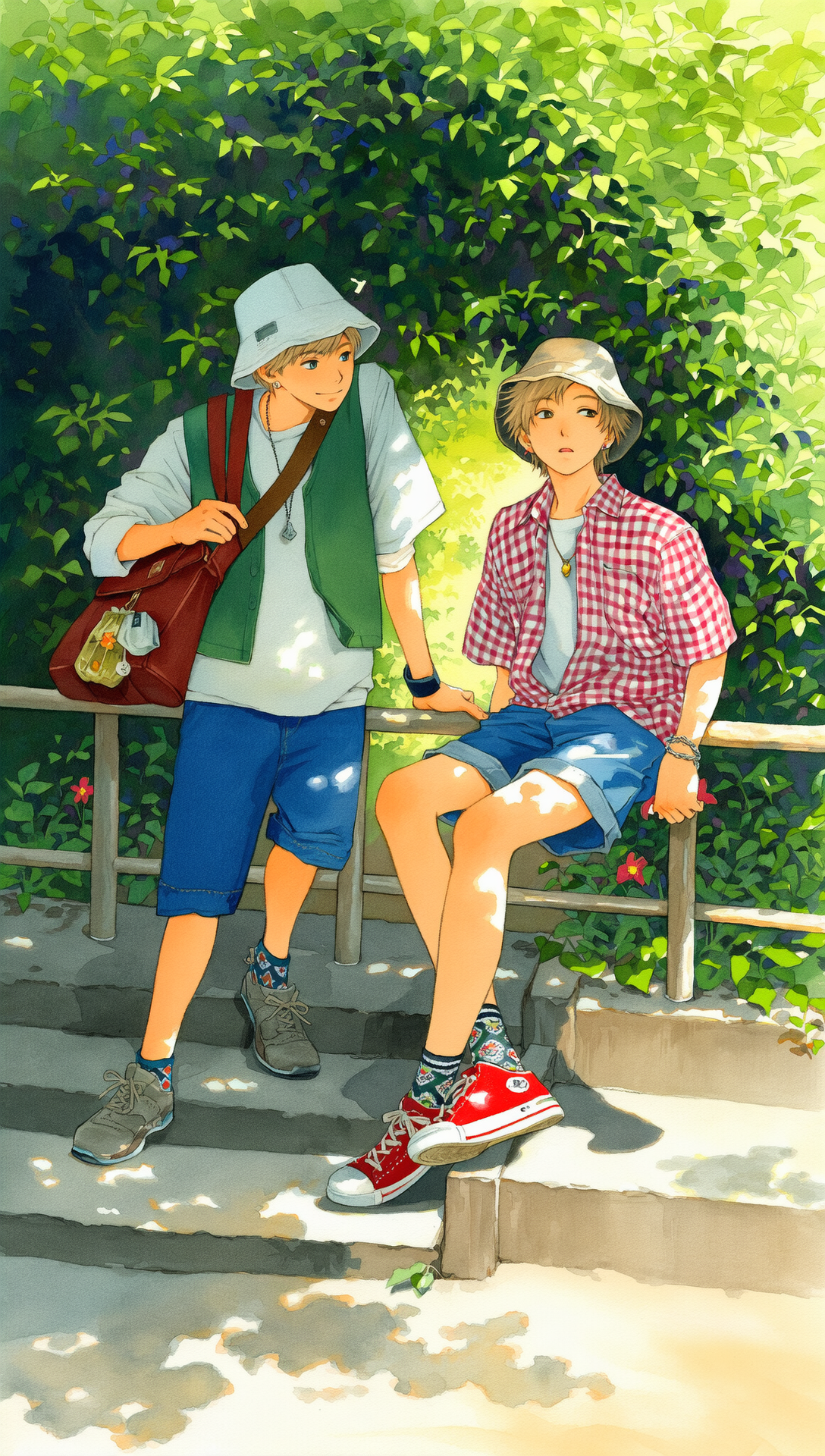
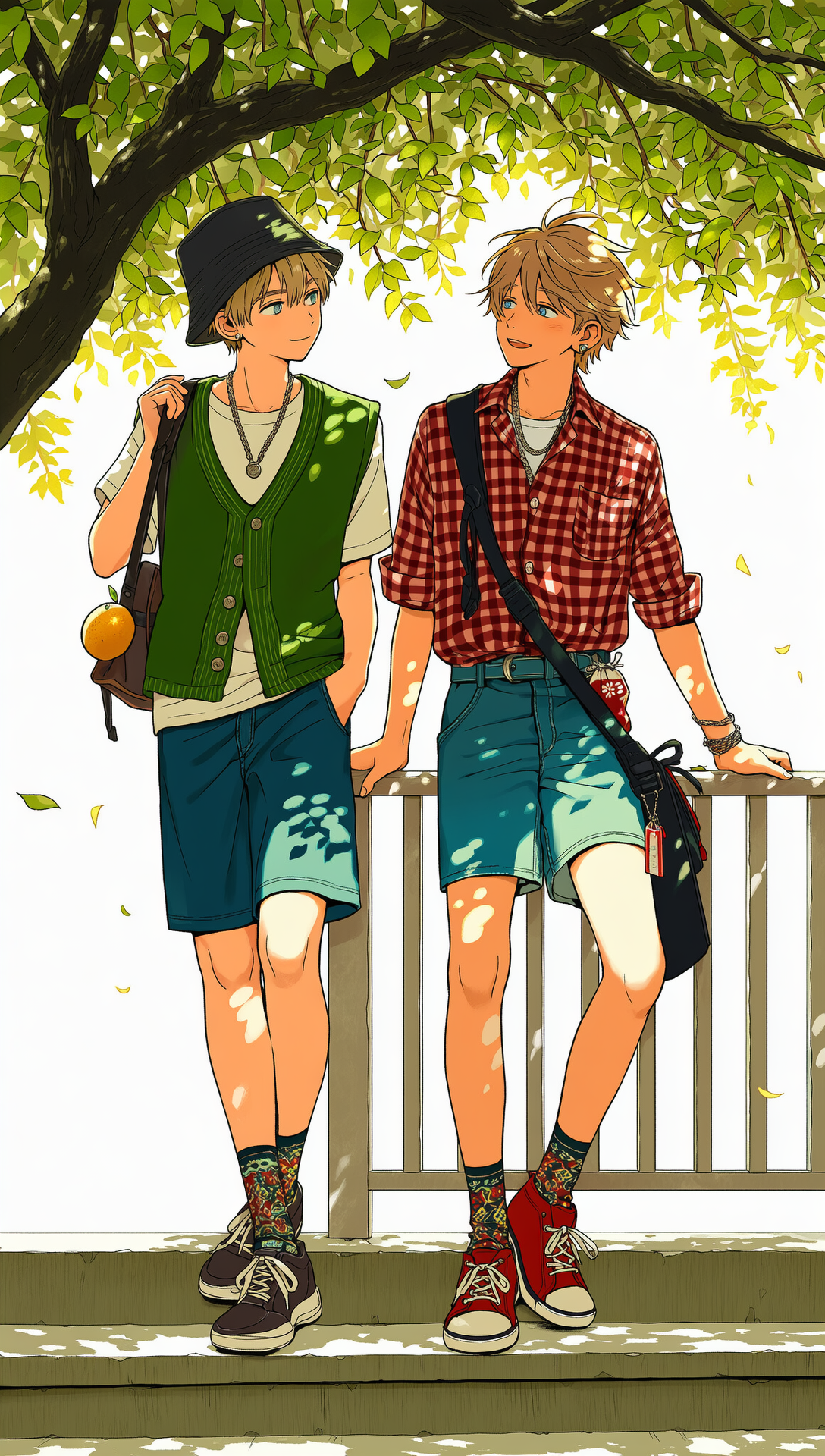
NovelAI Diffusion V4.5 Full is now available to all users! We can’t wait to see what you’ll create next!